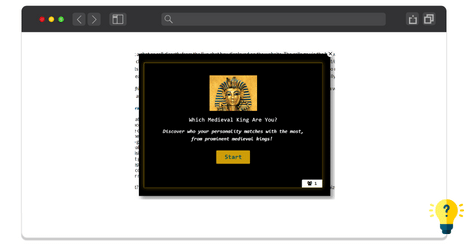
The Popup Quiz Addon lets you display your existing WordPress quizzes in attractive popup windows. You can choose where and when the popup appears, making it a convenient way to capture visitors’ attention without interrupting the main page content.
Use popup quizzes to increase engagement, collect leads, promote interactive content, or encourage visitors to participate in quizzes while browsing your website. The addon also provides flexible display and positioning options to match your website’s needs.
Why Use the Popup Quiz Addon?
The Popup Quiz Addon makes it easier to bring your quizzes directly into your visitors’ browsing experience without requiring a dedicated quiz page.
It is especially useful for:
- Lead Generation – Use interactive quizzes to capture potential customers and grow your audience.
- Visitor Engagement – Encourage visitors to interact with your website through fun and engaging quizzes.
- Marketing Campaigns – Display targeted quizzes on specific pages to support your campaigns.
- Product Recommendations – Place quizzes on relevant product or landing pages.
- Educational Websites – Add quick quizzes to lessons, articles, and learning materials.
- Interactive Content – Turn regular website pages into more engaging experiences.
How to Use the Popup Quiz Addon
Step 1: Install the Addon
Download the Popup Quiz Addon ZIP file and install it through your WordPress dashboard:
Plugins → Add New → Upload Plugin
After installation, activate the addon.
Step 2: Open Popup Quiz
Once the addon is activated, a new Popup Quiz section will appear in your Quiz Maker dashboard.
Open this section to create and manage your popup quizzes.
Step 3: Enable the Popup
Turn on the Enable Popup Quiz option to activate the popup according to your selected settings.
Step 4: Select a Quiz
Use the Select Quiz option to choose which of your existing quizzes you want to display inside the popup.
Step 5: Customize the Popup
Set the desired Popup Width and Popup Height in pixels to make sure the quiz fits your website design.
Step 6: Choose Where to Display the Popup
Use the Show On option to decide where the popup should appear.
You can choose:
- All Pages – display the popup across your website.
- Except – show the popup everywhere except the pages or posts you select.
- Selected – display the popup only on specific pages or posts.
You can also choose the relevant Post Type and individual Posts.
Step 7: Choose a Popup Trigger
You can configure when the popup should appear using different triggers, including:
- On page load
- On click
- Exit intent
- On scrolling
- In activity
* This addon works with the Free, Business or Developer versions of the Quiz Maker plugin.
