Trivia quizzes are one of the simplest ways to get your website visitors to interact with your site instead of just scrolling past. A trivia quiz is a quiz that is made up of factual questions and is usually made to test what someone knows about a specific topic. Unlike quizzes like personality ones where there is no right or wrong answer, trivia quizzes are all about knowledge: like movies, history, geography, sports, and basically any o
other topics. If you want to experience a trivia quiz yourself and see what it feels like, check out our trivia quiz for kids demo.
In this guide, we will show you how to build a free trivia quiz in WordPress using the Quiz Maker plugin.
Why Trivia Quizzes Work So Well
- Variety keeps people engaged. Mixing question formats, like multiple choice, open text, radio, and many more, keeps the quiz feeling fresh instead of repetitive and boring, which matters a lot for holding attention through a full set of questions. Quiz Maker plugin is a great choice for this matter because they offer more than 10 question types; get to know all question types explained.
- Visuals make it more enjoyable. Adding images directly into questions or the quiz interface makes the whole thing more engaging to look at, especially for trivia built around visual topics like movies, geography, or pop culture. It’s even better because the plugin lets you add media to your questions, like images, videos, and audio. Learn more by checking out our How to create a video quiz in WordPress article.
- Hints keep it fun instead of frustrating. A tough question doesn’t have to mean someone gives up. You can easily add hints that let you balance difficulty so people stay in the quiz instead of abandoning it out of frustration.
- A timer feature – You can add a timer as well, which gives the quiz a gamified, competitive feel that tends to increase engagement as people try to beat the clock.
| Feature | Why It Matters |
| Multiple question types | Keeps the quiz feeling fresh instead of repetitive |
| Images, video, and audio support | Makes visually or audio-driven trivia topics more engaging |
| Hints | Balances difficulty so hard questions don’t cause people to give up |
| Timer | Adds a sense of urgency and friendly competition |
| Custom success/fail messages | Keeps players motivated after each answer |
| Full style customization | Lets the quiz match your site’s branding instead of looking generic |
How to Create a Trivia Quiz With Quiz Maker
Here is a step-by-step guide on how to create a trivia quiz with the Quiz Maker plugin.
Step 1. Install and activate the Quiz Maker Plugin
If you’re not familiar with the process, feel free to check out our Plugin Setup and Installation article to learn more about the setup process.
Step 2: Create Your Questions and Quiz First
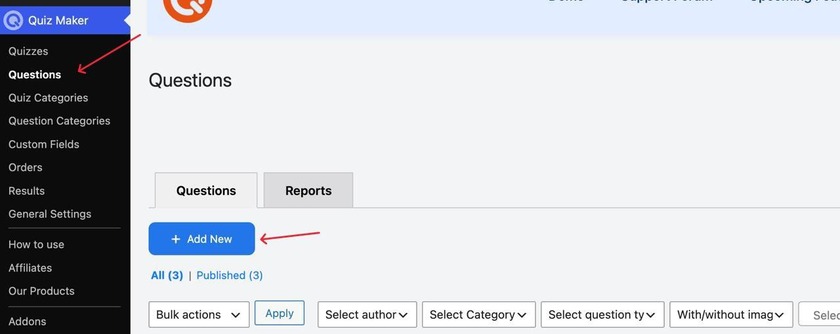
Build your questions and add them to your quiz as usual. To add new questions, you will have to follow these steps: click the Quiz Maker icon on your left sidebar, choose Questions, and click Add New as it’s shown in the screenshot below.
Step 3: Add your questions and answers
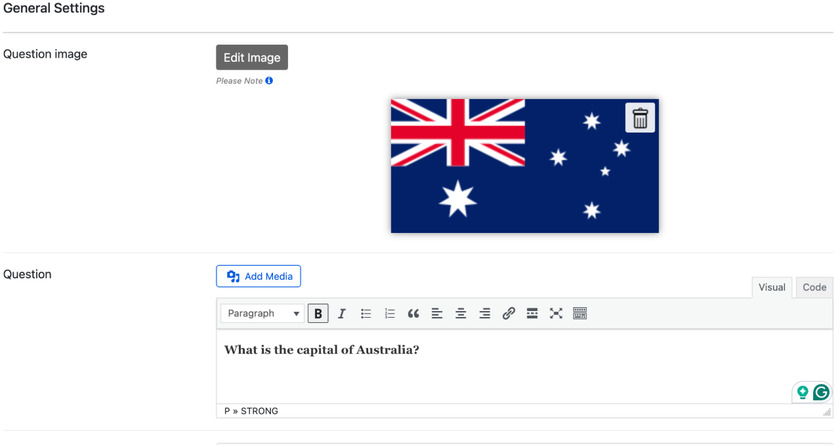
Our next step is to write questions, choose the correct answer, and set other settings if you wish.
You can also add an image to make the experience better for visual learners.
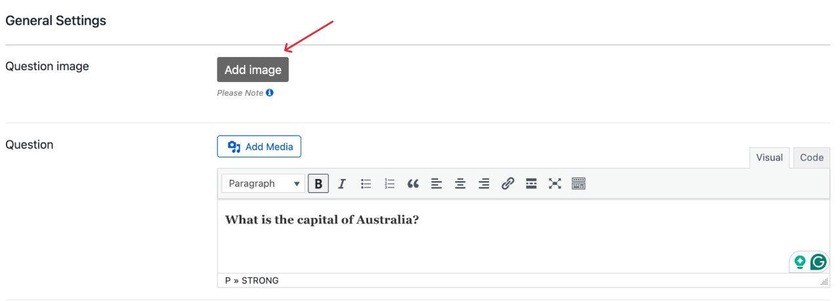
Once you click Add Image, you will be able to choose a file from your computer.
Here is what my final trivia question looks like.
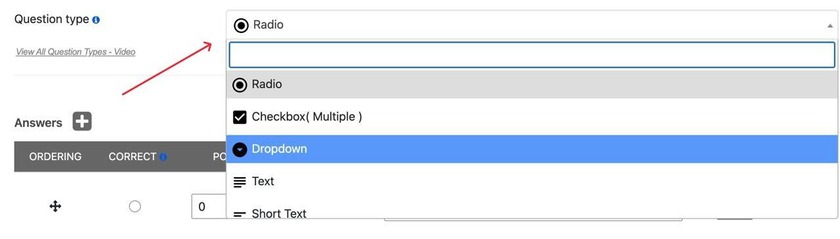
Under this section, you will also see the Question type button, where you can choose your desired type.
Step 4. Add Hints to Balance Difficulty
We would recommend adding hints for difficult questions. This gives the players a little help without giving them the answer directly, keeping the quiz challenging but not too frustrating.
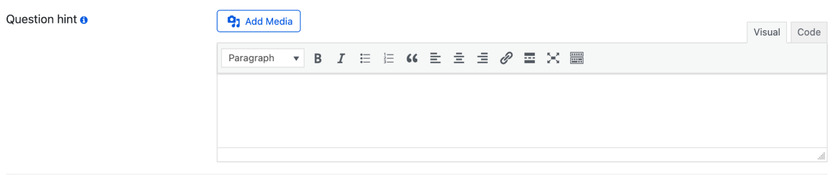
Here is how you can add a question hint.
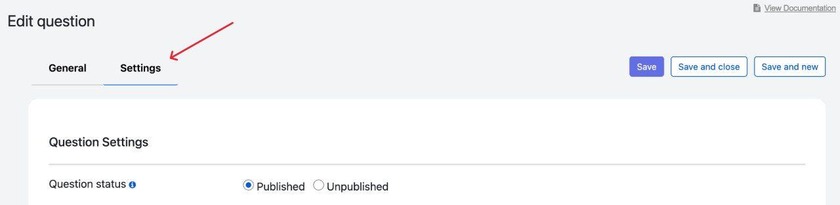
You should click the Settings button shown below
After scrolling a bit, you will be able to see the question hint section and add whatever hint you want.
In the same settings section, you can also find these two settings
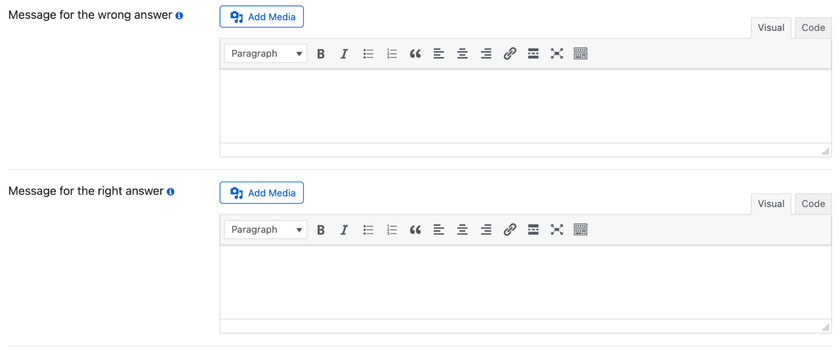
This is a great way to keep your trivia takers motivated; you can put things like
“ Great, the answer is correct; keep going !” kind of messages for the right answers to motivate them, or messages like “ It’s okay, you will get it next time” for the wrong answers, to not discourage the takers. This is a great feature to make the quiz interactive and fun.
Step 5. Add a timer
We can count this step as an optional one, but it’s recommended, especially for trivia quizzes, because it adds this feeling of urgency and excitement, and makes the overall experience feel like a game rather than a quiz.
So how do we add a timer to our quiz?
For this, we would have to go to our created quiz and click on Settings
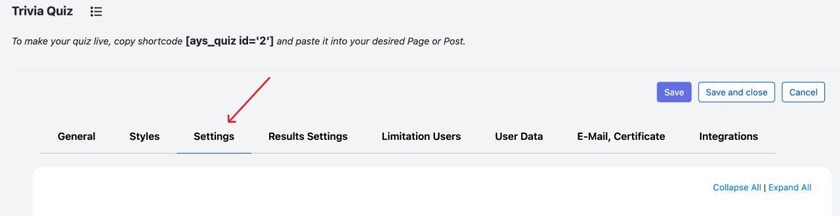
In this section, we will see the Enable Timer button shown in the screenshot below.

Once you enable it, you will see a whole page of settings pop up
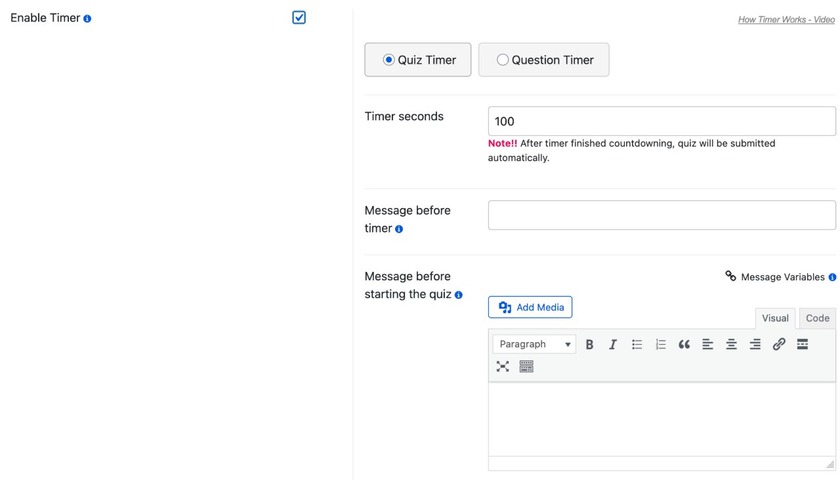
Here you can decide the timer seconds and choose whether the timer is applied to the whole quiz or only a specific question, write messages before the timer, and set other settings.
Once you’re done with all of the steps, you should click Save and be proud cause you just created your first Trivia quiz successfully.
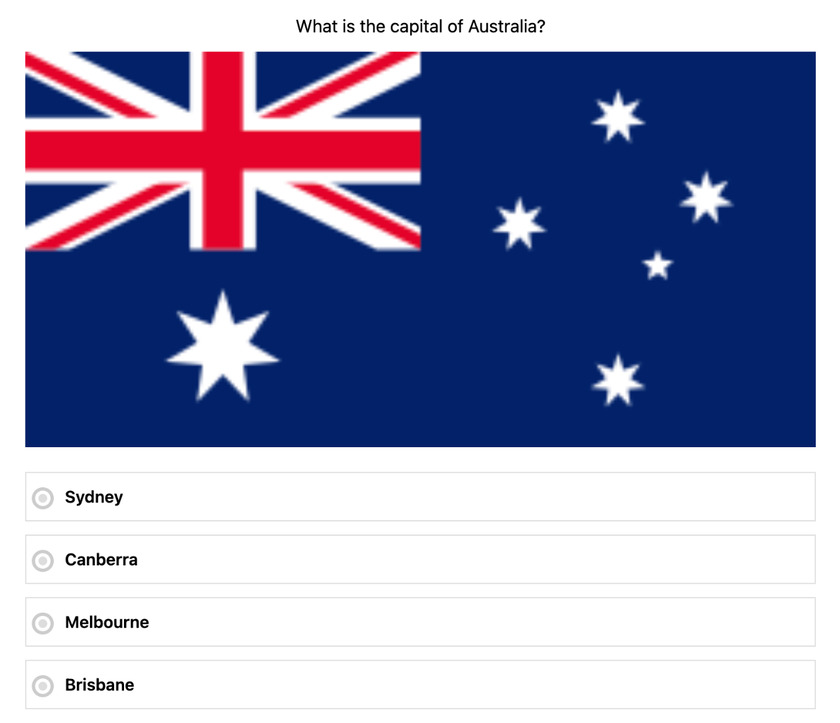
Here is what my final trivia question looks like in the actual quiz:
Best Practices for Trivia Quizzes
- Mix up your question types. Don’t rely on multiple choice alone. Alternating formats keeps the experience feeling fresh throughout the quiz. Add questions like true or false, multiple choice, and more
- Use hints thoughtfully, on genuinely tough questions. Hints work best when they’re kept for harder questions, rather than attached to every single one, which would undercut the challenge entirely.
- Lean into visuals for visually-driven topics. If your trivia topic is inherently visual (movies, geography, logos, album covers), make good use of the image feature rather than relying on text descriptions alone. For music quizzes, you can even add audio; check our How to Create an Audio Quiz in WordPress YouTube video to learn more.
- Match the quiz’s style to your brand. As the plugin supports full styling customization, meaning you can change the whole theme, layout, colors, fonts, and everything to fully match your brand, and not build a generic quiz.
FAQ: Trivia Quizzes in WordPress
Do I need the premium version of Quiz Maker to build a trivia quiz?
No. The free version includes everything needed for a fully functional trivia quiz: multiple question types, images, hints, a timer, and styling customization.
Can I use more than one question type in the same trivia quiz?
Yes, and it’s actually recommended. Mixing formats like multiple choice and open text helps keep the quiz engaging throughout.
Do hints make the quiz too easy?
No, if they’re used correctly. Hints are meant to prevent frustration on genuinely hard questions, not to make every question trivial.
A good trivia quiz needs a few simple things: different types of questions, some visuals to make it more interesting, helpful hints, a timer to add a little excitement, and a design that matches your website instead of looking like an extra feature. The free version of Quiz Maker includes all of these, so you can create an engaging quiz without needing to upgrade to a premium plan.
If you want visitors to interact with your content instead of simply scrolling past it, a trivia quiz is an easy and effective way to get started.