Creating quiz questions from scratch is one of slowest and most difficult processes when building a quiz. Especially if you are preparing for a serious exam or a big trivia test, you would need to create such a huge number of questions manually.
In this AI-powered age, where artificial intelligence is becoming a big part of our daily lives, AI can help us in this matter as well. Popular AI tools like ChatGPT, Gemini, and DeepSeek can cut the time spent on creating questions a lot and turn your desired topic into a full set of questions and answers in seconds. The good thing is that you can easily integrate and use all of these well-known tools using the Quiz Maker plugin.
In this guide, we’ll cover why AI is worth using for quiz creation, and how to create quiz questions using well-known AI tools: ChatGPT, DeepSeek, and Gemini.
Why Use AI to Generate Quiz Questions?
- It can save you a serious amount of time
Writing 20–30 well-worded questions manually can take hours, especially if you’re also trying to come up with intentional wrong answers for each question. - It’s great for brainstorming, not just final content
Even if you don’t want to use a fully AI-generated question word-for-word, it’s a great way to brainstorm and give you some good ideas for future questions.
- It works for almost any quiz type
Whether you want a biology quiz, a mathematics one, or an English language test, the AI add-ons can help you in each of these cases. - It’s flexible across tools
ChatGPT, Gemini, and DeepSeek can all handle this kind of task reasonably well, so you’re not locked into one specific AI tool to make use of this approach.
Of course, all these AI-generated questions will still need a human review before publishing them, for the sake of accuracy, tone, and relevance to your actual audience.
Using Quiz Maker’s ChatGPT add-on
The Quiz Maker by AYS has a special ChatGPT add-on, specifically made to speed up the question-writing process from inside the plugin itself. Here’s how to actually set it up and use it. Besides this guide you can also check out our
ChatGPT Integration Addon for Quiz Maker plugin Youtube video to learn more.
Step 1: Install and Activate Quiz Maker
If you’re not familiar with the process, feel free to check out our Plugin Setup and Installation article to learn more about the setup process.
Step 2: Install and Activate the ChatGPT Integration Add-On
After instaling the quiz maker plugin, you will also have to install the ChatGPT add-on, which you can easily do by clicking this ChatGPT Integration addon. You will have to activate the plugin to be able to use it.
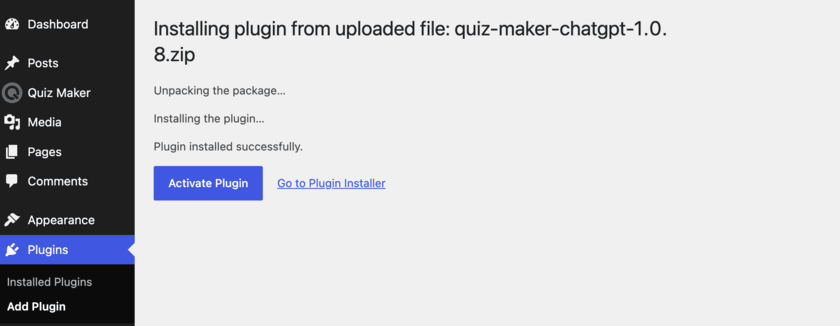
Step 3. Connect Your OpenAI API Key
Once you’re done with installing and activating the add-on, go to the Questions tab of the Quiz Maker
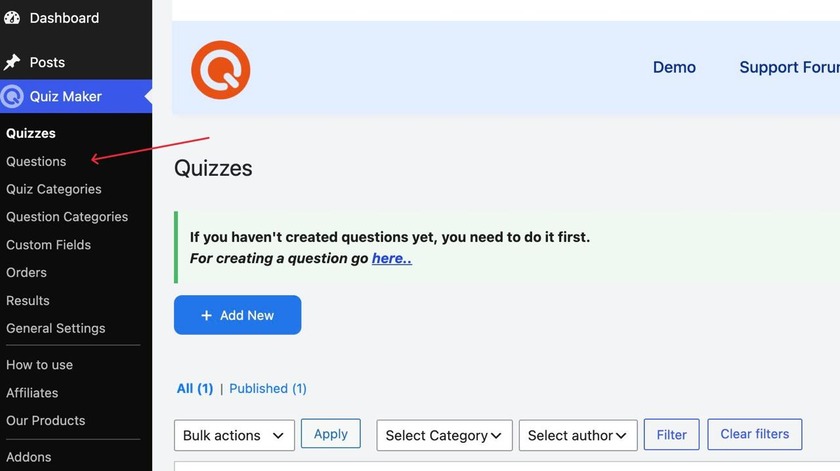
In the Questions tab, you should be able to see the ChatGPT icon shown in the screenshot below.
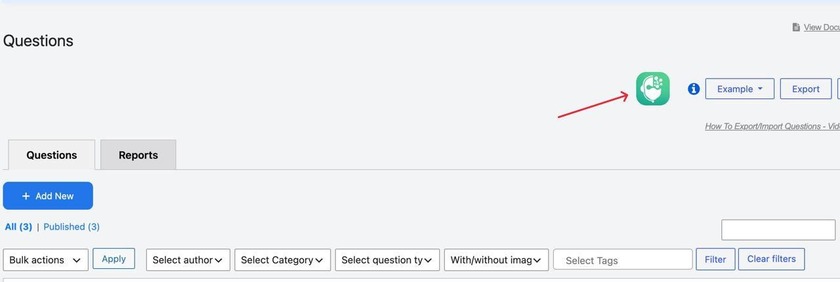
This means that the add-on is installed, but to activate it, you have to go to the general settings section of the plugin
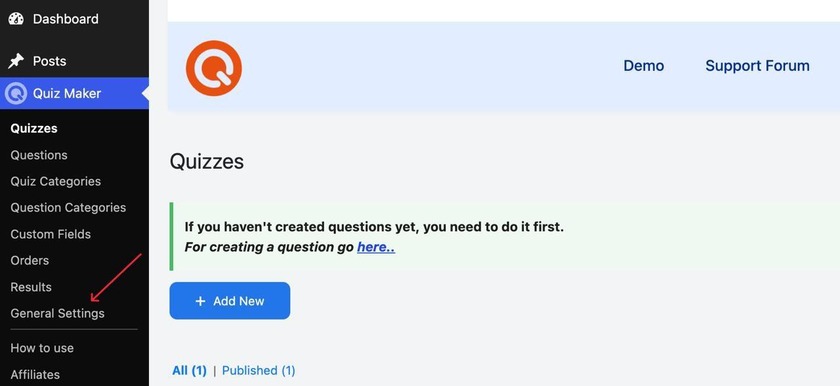
Then in this opened tab, click Integrations.
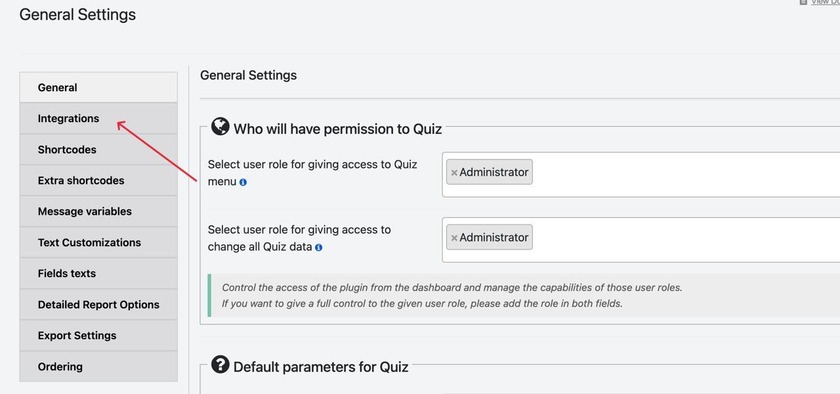
In this tab, you can see all the integrations, you can connect your quiz to, including Google Sheets, Slack, Mailchimp etc.. If you scroll down a bit, you’ll be able to see the ChatGPT one as well
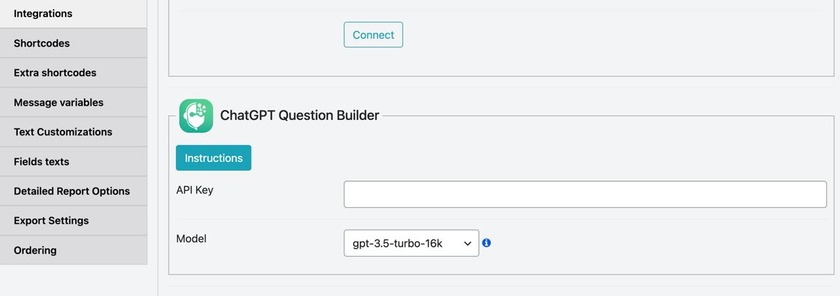
This is the part, where you have to paste your OpenAI API key.
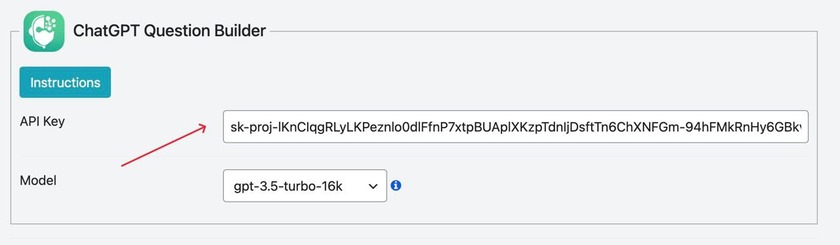
Once you’re done with this, click Save changes.
Step 4. Generate questions with ChatGPT
After connecting your API key, this is where the fun part actually starts. You should go back to the Questions section and click the ChatGPT icon from that tab.
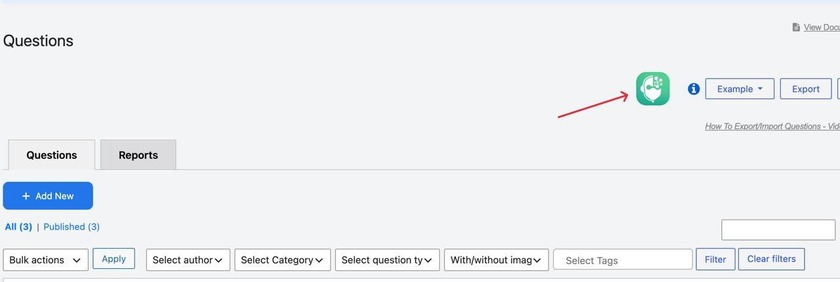
Once you click the icon, this tab of quiz generation settings will open up, and you will be able to make all your adjustments.
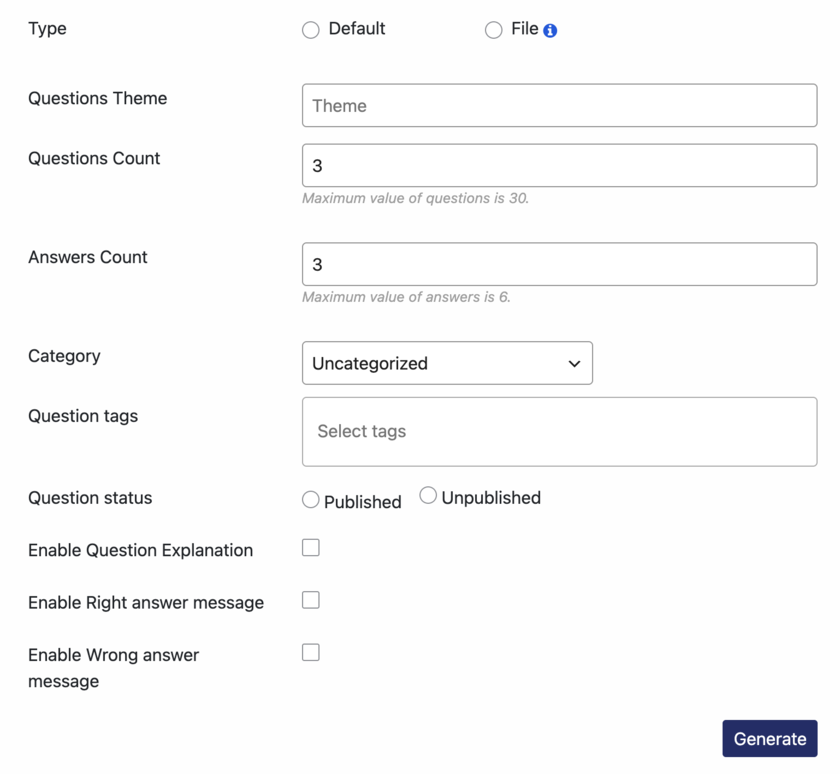
In this section, you can choose your question theme, question count, and answer count.
Let’s try to create a few biology-related questions.
After adjusting all the settings you want, you should click the Generate button and wait for the magic.
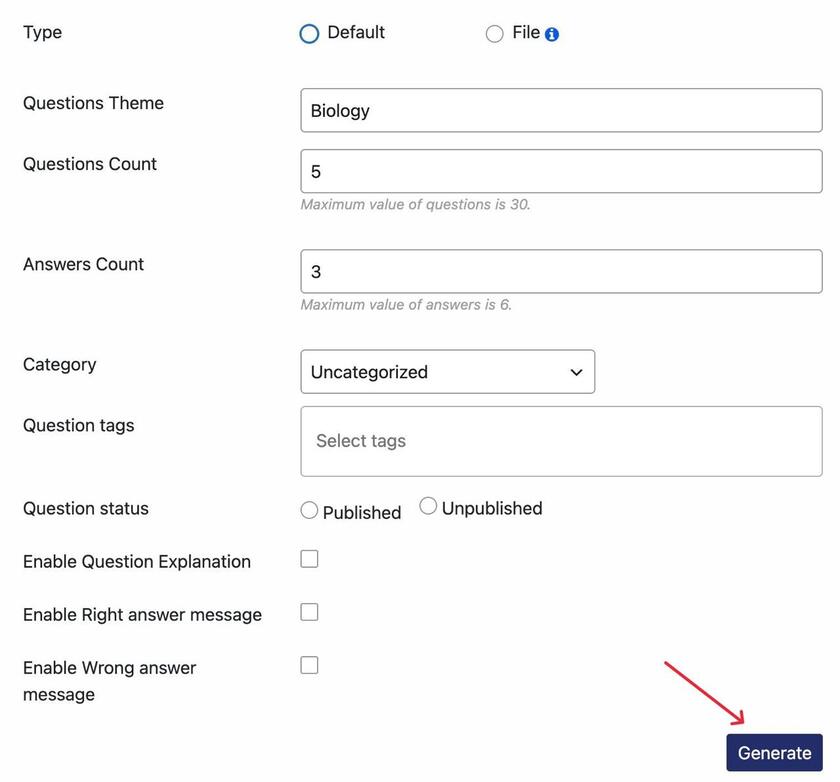
And waiting for 5 to 10 seconds, you will see your questions ready.
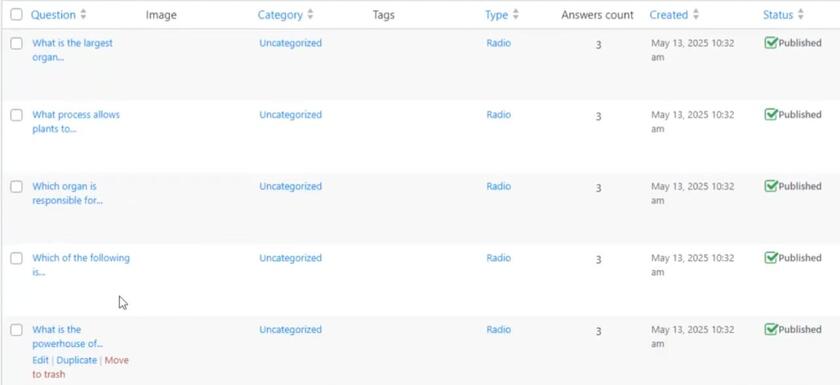
You can also generate your questions using this file option shown before
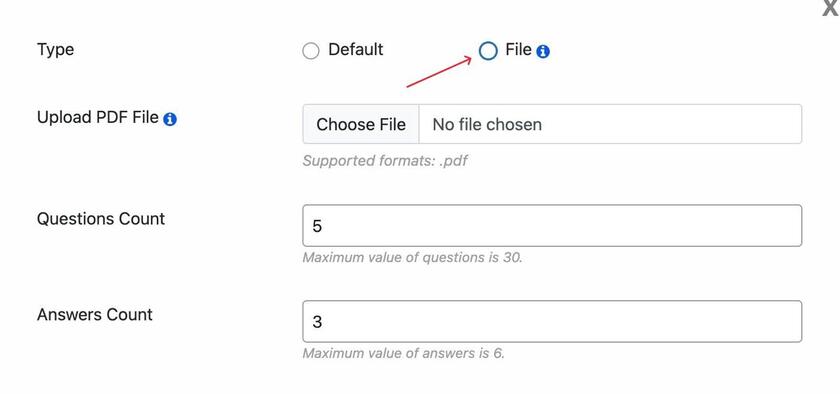
If you’re a teacher or an instructor and have your file full of your educational material, and want your quiz questions to be related to that specific topic, you can easily choose the file option, select your file, and generate your questions.
Another great feature worth mentioning is that the generated questions are customizable, so if you want to change a word in the question or choose another question type, you can easily change it. Quiz Maker plugin is very flexible in this sense, as it offers 10+ question types, including radio, multiple choice, true/false, fill in the blank, etc. Get to know more about the question types at this link.
Overall, this add-on feature is great, especially for people who don’t have much time to spend researching and creating questions with their answers.
Using Quiz Maker’s Gemini add-on
Gemini is yet another well-known AI tool, mostly used by students and teachers for research purposes. The Quiz Maker plugin has a separate Gemini add-on as well, which you can get by clicking on Gemini Addon . Besides this guide, feel free to also check our Gemini Integration addon for quiz maker YouTube video.
Here is what to do;
Setup process is basically the same as the ChatGPT one; install the Quiz Maker plugin, then install and activate the Gemini add-on instead.
After this, here is what to do
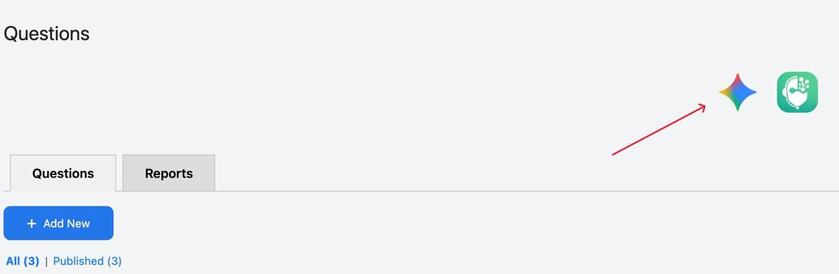
In the Questions tab, you can see the Gemini icon
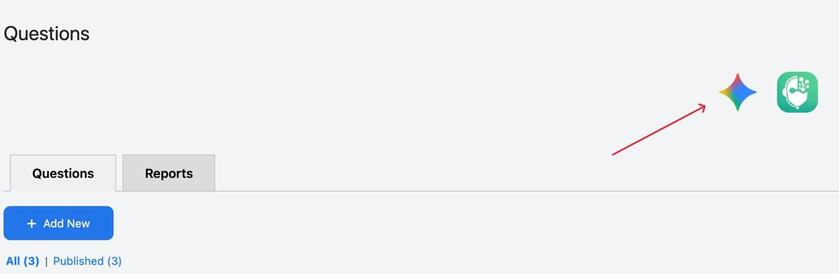
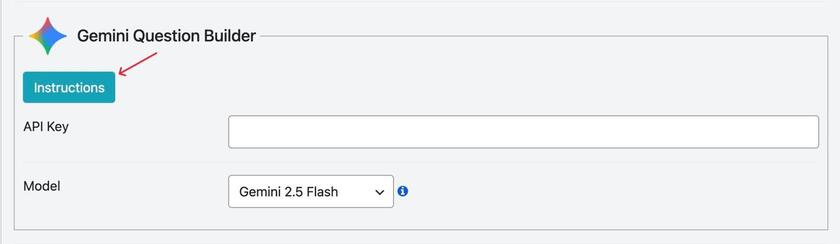
And for the actual activation, we would have to go to the General settings section, click Integrations, as we did for the previous add-on, and find the Gemini integration. It’s going to look like this;
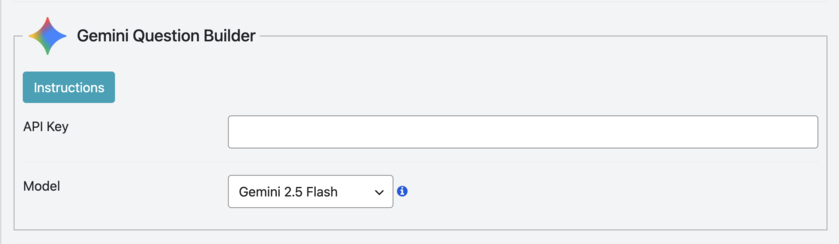
To get your API key, you would have to click Instructions
Then click the Gemini key page
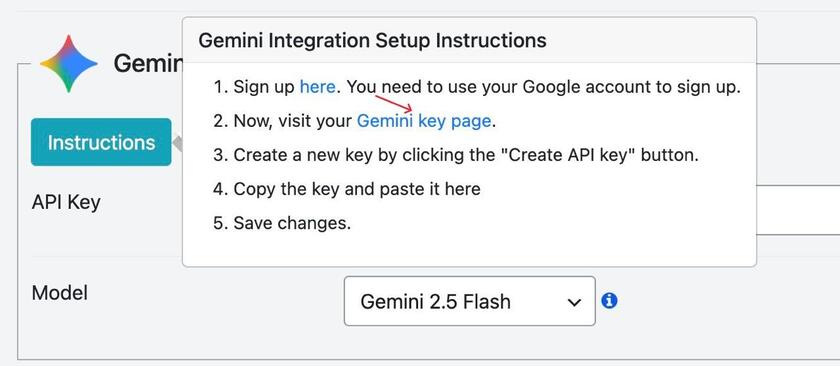
On the opened page of Google AI Studio, you will be able to generate your API key and just copy and paste it.
Once you’re done with this, click Save changes, and you’re all set.
The process after this is pretty clear as well; you will have to go back to the Questions tab and click on the Gemini icon.
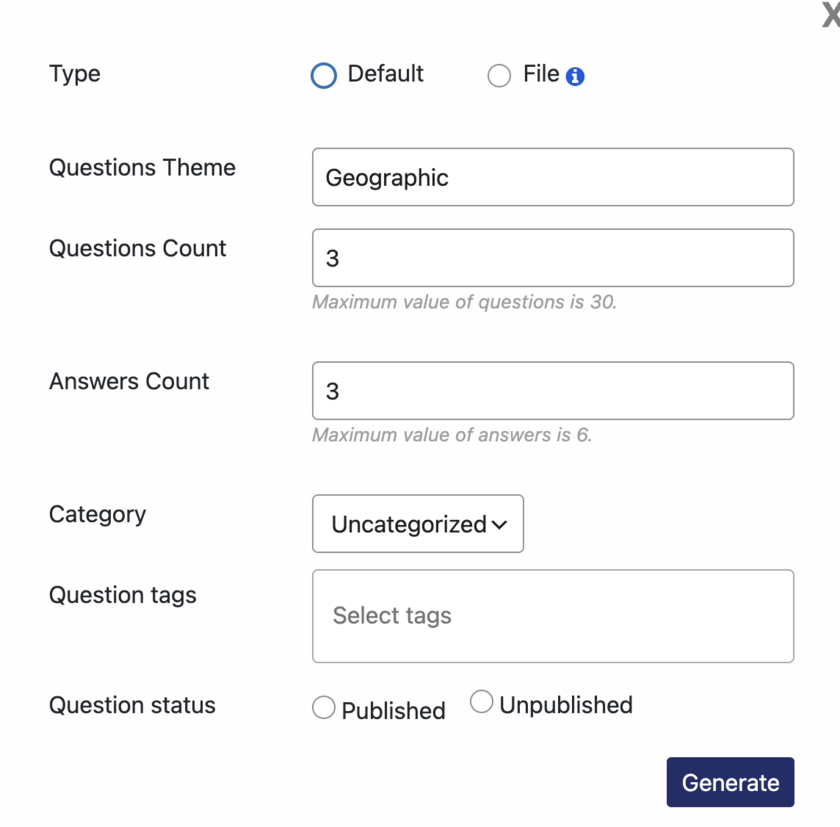
After clicking, the settings section will open up, which is pretty similar to the previous one. You would have to set your settings, choose the topic and question count, then click Generate.
Using Quiz Maker’s DeepSeek add-on
DeepSeek is yet another LLM tool that is mostly used for content creation and coding. The Quiz Maker plugin has a separate DeepSeek add-on as well, which you can get by clicking on DeepSeek Addon. And if you’re a visual learner, check our DeepSeek integration Addon for Quiz Maker plugin YouTube video.
Setup starts with the exact same steps we did for the previous two addons.
In the Questions tab, you can see the Gemini icon.
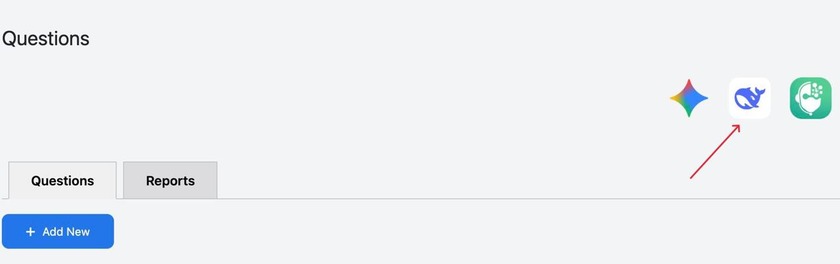
For activating the addon, we would have to go to the General settings section, click Integrations, as we did for the previous addons, and find the DeepSeek integration. It’s going to look like this;
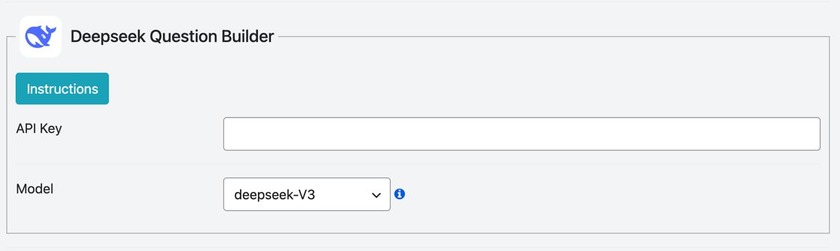
To find the API key, you have to click the DeepSeek key page button shown below.
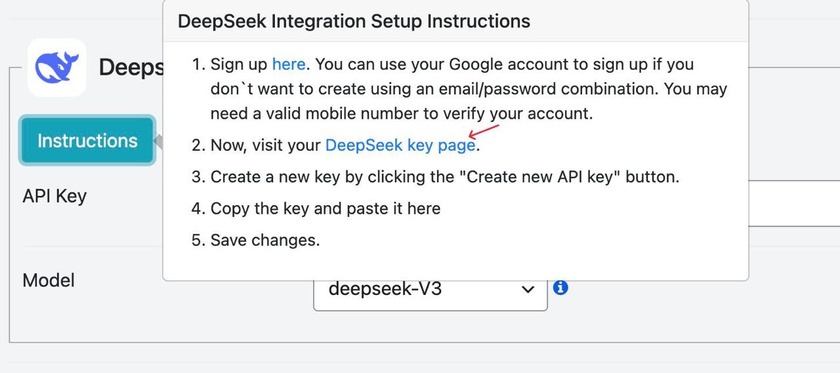
Then you will be redirected to the DeepSeek page, where you will sign up , create your new API key, anc paste it.
After you’re done, click save changes, and you’re done with the activation.
Then you will have to go back to the Questions tab, click on the deepseek icon, and adjust your settings.
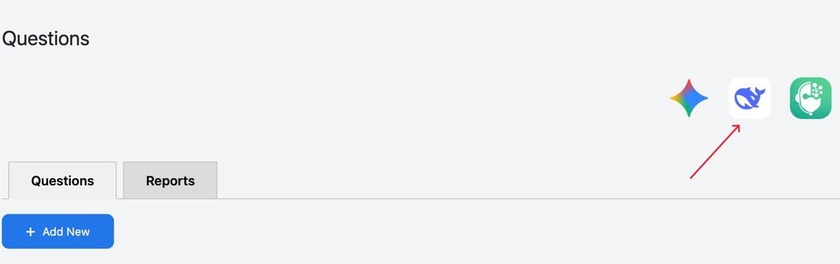
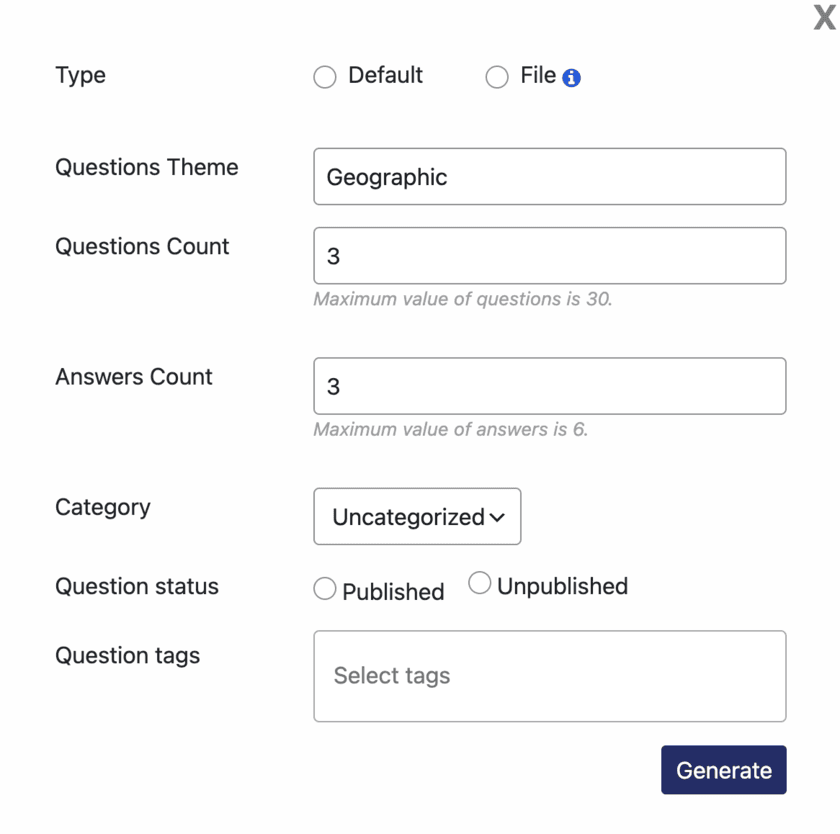
After your adjustments, you just have to click generate, and your questions will be generated in a mater of seconds.
As you could see, the process of generating quiz questions with AI tools is pretty easy, and requires almost the same steps for these three tools; ChatGPT, Gemini and DeepSeek.
Frequently Asked Questions:
Generating Quiz Questions With AI in Quiz Maker
- Do I need separate add-ons for ChatGPT, Gemini, and DeepSeek, or is it one AI add-on?
Yes, you need to install and activate separate add-ons for each of these tools. Click on the add-on name you want to install; ChatGPT, Gemini, DeepSeek
- Do I need an API key for all three?
Yes, in order to generate questions, you have to have API keys .Each add-on connects to its own AI tool using an API key specific to that service for example, an OpenAI key for ChatGPT, a Google AI Studio key for Gemini, and a DeepSeek key for DeepSeek.
- Is one of these AI tools better than the others for generating quiz questions?
Not really, I think this is a matter of a personal preference, because the setup and capability are almost the same. So feel free to choose whichever you feel more comfortable using.
- Do I have to use the generated questions exactly as they are?
Of course no, the generated questions are fully editable, meaning you can paraphrase the question, change some answers, or even change the question format. This is genuinely an incredible feature.
Whether you’re building a biology, chemistry, or English exam, generating quiz questions from zero can take a lot of time. With Quiz Maker’s ChatGPT, Gemini, and DeepSeek add-ons, this process becomes super easy and fast. Just give your wished theme, or upload your own educational material, wait a few seconds, and enjoy your ready-to-go questions.