The Frontend Request Addon allows logged-in users to submit quiz creation requests directly from your WordPress website without accessing the WordPress dashboard.
This makes it possible to involve your audience in creating content. Users can submit quiz titles, categories, questions, question types, and answers, while administrators can review and approve each request before publishing it.
Why Use the Frontend Request Addon?
The Frontend Request Addon makes it easier to build a community-driven quiz website by allowing users to contribute their own content.
It is ideal for:
- Educational Platforms – Let students and teachers contribute quizzes.
- Learning Communities – Encourage users to create and share knowledge.
- Training Websites – Allow team members to submit training questions.
- Quiz Communities – Build a website where users actively contribute content.
- Content Creation – Reduce the workload of manually creating every quiz.
How to Use the Frontend Request Addon
Step 1: Install the Addon
Download the Frontend Request Addon ZIP file and install it through your WordPress dashboard:
Plugins → Add New → Upload Plugin
After installation, activate the addon.
Step 2: Open Frontend Requests
After activation, a new Frontend Requests section will appear in the Quiz Maker menu.
Open this section to access the available settings.
Step 3: Copy the Shortcode
The Shortcode tab contains the shortcode needed to display the frontend request form.
Copy the shortcode and add it to the WordPress page or post where you want users to submit their quiz requests.
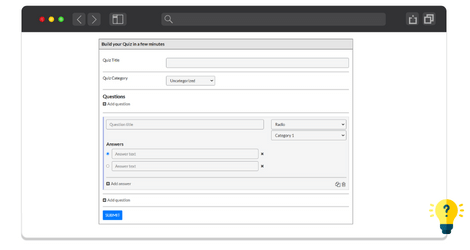
Step 4: Configure the Request Form
Users can provide the information needed to build a quiz, including:
- Quiz title
- Quiz category
- Question title
- Question type
- Question category
- Answer options
The available question types include Radio, Checkbox, Dropdown, and Text.
Step 5: Review Submitted Requests
Every new submission will appear under the Requests tab in the WordPress dashboard.
Administrators can review the submitted content and click Approve when the request is ready to be added to the quizzes.
Step 6: Enable Automatic Approval
If you don’t want to review every submission manually, enable the Auto-Approve option in the Shortcode section.
When this option is active, submitted requests will automatically be approved and added to the Quiz Maker quizzes.
Useful tips:
- The addon works only for logged-in users. You can install a user management plugin for allowing your guests to create their own user profiles. For instance, you can make use of the Ultimate Member.
- Use Quiz Categories shortcode the plugin offers. It will help you to automate your content-generating process. Go to the Quiz categories page from the Quiz Maker left navbar and copy the shortcode next to the category you wish to publish. Paste it into any page or post to see the list of the quizzes that belong to that category. Choose the method of displaying(all or randomly), quiz count, and the design of the layout(grid or list).
