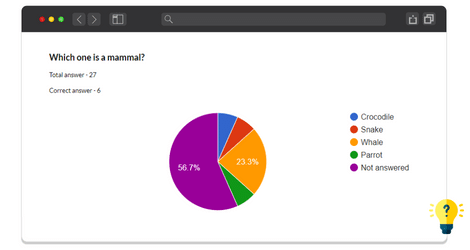
The Frontend Statistics Addon lets you display quiz analytics directly on your WordPress website. Instead of keeping quiz results visible only in the admin dashboard, you can present them to your visitors using attractive charts and graphs.
Whether you want to show overall quiz performance or statistics for individual questions, this addon makes it easy to share meaningful insights with your audience.
Why Use the Frontend Statistics Addon?
The Frontend Statistics Addon helps you make quiz data more accessible and engaging by displaying it directly on your website.
It is ideal for:
- Online learning platforms.
- Educational websites.
- Training programs.
- Surveys and assessments.
- Public quizzes and competitions.
- Websites that want to showcase quiz performance visually.
How to Use the Frontend Statistics Addon
Step 1: Install the Required Plugins
Install and activate the Pro version of the Quiz Maker plugin, then install and activate the Frontend Statistics Addon.
Step 2: Open the Shortcode Settings
Navigate to Quiz Maker → General Settings → Shortcodes
You’ll find two available shortcode generators:
- Quiz Summary
- Question Summary
Step 3: Choose the Statistics Type
Decide whether you want to display statistics for an entire quiz or for a specific question.
Copy the appropriate shortcode and replace the placeholder with the corresponding Quiz ID or Question ID.
Step 4: Add the Shortcode to Your Website
Paste the shortcode into any WordPress page or post where you want the statistics to appear.
Once published, visitors will be able to view up-to-date analytics in an easy-to-read chart format.
This addon works with the Free, Business or Developer versions of the Quiz Maker plugin.
