If you ever wondered why some quizzes get maybe like 100-200 views, and others get screenshotted, shared, and sent around group chats, then you might want to continue reading this article.
The difference is not connected with luck; it’s design. A viral quiz is built around curiosity and identity from the very first question, and its main goal is to be shared the moment someone gets their results.
In this article, we will cover what makes a quiz “viral” and how to build one in WordPress using the Quiz Maker plugin.
Here is a visual comparison between these 2 types of quizzes, before we go into the details.
| Simple Quiz | Interactive/Viral Quiz |
| Plain text questions | Questions with images or video |
| No feedback until the end | Instant feedback after each answer |
| No sense of progress | Live progress bar with percentage |
| Reports a score | Delivers a personality-based result |
| Feels like a form | Feels like an experience |
| Rarely gets shared | Built to be screenshotted and shared |
What Makes a Quiz Go Viral?
Viral quizzes tend to have some common things, regardless of topic:
- A catchy, curiosity-driven title. This is one of the most important things, as it’s the first thing your audience members see, and it’s crucial to put something that will trigger their interest; for example, a quiz titled “What Kind of Friend Are You?” intrigues people more than “Friendship Personality Assessment” named one. The first one promises a result that’s going to be personalized and unique.
- A personal, identity-based result: this point is interrelated with our previous point. Most of the people tend to share quizzes that say something about them, not quizzes that just report a score. For example, relationship quizzes: these are quizzes that naturally get shared because the quiz takers usually want to reveal something about themselves to people.
- Short, low-effort completion: If your main goal is to build a quiz that will go viral and get shares, then you should go with 5 to 10 questions maximum. Long quizzes lose people before they ever reach a shareable result.
- Visual questions: this is very important as well, because imagine you’re reading a quiz question that has a paragraph of text, no images, no short answer options, no video, and nothing that might be visually appealing for people. Personally, I will leave a quiz halfway through when I see that it just consists of plain text and nothing interesting.
- Multiple types of questions: The Quiz Maker plugin lets you include 10+ questions in one quiz. This way, your quiz takers won’t get bored from seeing the same, let’s say, true-or-false questions, but they will have a variety of interesting questions.
Also, interactive elements, like images tied to answers, progress bars, and instant feedback, all of these reinforce this by making the quiz feel like a whole experience rather than just a form.
Besides this guide, you can also check out our How to create Viral Quiz in WordPress YouTube video to learn more.
How to Build a Viral Quiz With Quiz Maker
Step 1. Install and activate the Quiz Maker Plugin
If you’re not familiar with the process, feel free to check out our Plugin Setup and Installation article out, and learn more about the setup process.
Step 2: Add Your Questions and Answers ․ Write short, punchy questions
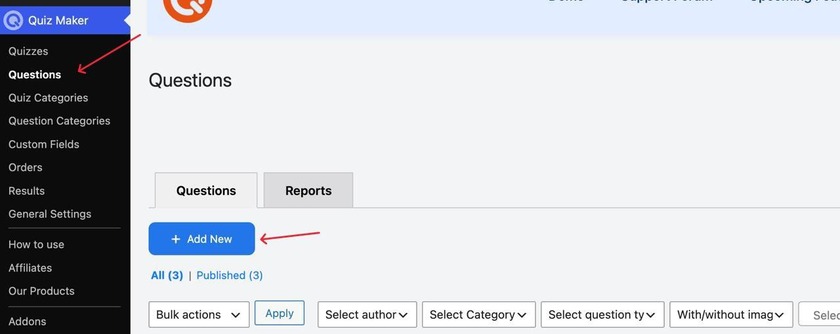
To add new questions, you will have to follow these steps: click the Quiz Maker icon on your left sidebar, choose Questions, and click Add New as it’s shown in the screenshot below.
Then, in the opened tab, add your questions and answers; here is my example:
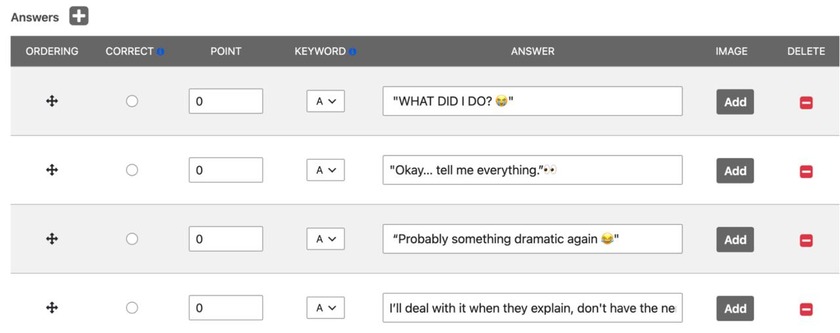
You can see in my example how I used uppercase letters, emojis, and just everyday language that feels human and natural to most of the people.
Imagine if I put a question like this: “ Your friend is going through a difficult situation and decides to call you late at night to talk about what happened. How would you most likely respond to them in this situation?”
This will be way too much text for a single question, and won’t catch any attention.
Step 3: Add Images to Your Answers
As discussed previously, adding media to your questions is a great way to grab more attention.
How do we do that?
As its shown in the screenshot, you should click the Add Media button
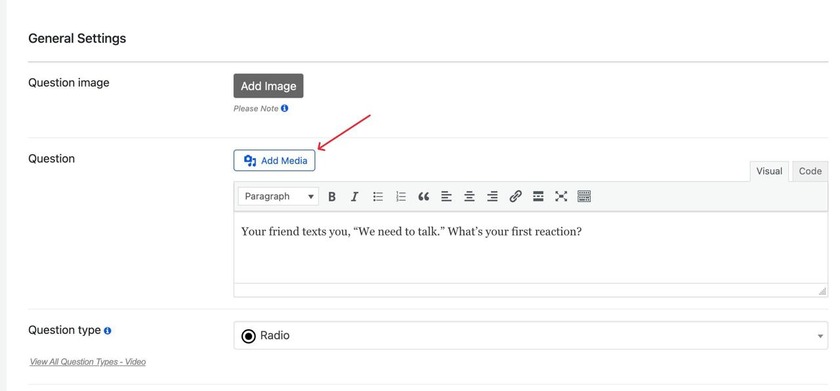
Then you will see this tab, and after clicking Select Files, you will see all the files on your computer and can easily upload the one you want.
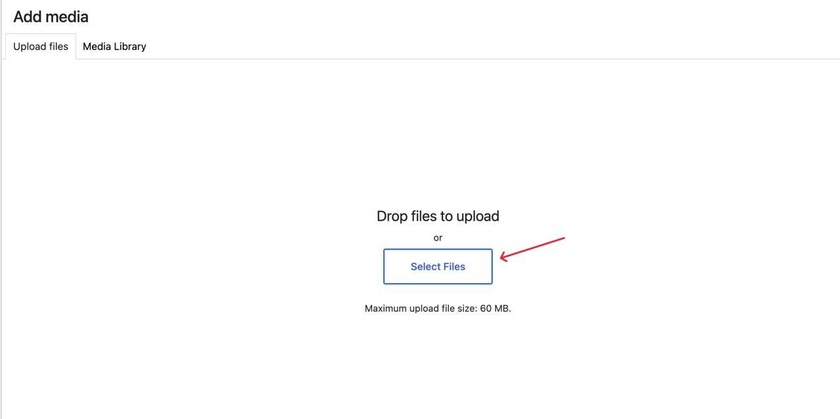
After choosing the file and adding your question/answers, the final result will look like:
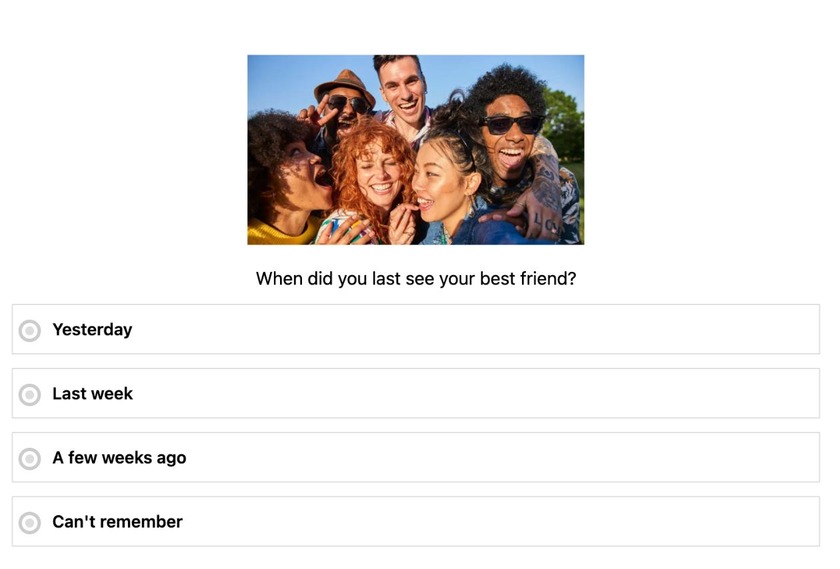
Notice how cool and interesting the question looks.
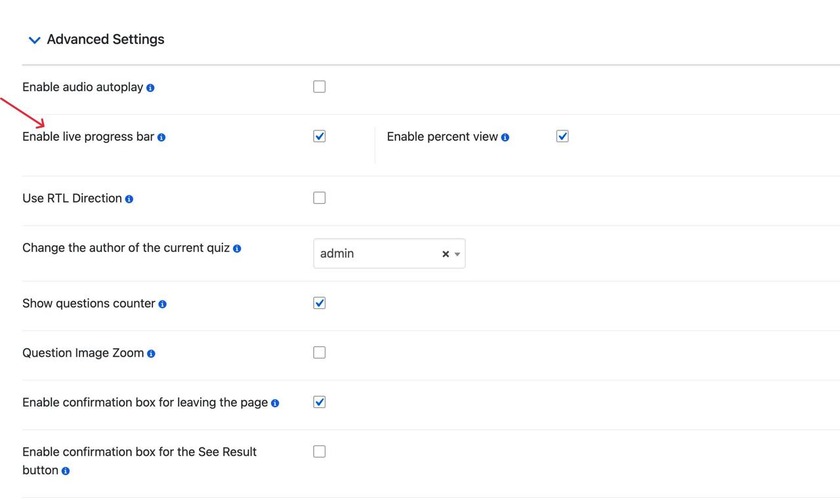
Step 4. Turn On the live progress bar
This is an important step as well, as it will let your users know how much of the quiz questions they have already answered with percentages.
To turn this option on you need to go to the quiz’s settings section, shown in the screenshot below
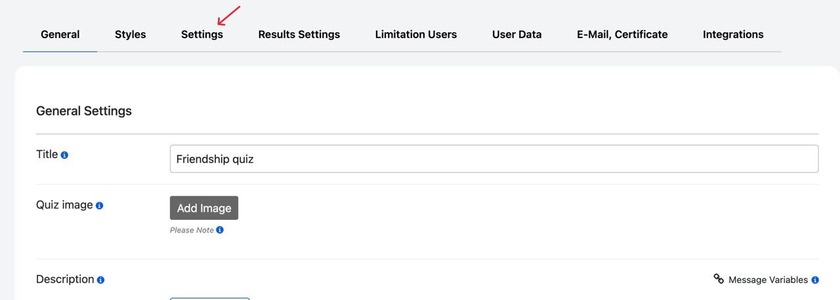
And scroll down until you see the enable live progress bar, enable this setting, and the Enable percent view one as well.
Here is what it does:
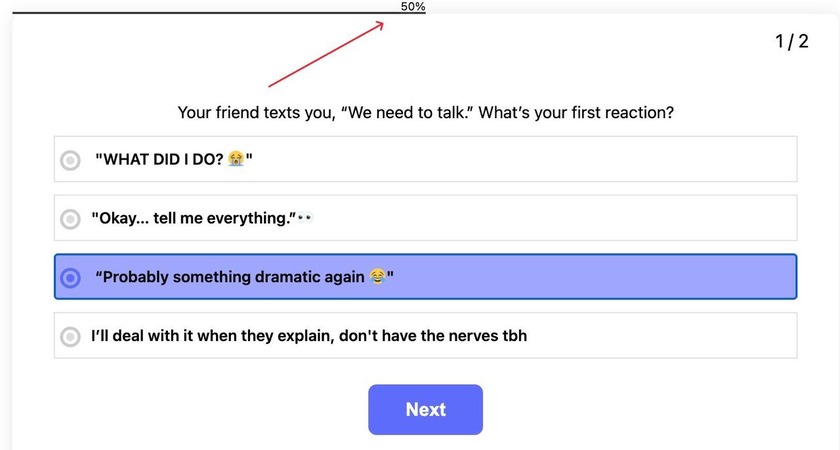
The 50% on the above shows that the user is halfway done with the quiz.
Common Mistakes to Avoid, if you want to build a viral quiz.
- Making the quiz too long, this will cause a drop-off before the shareable moment
- Writing results that feel judgmental or unflattering, especially in case of personality quizzes, it’s a special topic, and the language you use has to be appropriate and not hurtful.
- Using plain text answers when an image would make the question far more engaging
- Skipping a preview of every single result path before publishing
Why Choose Quiz Maker plugin for this?
Quiz Maker plugin is especially a good pick, because of a few specific features:
- Personality-based result types, with custom messages and images for each
- Media support on questions and answers, so visual quizzes are easy to build
- Full styling control, so the result screen can be designed to look good enough to screenshot and share
- Super easy to use, you don’t have to have any coding knowledge or experience to be able to use the interface of the plugin, it’s very user friendly in that sense.
Going back to where we started the difference between a quiz that gets 100–200 views and a quiz that gets screenshotted and shared around group chats was never luck. It is, about small deliberate choices we make in the process of building a quiz
With Quiz Maker, none of this requires custom code or a design background. Personality-based results, media support, instant feedback, and the live progress bar are all built into the same plugin.
If you’ve been building quizzes that quietly sit on one page, then try applying maybe two or three of these principles we discussed to your next one. A shorter quiz with better questions and a shareable result will usually outperform a longer, more “complete” one every time.