I’m pretty sure you all have at least once seen this social media content where people share their “What’s your love language?” or What Kind of Partner Are You” kind of quizzes. This types of quizzes are called relationship quizzes, and are naturally shareable, as people take these, get a result that feels personal, send it to their partner, or share it on their socials. This is like a mix of their own curiosity and self-recognition. And this mix is exactly what makes the relationship quizzes very interesting and intriguing to take.
In this guide, we will go through things like what is a relationship quiz, why it is important to have in your site, and how you can make a quiz like this in WordPress site using the Quiz Maker plugin. If you want to try a relationship quiz yourself and see what the experience feels like, try our demo of a Relationship quiz.
So what Is a Relationship Quiz?
Relationship quiz is type of quiz that is built around love, dating, and partnerships in general. The fun and engaging part here is that the questions lead to a very personalized result about the user, their relationship, and even their partner.
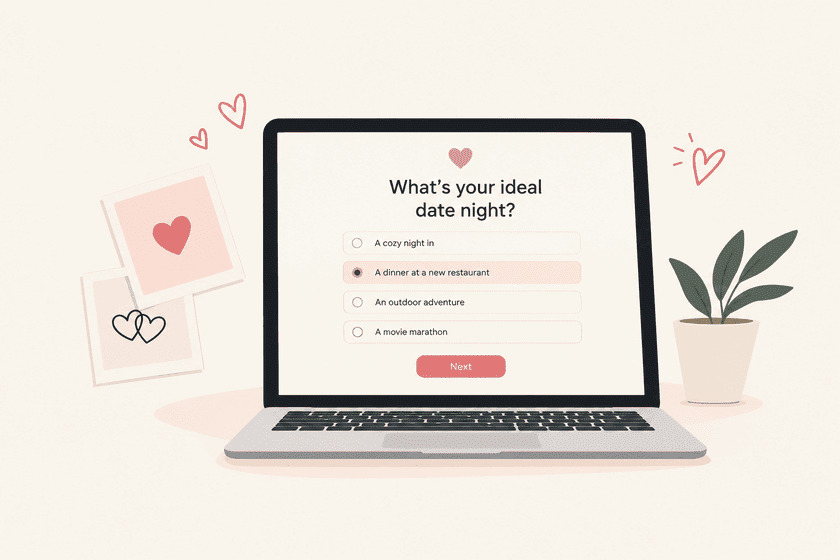
Most of the relationship quizzes are divided into these common types:
- Compatibility quizzes: “How Compatible Are You With Your Partner?” “How Compatible Are You With Your Partner?” These quizzes are often scored,with a percentage or range used to decide the users result.
- Relationship health check-ins: “Is It Time to Talk to Your Partner About This?” These are usually more reflective quizzes, and can be used by therapists or relationship coaches.
- Fun/entertainment quizzes: “Which Rom-Com Couple Are You?” These are lighter, more fun quizzes, usually built for shareability.
Unlike knowledge quizzes or exams, there are no right or wrong answers here; you choose whatever feels right to you, because the goal of these kinds of quizzes is for the user to see themselves and their relationship through the answers they give.
Types of relationship quizzes
| Quiz Type | Quiz example | Scoring Style |
| Compatibility | “How vompatible are tou with your partner?” | Score-based (percentage or points) |
| Relationship health check-in | “Is It Time to talk to your partner about this?” | Reflective, often used for lead generation |
| Fun/entertainment | “Which rom-com couple are you?” | Answers tagged to result categories |
Why Add a Relationship Quiz to Your Site?
- It’s built for sharing. People share personality and relationship results far more than they share generic articles, because the result feels like it’s about them specifically.
- It works as a soft lead-in for coaches and therapists. If you’re a therapist, or a relationship coach, or you own a dating platform, then these kinds of quizzes are almost a must-have, because a question like “What’s Holding Your Relationship Back?” gives the visitors a low-pressure way to engage before booking a consultation with you.
- It keeps visitors on your site longer. A well-designed relationship quiz, especially one with several result types, invites people to retake it thinking about a different partner or scenario.
- It’s easy to tie to a next step. A relationship quiz naturally leads into a next action; it can be a related article, a product (books, date night boxes), a newsletter, or a consultation booking because the user just got emotionally invested in the topic. Imagine you got a quiz result that you’re a type of person who gets easily jealous in a relationship, and then afterwards they suggest you visit an article about how to stop or solve this issue. It’s almost natural that you would click the link and check their article on that topic.
Step-by-step guide on how to Create a Relationship Quiz With Quiz Maker
Here is step-by-step guide on how to create a relationship quiz in WordPress using the Quiz Maker plugin.
Step 1. Install and activate the Quiz Maker Plugin
If you’re not familiar with the process, feel free to check our article out, and learn more about the setup process.
Step 2: Decide on Your Result Structure First
Before writing our questions, it’s important to decide what kind of quiz we actually want to create. In this guide we are going to create a score-based quiz, as mentioned earlier , these are great for compatibility quizzes. This is an important step, as it would help us understand how the rest of the quiz is going to go.
Step 3: Add Your Questions and Answers
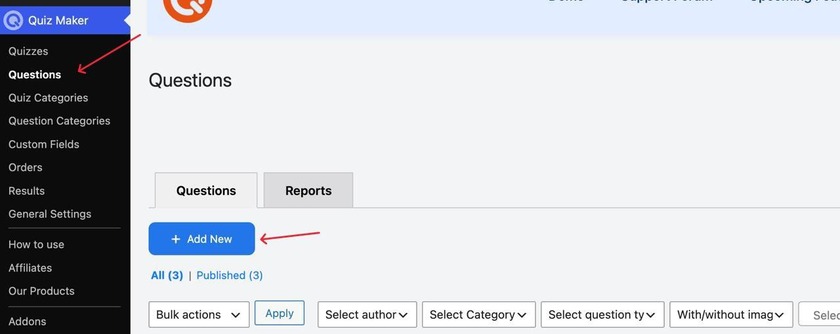
To add new questions, you will have to follow these steps: click the Quiz Maker icon on your left sidebar, choose Questions, and click Add New as it’s shown in the screenshot below.
Then, in the opened tab, add your questions and answers; here is my example:
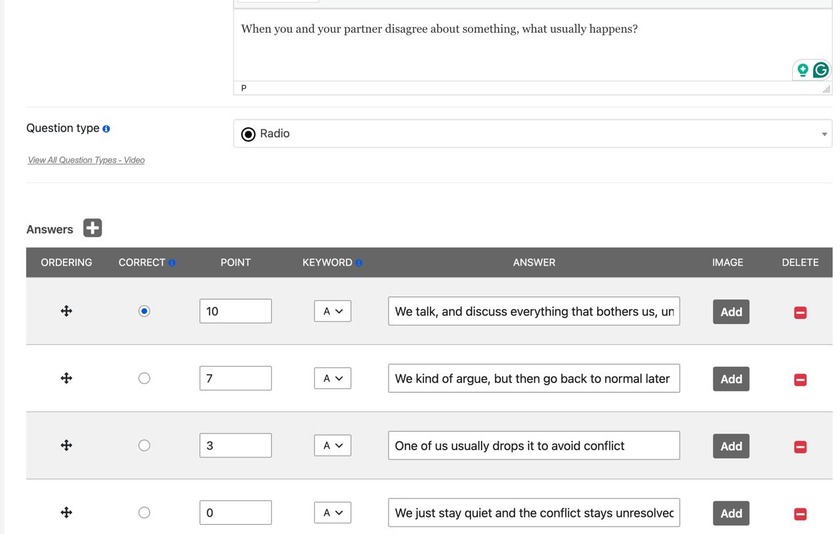
As you can see, this question logically doesn’t have a correct answer, but as a technical requirement, we have to randomly choose one. So the program lets us save the question successfully. You can pick a random answer as correct; it doesn’t really matter, as we are going to turn off the setting of showing the correct answers in the next step.
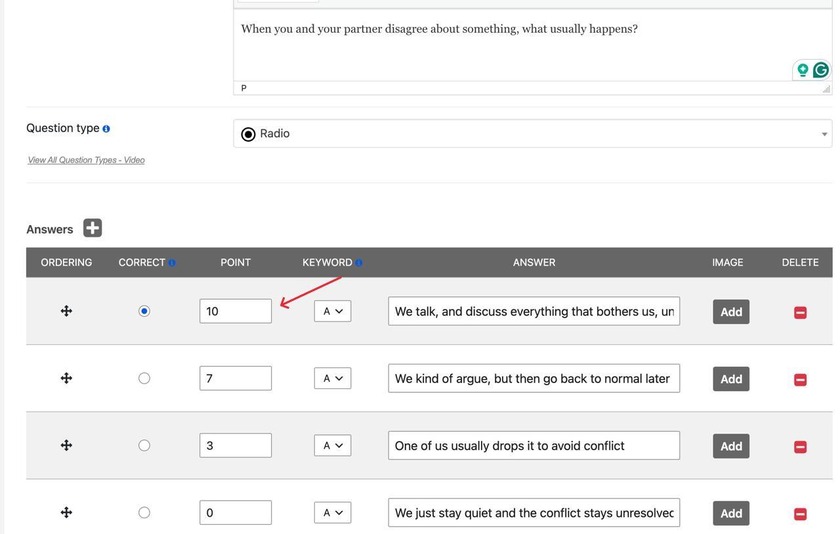
As you can see, I put these scoring points right here, next to each answer, so when a user picks an answer, they get the exact point I assigned, so they can later get the answer according to these score ranges.
Step 4. Turning off the “showing the correct answer” setting
So after creating the quiz and adding our questions, what we need to do here is to go to the Settings section of the quiz.
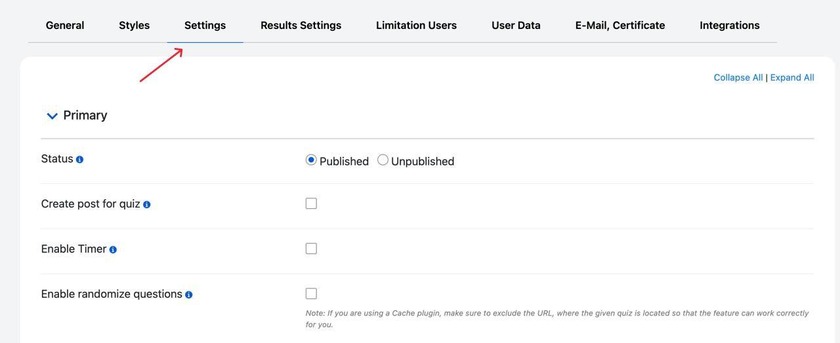
Then scroll down until we see this setting, shown in the screenshot below
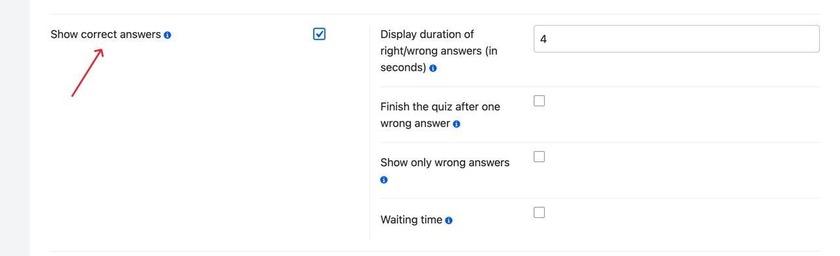
This setting is usually automatically enabled; what you need to do is just uncheck the box, and you’e all set.
Step 5: Set Up Your Score Ranges
This is actually my favorite part; this is when we assign the main results.
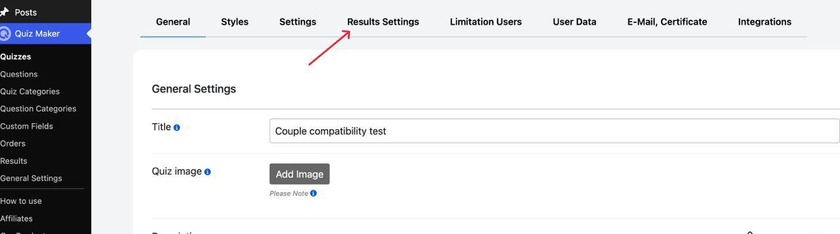
We have to go to the Results Settings in the quiz settings.
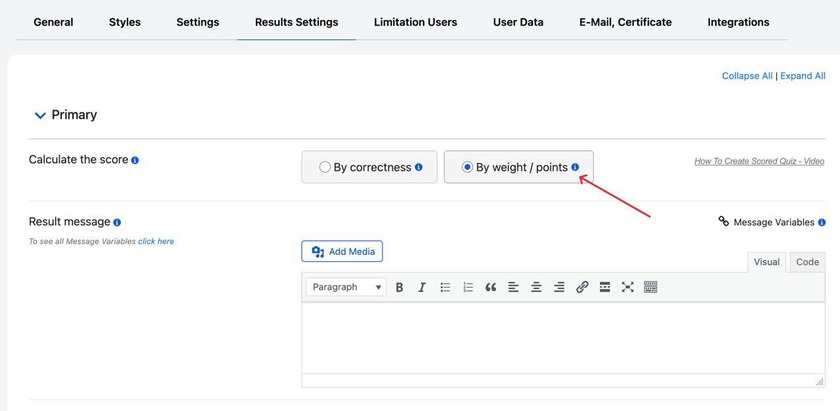
In this section, the first thing we need to do is to check the By Weight/Points button, cause as we already know, we don’t have any correct/incorecct answers, as it’s all score-based.
After scrolling down a bit, we will see the intervals section, where we’re going to add our results.
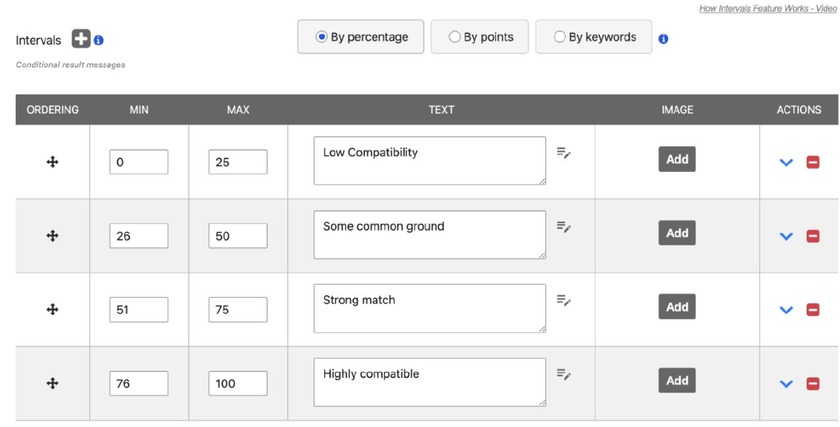
Everyone who takes this quiz ends up with a score based on the points we assigned earlier, so like if the user scores lets say 60%, Quiz Maker automatically checks which bucket that falls into (51–75, in this case) and shows them the “Strong Match” result.
Step 6. Preview the quiz
This is actually an important step in any quiz you make, as it’s always better to check it yourself and see if everything works the way it should.
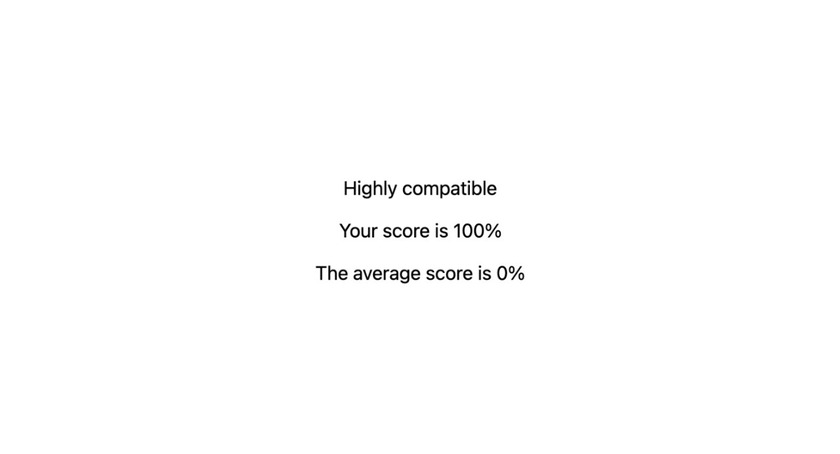
Here is what our final result page will look like:
Relationship Quiz Best Practices
- Keep the tone warm and not clinical – This can be an emotional and sensitive topic for most people, as they get vulnerable and share some personal stuff. Write the results the way a friend would describe someone, and not the way a diagnostic report would.
- Avoid results that feel judgmental. Even if the result is, let’s say, a “lower” compatibility score, it should be framed constructively, as something worth talking through, not as a verdict on the relationship. If you got a low score, present it as an opportunity to grow instead of a red flag.
- Keep it short – Long relationship quizzes usually lose people halfway through. Aim for enough questions to feel meaningful without turning into a chore; 8 to 12 questions is usually the good spot.
FAQ: Relationship Quizzes in WordPress
- Do I have to mark an answer as “correct” if the quiz doesn’t actually have right or wrong answers?
Yes, but this is just a technical requirement in Quiz Maker and not a real scoring rule; the plugin needs one answer flagged as correct to successfully save the question. The chosen answer doesn’t matter, as later you would need to turn of the setting of “showing the correct answer”, so the answer you picked as “correct” would not be visible to the users. - Can I use a relationship quiz for lead generation?
Yes. Quiz Maker lets you add lead-generation fields and connect with email marketing tools, like MailChamp, Google Sheets, and many more. This means you can collect an email address either before or after someone gets their quiz results. This feature can be pretty useful for coaches or therapists, as they would automatically collect list of emails they might later.
- Can I redirect users to a different page based on their result?
Yes. Each score range can be tied to its own redirect, so someone who lands in a lower compatibility range could be redirected to a relevant article.
If you’ve been thinking about adding a quiz to your site, a relationship or compatibility quiz is one of the easiest formats to get real traction with, as it gives people a self-reflective feeling, something a regular article can’t.