Quizzes are one of the most fun ways to keep your website entertaining, but imagine how cool and interactive this experience can be if you add video questions to this. Instead of reading a question or a paragraph, your user would watch a clip, then answer a question related to what they saw. It’s very engaging and hard to skip. This is a great solution for anything where seeing visually matters more than reading; more specifically, it’s perfect for product demos, tutorials, movie quizzes, and other entertainment quizzes.
In this guide, we will show you what a video quiz is, why is it importany to include one, and how to create one in WordPress using the Quiz Maker plugin.
What Is a Video Quiz?
The definition of this term is kind of self-explanatory; it’s a quiz where video is a part of the question itself. In other words, your user watches the clip that is attached to that question, then answers the question based on what they saw. A few great ways you can use this feature are movie quizzes and English pronunciation tests, for example. In the first one, the quiz taker watches a short clip from the movie, then answers questions like “Which movie was this scene from ? ” or “What’s going to happen after this certain scene?” In the English test example, you can put a video of someone pronouncing a word, and then ask a question like “What was the exact word that was pronounced in the clip?”. There are few more examples we will cover throughout this article.
Why Add Video to a Quiz?
1) It can test real comprehension: A basic text-based question can easily be answered by skimming or just guessing. A question that is tied to a video can be difficult to ignore, as it will force the user to actually watch the thing, as the answer will depend on that.
2) Prediction videos are especially engaging and fun: In the examples above, as I mentioned already, when the question asks “what do you think happens next”, it creates curiosity among these users cause they would want to know whether their guess was right or not, and this will eventually keep them engaged throughout the whole quiz and keep them interested in your blog and other quizzes you may have.
3) It’s a great fit for training and educational sites: Online courses, safety trainings, course lectures, and tutorials always have this ” did they actually watch it or not?” A video quiz solves this directly. If you’re interested in online learning and courses, and want to learn more about creating exams using the plugin, feel free to check this article out.
How to Create a Video Quiz With Quiz Maker
Here is a step-by-step guide on how to create a Video Quiz With Quiz Maker by AYS
Step 1. Install and activate the plugin
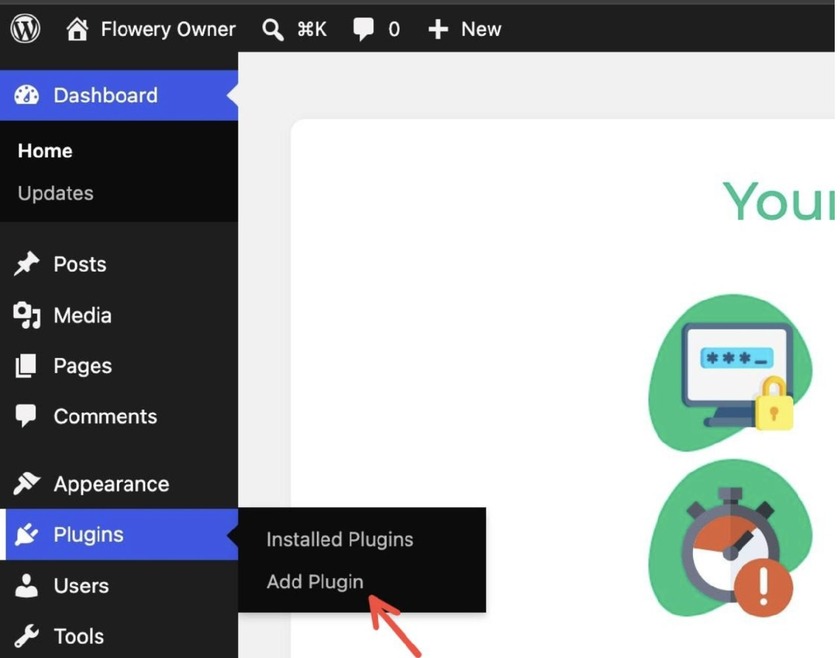
To add a plugin to your WordPress site, you need to go to the Plugins section on the left sidebar and click Add Plugin.
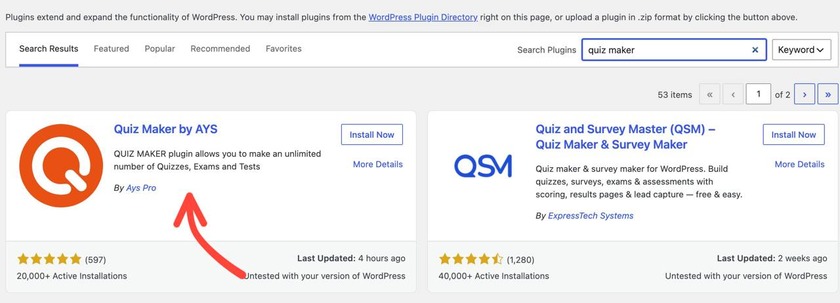
Once the whole menu of plugins opens, search for the specific plugin you want to install and activate; in our case, it’s the Quiz Maker by AYS. You now how to click Install Now and then easily activate the plugin.
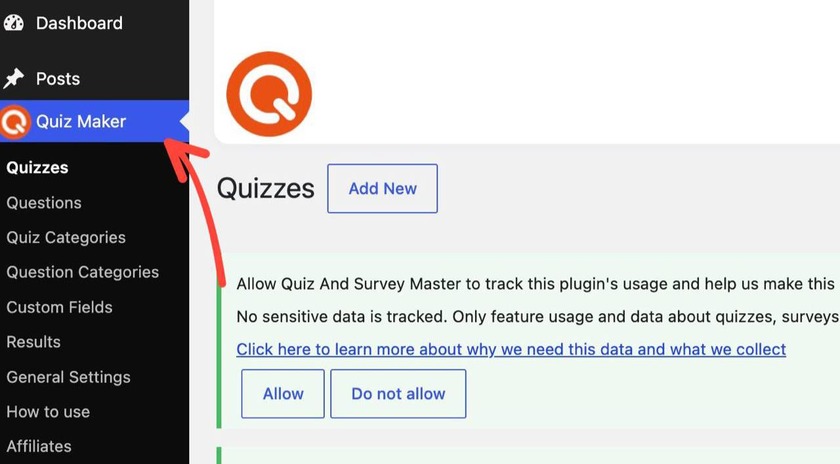
Once it’s active, Quiz Maker will be right on your left sidebar
Step 2: Add your questions
Go to the quiz maker, then questions, and click add new.
Create your questions along with the answer options, and choose the correct option. Repeat this for every question you want to have on your quiz. Quiz Maker by AYS supports many types of questions, including multiple choice, true/false, open-ended, and many more.
Now, how do we add a video to our question?
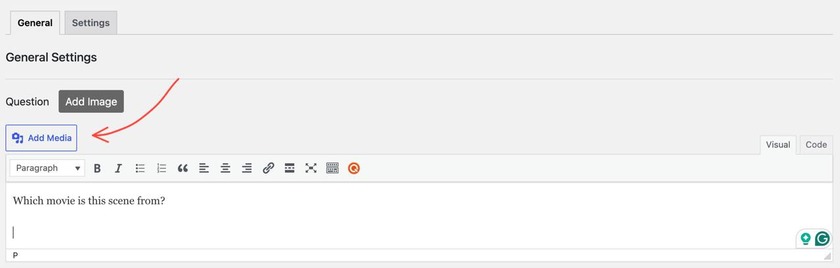
As shown in the screenshot, you should click the Add Media button
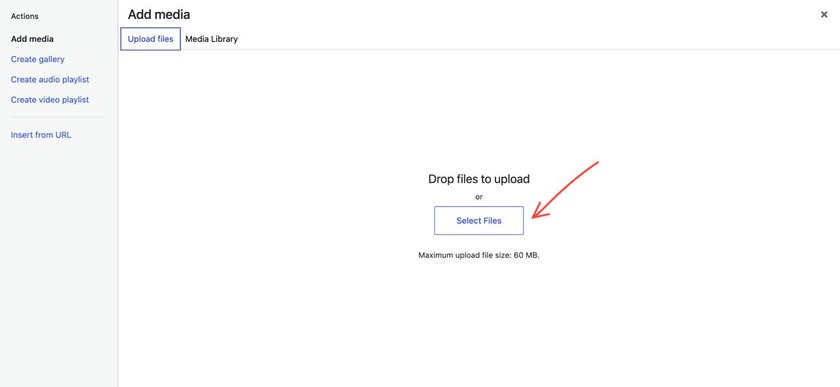
Then you will see this tab, and after clicking Select Files, you will see all the files on your computer and can easily upload the one you want.
Step 3. Adjust the question settings
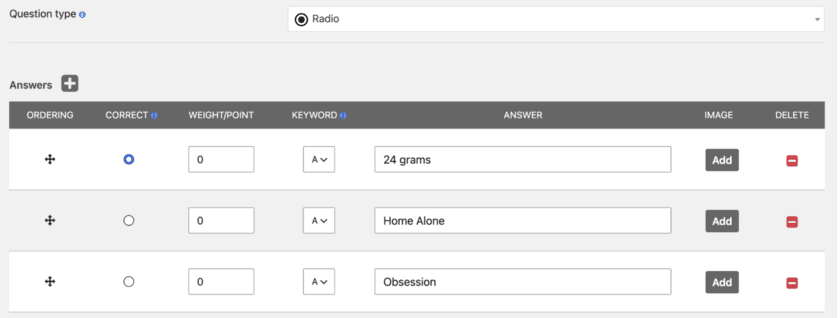
After uploading the file, you can fill out the rest of the section, choosing your question type, adding your answers, choosing the correct answer, and enabling some other settings if you need.
Step 4. Save and publish the quiz
After you’re done adjusting the question/quiz settings, you’re all set and ready to publish your quiz on your WordPress sites.
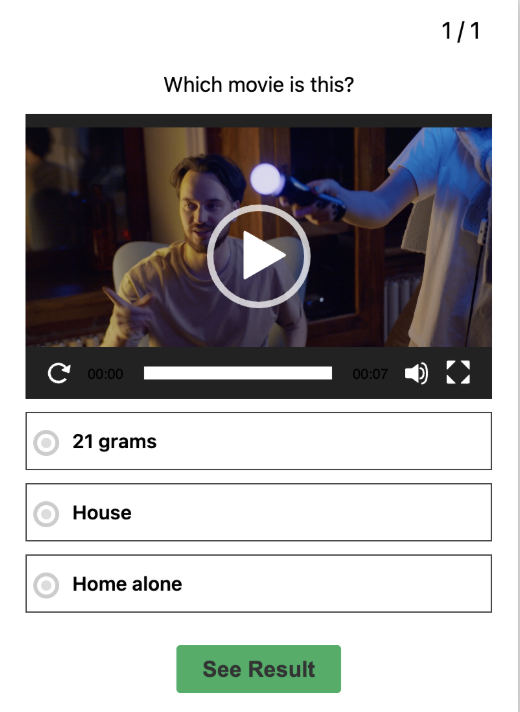
Here is what our final product will look like:
Video Quiz Examples
Here are some new examples for a video quiz, so you have some ideas where you can adopt this feature.
- Prediction Quiz Video: A short clip cut off right before a key moment.
The question can be: “What do you think happens next?” - Training/Onboarding Quiz Video: A workplace safety walkthrough.
The Question can be: “What’s the first step if you spot a hazard?” - Product Demo Quiz Video: A short feature walkthrough.
A question can be: “Which button did the presenter click to enable that setting?” - Course/Lecture Quiz Video: A short lecture segment.
A question can be: “Which concept did the instructor just define?”
Video Quiz Best Practices
Keep clips short. Nowadays, our attention span is pretty damaged, as all of us are pretty used to Instagram reels and other types of short clips. Considering this, having a long video clip might drop the interest of your audience.
Test playback on mobile. Videos might behave differently across different devices. So it’s always better to preview the quiz on a phone before publishing, not just on desktop.
Mix video with regular questions. A quiz made entirely of video questions can get very heavy. Use video where it adds real value, and keep the rest as standard text questions.
| Benefit | Why It Works |
| Reinforces memory better than text alone | Some studies mention that students reported improved retention and stronger recall after watching short educational videos |
| Prediction videos boost engagement | Clips that cut off before a reveal tap into curiosity, keeping users engaged to see if their guess was right or not |
| Instant feedback reinforces learning | Immediate feedback after a video question improves outcomes compared to waiting until the end of a quiz or course |
| Fits naturally into training and education | Onboarding, safety training, and course lectures all need a way to confirm someone actually watched and understood the content |
Frequently Asked Questions ( FAQ )
Here are some questions we get a lot related to video quizzes.
Do I need a separate plugin to add video to a quiz?
No. You don’t need to install another plugin. Quiz Maker by AYS Pro lets you attach a video directly to a question from within the same plugin, so nothing additional is required.
Can I mix video questions with regular text questions in the same quiz?
Yes. Video questions and standard questions can be in the same quiz, so you don’t have to make an entire quiz video-based just to use the format. And this is actually something that I would advise you to do, as it will look more engaging.
Will the video display properly on mobile?
It should, since Quiz Maker’s Style section includes mobile-specific display settings, but always preview and test playback on an actual phone before publishing, since it can behave differently across devices.
Can I limit how many times someone can take a video quiz?
Yes. The Limitation Users section lets you cap the number of attempts, restrict the quiz to logged-in users or specific roles, or password-protect it entirely.
Can I send a certificate after someone completes a video quiz?
Yes. Quiz Maker’s Email, Certificate section lets you design a certificate with a custom message and have it sent automatically once the quiz is completed. By clicking this link you can see our guide of how to make an online exam with a certificate.
Why Choose Quiz Maker by AYS?
Quiz Maker by AYS is one of the most popular plugins out there in the market, as it’s fully customizable and has many features.
Question and Quiz Flexibility
- 10+ question types, including multiple choice, dropdown, and short text. Click here to find out more about question types
- Unlimited quizzes, questions, and answers
- Question banks with category-based randomization, so you can pull from a larger pool and keep every attempt feeling different
- Video questions, with a video attached directly to a specific question rather than sitting separately on the page
Design and User Experience
- You can fully control fonts, colors, and layout to match your brand
- Mobile-specific display settings, so quizzes (including video ones) render properly on smaller screens
- Instant feedback, so users know right away whether they got a question right instead of waiting until the end
- Results and Reporting
- Customizable result types and score ranges, with personalized messages and images per result
- Certificates, detailed reports, and analytics available in the Pro version, including average scores and which questions people struggled with most
- Redirect options based on performance, useful for course or training quizzes where a pass/fail path actually matters
Lead Generation and Monetization
- Product-recommendation quizzes with WooCommerce integration, connecting quiz results directly to your store, great for product recommendation quizzes.
- 15+ integrations with marketing and email tools, like Mailchimp, Google Sheets, Slack, and others — available in the Pro version
The plugin also has a free version with the main features available, you can get to know to the pricing here.
As you can see, making video quizzes is easier than you might think. All you need is a single plugin, and that’s it- no extra plugin, no coding knowledge.
If you’re already running quizzes on your WordPress site, try an experiment and, next time, add a video question as well. This is a small change, but it can actually do a lot for your users’ experience.