A good online exam doesn’t just put one question after another with no way back. While taking an online exam, most of the takers usually prefer the freedom to navigate through the different questions of the exam, including the flexibility to return to previously answered questions. They also like to see how much of the exam is completed and review their final answers before submitting. In this sense, navigation in an online exam is the ability to move freely between the questions.
If you’re starting from the very beginning and want to learn how to create an online exam in WordPress, check out our How to Create an Online Exam with a Certificate in WordPress article.
In this guide, we will show you how to build an online exam with proper navigation in WordPress using the Quiz Maker plugin by AYS.
Before we get into the setup, you can try our online English Exam Demo with navigation, to see how it works from the exam taker’s perspective.
Why Navigation Matters for Online Exams
- It reduces test anxiety. I think this is one of the most important points, as being able to skip a hard question and return to it later takes the whole pressure off and helps you manage your time more efficiently.
- It allows review before submission. A navigation bar lets test takers go back through their answers and double-check them before their final submission, which helps avoid careless little mistakes.
- It works better for longer exams. For a short 5-question quiz, navigation matters less, but for a real exam with 20, 30, or more questions, being able to see progress and jump between sections makes the whole experience far less overwhelming, especially if it’s for school/university students.
How to Build an Online Exam With Navigation
Here is a step-by-step guide on how to create an online exam in WordPress using the Quiz Maker plugin.
Step 1. Install and activate the Quiz Maker Plugin
If you’re not familiar with the process, feel free to check our Plugin Setup and Installation article out, and learn more about the setup process.
Step 2: Add Your Exam Questions
To add new questions, you will have to follow these steps: click the Quiz Maker icon on your left sidebar, choose Questions, and click Add New as it’s shown in the screenshot below.
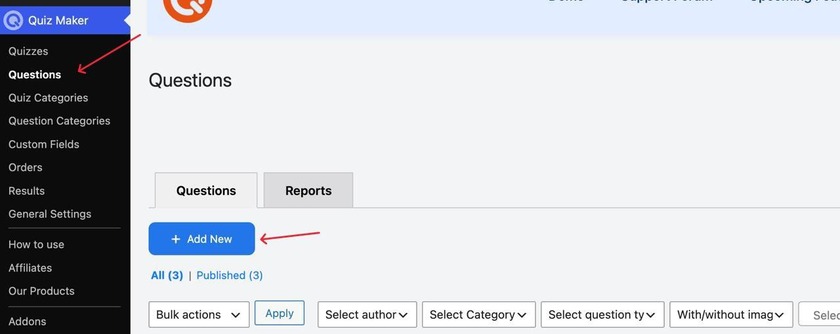
Then, in the opened tab, you will have to add your questions and answers.
For a real exam, this would mean a mix of question types, and for this, the Quiz Maker plugin is great because it offers 10+ question types, including multiple choice, true/false, fill-in-the-blanks, and more. You can get to know these question types better at our All question types explained document.
Step 3: Enable the Navigation Bar
For this, you will have to open your quiz’s Settings section
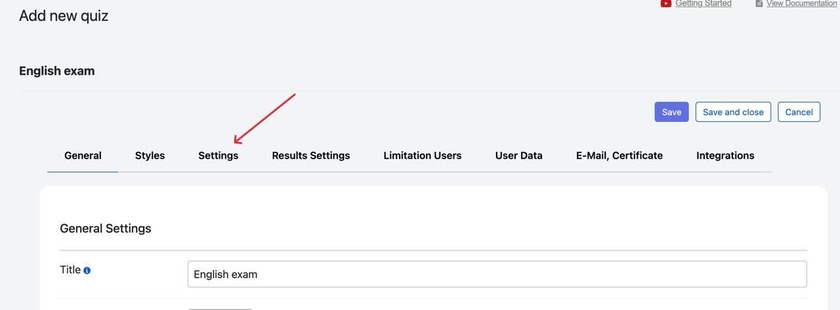
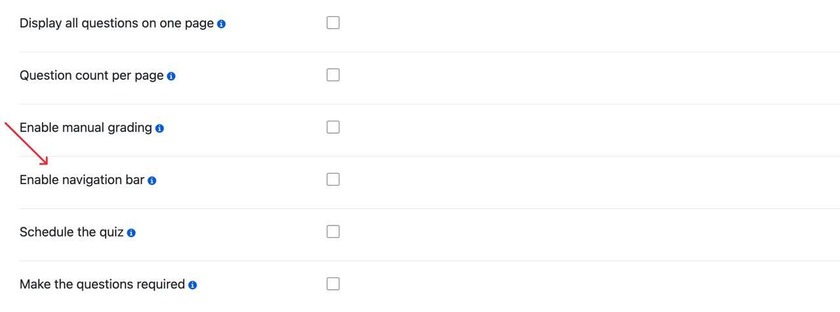
If you scroll a bit in this section, you will see the “ Enable navigation bar” setting; this is the exact setting that gives your test takers the ability to move between questions freely.
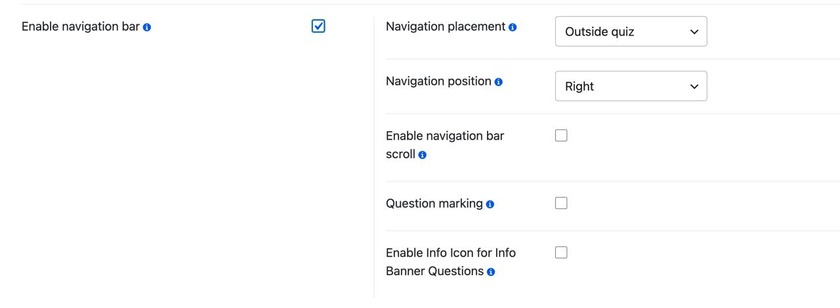
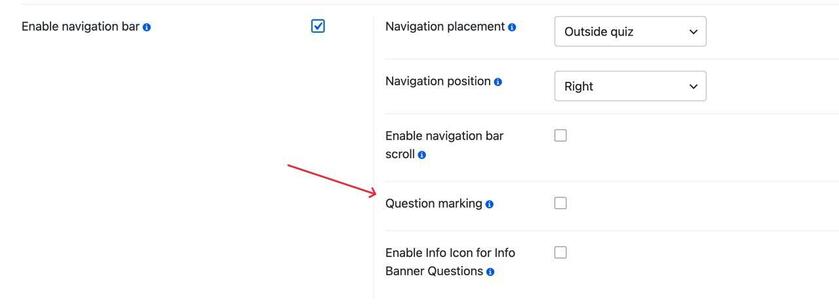
Once you enable this setting, you will see this new section, where you can do all your adjustments related to the navigation. You can pick the placement, whether you want it to be outside or inside your quiz, the position of the bar, and many more.
If you are more of a visual learner, feel free to check out our Quiz with Navigation Bar and Timer for WordPress Website YouTube video and learn more.
Step 4. Decide whether questions are required
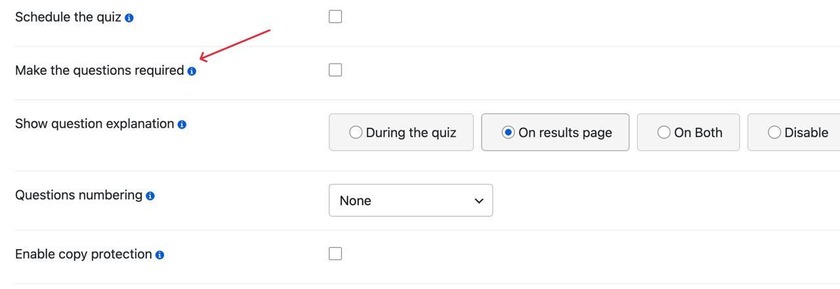
If you don’t want your exam takers to submit their work with unanswered and skipped questions, then marking some questions as required would be a great solution. For this, you would have to find the “ Make the questions required” setting in the same settings section, and just enable that setting. Now the exam takers can’t skip a question, as all of the questions are mandatory to answer.
Step 5. Enable copy protection
This one is kind of an optional setting, but if it’s an exam, especially a formal one, I would highly recommend you enable this setting, as it would not let your exam takers copy the questions. With this setting, you will for sure know that the answer is theirs, and not googled. For this, you would have to find the
“ Enable copy protection” setting in the same Settings section and just turn it on.
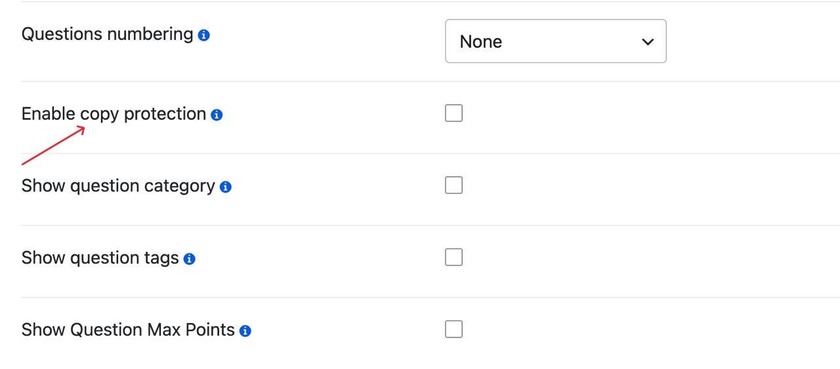
Now your exam takers won’t be able to copy anything from the quiz screen.
Step 6: Preview the Full Exam
Before publishing, preview the exam and actually test the navigation, jump between questions out of order, skip one and come back to it, and confirm the navigation bar works the way you want. This is an important step not to skip, as checking everything before publishing will save you a lot of time.
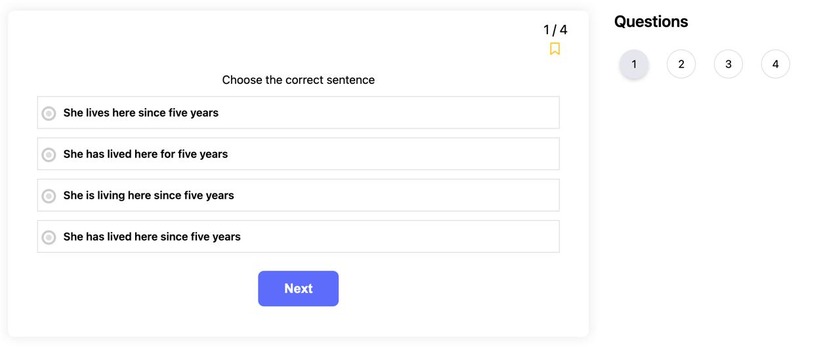
Here is what our final quiz will look like with the navigation bar enabled.
On the right side, you can see the questions numbered, and you can go back to these at any point you want.
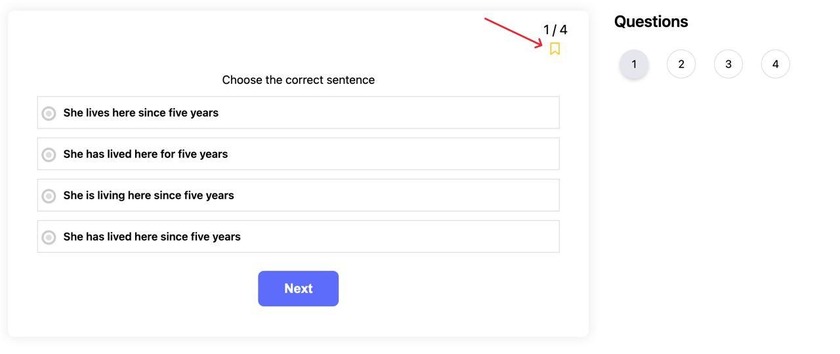
You can also see the small yellow icon, which is for marking questions.
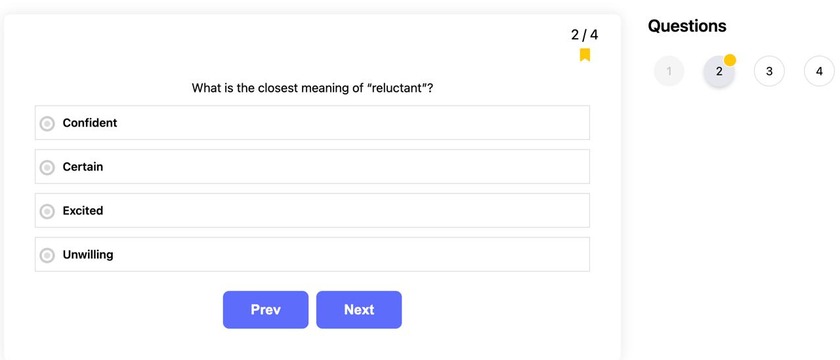
For example, you got a difficult question on your exam; with this setting on, you can mark it and then come back to it later.
The result will look like this:
You can easily turn this setting on in the settings section, after enabling the navigation bar.
Frequently Asked Questions about Online Exams With Navigation in WordPress
- What does “navigation” actually mean for an online exam?
It’s the test taker’s ability to move between questions, skip, go back, mark questions, and review answers. - Do I need the Pro version of the plugin to enable a navigation bar?
No, the navigation bar is a standard setting available in Quiz Maker’s Settings tab. - Can I require every question to be answered before submission?
Yes, using the “Make the questions required” setting. - Can I grade open-ended questions manually?
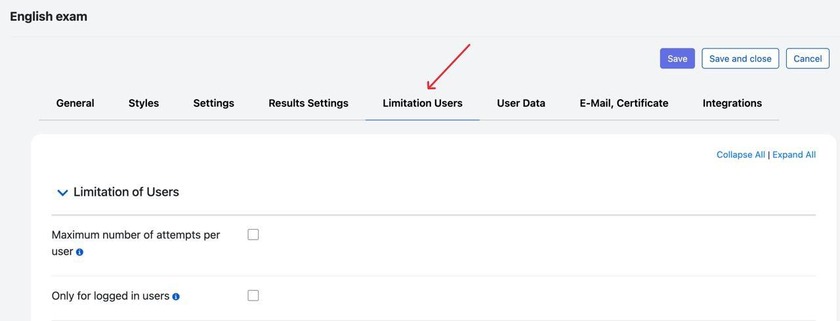
Yes, through the “Enable manual grading” setting, useful for long questions that can’t be automatically scored. - Can I limit how many times someone takes the exam?
Yes, through the Limitation Users section, shown in the screenshot below
– Can test takers receive a certificate after finishing?
Yes, through the Email, Certificate section, which can automatically send a certificate once the exam is completed. If you want to learn more about online exams with certificates, check out our article.
Best Practices for Online Exams With Navigation
- Turn on required questions for anything graded
If the exam counts toward a grade or a certification, require every question to prevent accidental blank submissions. Students can still navigate freely and answer in any order, but they can’t submit until everything is answered,
- Always pair navigation with copy protection for formal exams
Navigation makes the exam easier to take; copy protection makes sure that it doesn’t turn into an easy way to look up answers. The two settings work well together for anything official. - Preview the exam on both desktop and mobile before publishing
A navigation bar that looks great on a laptop screen can be very different on a phone, especially with a longer question list. Always check both before publishing the exam. - Let the exam length guide your pagination settings
Longer exams benefit from smaller question counts per page, since it gives the navigation bar clear “sections” to jump between instead of one long scroll.
Why Choose Quiz Maker for Online Exams
Quiz Maker plugin is a great choice for online exams, as it includes everything an exam needs without requiring a different plugin
1) A fully customizable navigation bar, including placement, position, scroll behavior, and question marking, all adjustable from the same Settings tab
2) Manual grading for open-ended or long-answer questions that can’t be automatically scored
3) Certificates, sent automatically once an exam is completed, useful for anything that requires proof of completion or a passing grade.
4) Fully customizable design: you can change the overall theme, colors, fonts, add background images, and even background audio to make the experience even better.
5) No coding required. The plugin is super easy to use, as the interface is pretty easy to understand, and you can use it even if you don’t have any coding knowledge.
6) Adding media to the questions. The plugin lets you add images and even videos to your questions, so the takers can watch a short video, let’s say, and then answer the questions related to the video they just watched. You can learn how to make a video quiz by checking out our article on How to create a video quiz in WordPress.
If you want your exam to reflect real-world testing conditions, you should take Quiz Maker’s navigation features into account. Skipping questions, going back to modify questions, and reviewing previous questions are just a few of the navigation features Quiz Maker provides. These are built in, in addition to pagination, required question indicators, the ability to manually set grades, and the option for completion certificates. These features allow you to build an examination environment in your Quiz Maker plugin.
If you’re building something more formal than a quick quiz, take the extra few minutes to turn on navigation and test it yourself before publishing. It’s a small setting that has a huge effect on how the whole exam feels.