The Advanced Display Quizzes Addon allows you to showcase multiple quizzes on a single WordPress page using different layouts. You can display quizzes in table, list, or image view, giving visitors an easy way to browse and choose the quiz they want to take.
Quizzes can also be arranged according to preference; you can display quizzes belonging to certain categories, or display them randomly. Depending on the design chosen, the following additional data about quizzes can also be shown to visitors: scores, points, number of people who passed/failed the quiz.
Why Use the Advanced Display Quizzes Addon?
The Advanced Display Quizzes Addon makes it easier to organize and showcase a large collection of quizzes without creating separate pages for every quiz.
It is especially useful for:
- Educational Websites – Organize quizzes by subject, course, or topic.
- Online Learning Platforms – Give learners a central place to browse available quizzes.
- Training Websites – Display assessments and training quizzes in an organized format.
- Quiz Libraries – Showcase a large number of quizzes with search, filtering, and pagination.
- Interactive Websites – Make it easier for visitors to discover and choose quizzes.
How to Use the Advanced Display Quizzes Addon
Step 1: Install the Required Plugins
Install and activate the Quiz Maker plugin on your WordPress website.
Then install and activate the Advanced Display Quizzes Addon through the Plugins section.
Step 2: Choose a Display Layout
Decide how you want your quizzes to appear on your website. The addon provides three main display options:
- Table View
- List View
- Image View
Choose the layout that best fits your website design and quiz library.
Step 3: Display All Quizzes
If you want to show all available quizzes, use the corresponding shortcode for your preferred layout.
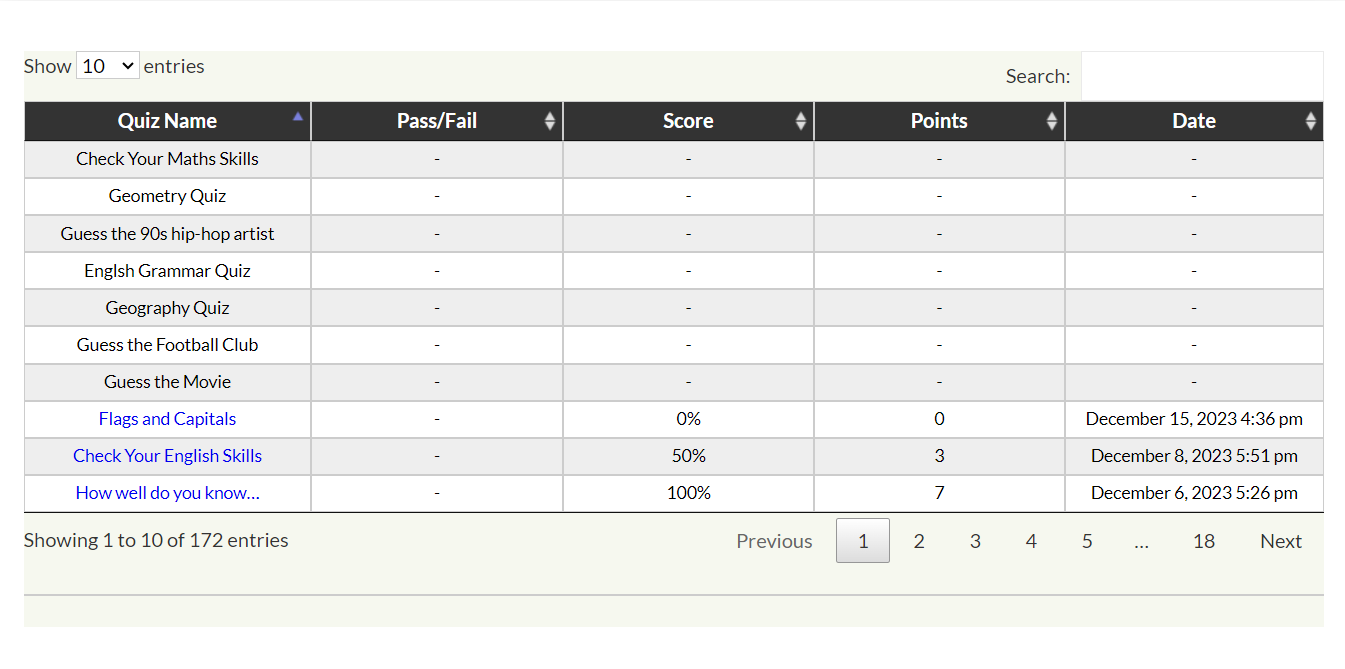
Table View:
Shortcode for All Quizzes:
[ ays_quiz_display_all_quizzes_table orderby=”ASC/DESC/random” ]
- choose the way of ordering the quizzes: ASC ( oldest to newest); DESC ( newest to oldest ); random
Shortcode for Categories:
[ ays_quiz_display_quizzes_by_category_table display=”all” id=”N” orderby=”DESC” ]
- choose the method of displaying quizzes: all ( all the quizzes); quiz_category ( all the quizzes assigned to the given category)
- enter the ID of the given category (you can select multiple IDs)
- choose the way of ordering the quizzes: ASC ( oldest to newest); DESC ( newest to oldest ); random
List View:
[ ays_quiz_display_all_quizzes_list orderby="ASC/DESC/random" ]
You can replace the ordering option with:
- ASC – oldest quizzes first
- DESC – newest quizzes first
- random – display quizzes in a random order

Image view:
Shortcode:
[ ays_quiz_display_quizzes_with_image display=”all” id=”N” orderby=”DESC” layout=”grid” ]
- choose the method of displaying quizzes: all ( all the quizzes); quiz_category ( all the quizzes assigned to the given category)
- enter the ID of the given category (you can select multiple IDs)
- choose the way of ordering the quizzes: ASC ( oldest to newest); DESC ( newest to oldest ); random
- choose the design of the layout: List or Grid

Step 4: Display Quizzes by Category
You can also limit the displayed quizzes to specific categories.
Enter the category ID and choose whether to show all quizzes or only quizzes assigned to the selected category.
This is useful when you want to create separate quiz libraries for different subjects or topics.
Step 5: Customize the Layout
For list and image views, you can choose between List and Grid layouts.
You can also use additional options to:
- Add a search bar.
- Display category filter buttons.
- Add a custom heading.
- Enable pagination.
- Control the number of quizzes shown per page.
Step 6: Add the Shortcode to Your Website
After configuring the shortcode, copy it and paste it into any WordPress post or page where you want your quiz collection to appear.
Once published, visitors will be able to browse the available quizzes and select the one they want to take.
* This addon works with the Free, Business or Developer versions of the Quiz Maker plugin.
