Most quizzes end the same way for everyone: every person sees one message, from total beginner to expert. That’s fine for a casual quiz. If you’re using quizzes for business, teaching, or marketing, though, you’re missing a chance to say something useful to each person.
With conditional results, what someone sees depends on how they answered. A person who says they’re new to a topic can get a beginner’s message and a beginner’s guide by email. Someone with more experience can be sent straight to an advanced page.
In this guide, we’ll show you how to set up conditional result pages with the Conditional Results add-on for Quiz Maker, including the results page message, the email, and the redirect.
What Are Conditional Results?
A conditional result sets what happens after a quiz according to how someone answered. You pick a condition, such as “the person chose this answer to this question,” then decide what they’ll see, get by email, or be sent to.
The add-on gives you three things to set for each condition:
- The results page: the message people see when they finish.
- The email: what they receive, including any attachments.
- The redirect: a page they’re sent to, with an optional delay.
Use one, two, or all three together, and add as many conditions as you need.
Conditional Results vs. Score Ranges
If you’ve used Quiz Maker before, you may know about score ranges, where different scores show different messages. That works well when the result depends on a score. Check out our Creating a Scored Quiz in WordPress YouTube video to better understand how the scoring works.
Conditional results are for when it depends on specific answers instead. For example, someone’s score might be the same as another person’s, but you want to treat them differently because of what they said they’re interested in. Conditions let you do that, and they also work with quiz types like personality quizzes and keyword quizzes, not only scored ones.
Why Use Conditional Results?
- People see a message that fits what they answered, not a generic one.
- You can send different emails, with different attachments, depending on the answer.
- A redirect can send someone to the page that suits them, such as a course, a product, or a lesson.
- The add-on handles the logic, so you don’t need a developer.
Here is a step-by-step guide on how to set up conditional result pages.
Step 1: Install and activate the Conditional Results addon
Download the Conditional Results add-on file, which comes as a zip file. Then install it like any other WordPress plugin. Once you download and activate it, you’ll see a new Conditional Results menu appear in your WordPress dashboard.
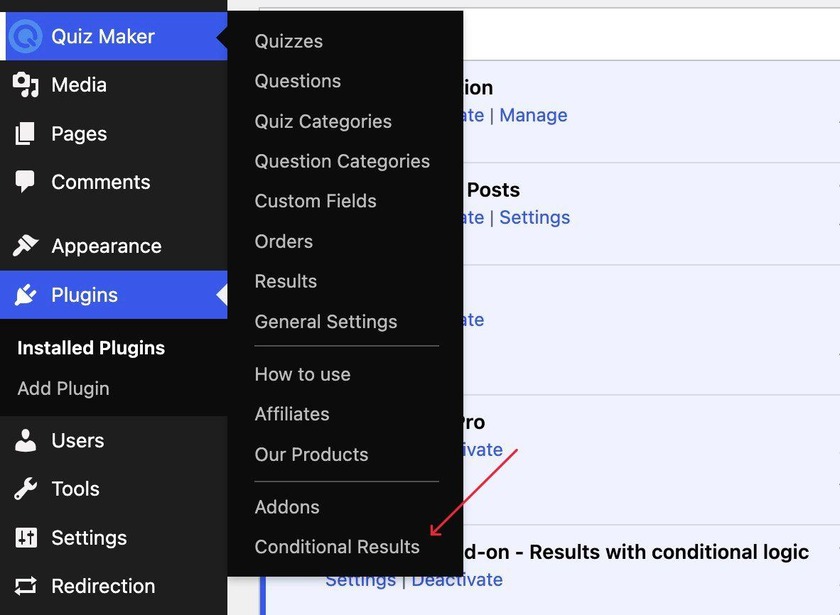
Step 2: Choose Your Quiz and Add a Condition
To add conditions, click the Conditional Results menu, where you’ll see all your quizzes. To add a condition, just click on the quiz you want.
Step 3: Set the Condition
Once you click on the quiz you want to add conditions to, you will see the following tab open:
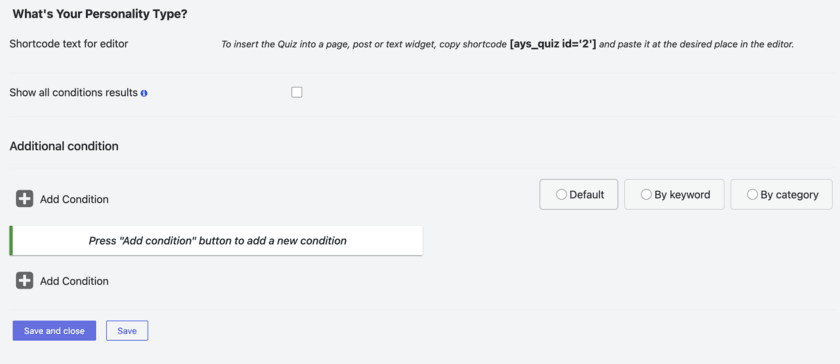
Click the Add Condition button. This is the page where we’re going to do all our settings.
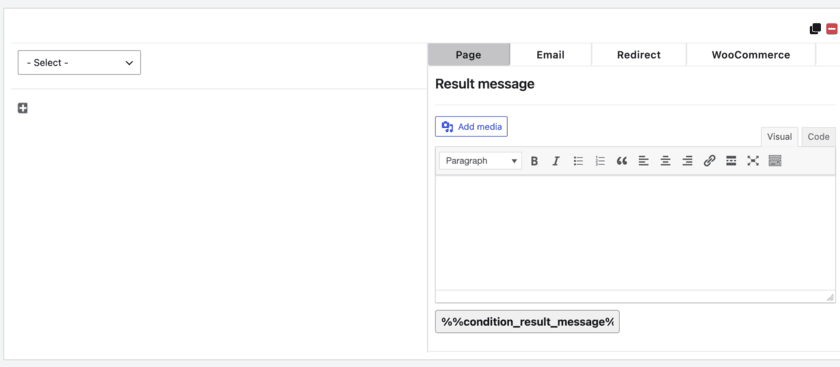
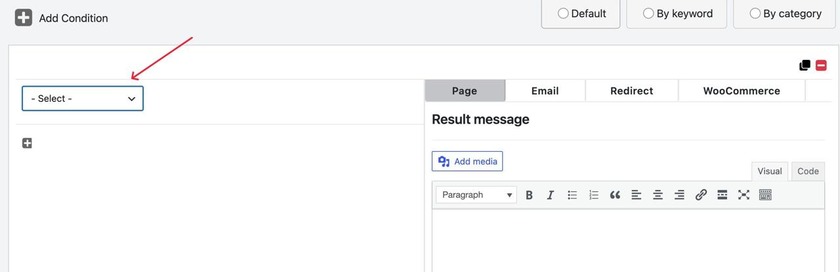
To choose the specific question and answer that should trigger it, click Select, choose the question from the list that opens, and then choose the answer you want.
The plugin also offers an advanced setting for more detailed rules: you can combine conditions using AND and OR:
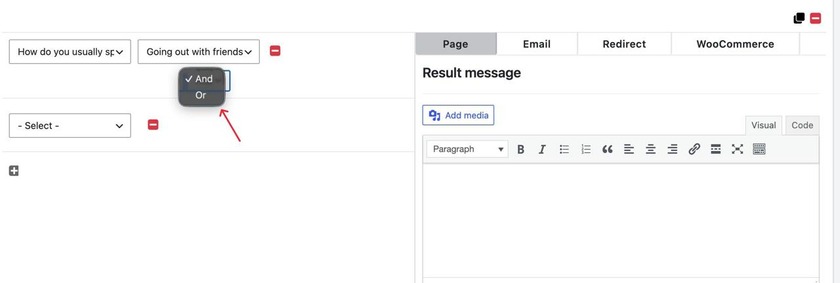
- AND means both conditions must be true. For example, the person picked answer A for one question and answer B for another.
- OR means either one can be true. For example, the person picked answer A or answer C.
This lets you build precise rules, like grouping people by experience and by interest at the same time.
Step 4: Customize the result page
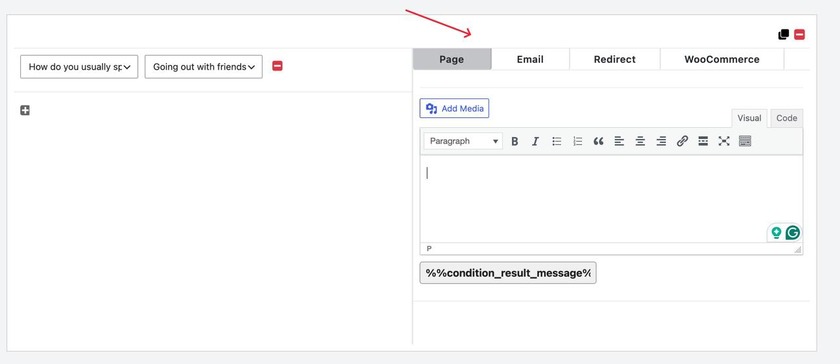
Once you set the conditions, you’ll see three tabs where you decide what happens for people who match it.
Results Page tab. Write the message shown after the quiz is completed. This is where you can speak directly to the group, for example “Welcome, beginners! Here’s where to start.”
Email tab. Write the email that gets sent to people who match the condition. You can also attach files, like a PDF guide, a checklist, or a template, which is a great way to share the right resource with the right person automatically.
Redirect tab. Enter a URL to send people to, and set a delay if you want them to read their result before they’re redirected. This is useful for guiding people to a course page, a product, a booking page, or the next lesson.
You can also see the WooCommerce tab, where you can select a WooCommerce product and redirect users to its page.
Step 5: Add more conditions
There’s no limit on the number of conditions, so you can create as many as you need. A quiz with three possible paths might have three conditions, while a more detailed one could have many more. Repeat the steps above for each group of people you want to treat differently.
Here is what the final result will look like:
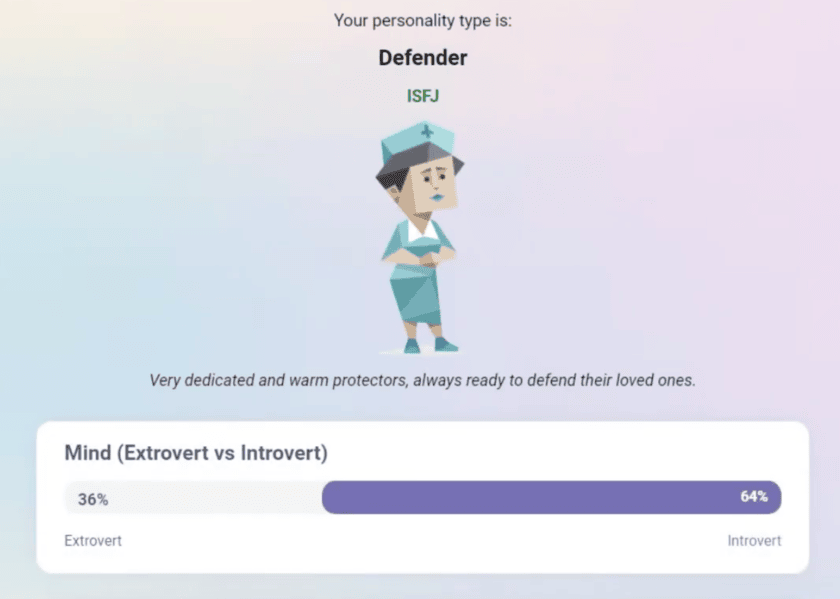
Ideas for Using Conditional Results
- Lead generation. Ask what someone is looking for, then send a different guide by email, depending on their answer.
- Online courses. Ask about experience level, then redirect beginners to your starter lesson and advanced learners to a more challenging one.
- Product recommendations. Match answers to products, then show a result and redirect to the matching product page. If you want to learn more, feel free to check out our How To Create a Product Recommendation Quiz
- Personality quizzes. Give each personality type its own message, email, and next step, so the quiz feels personal from start to finish.
- Surveys and feedback. Show a thank-you message to happy respondents, and a different message, with a way to get in touch, to people who report a problem.
Tips for Better Conditional Results
- Plan your paths first. Sketch who you want to reach and what each group should see before you build.
- Start with a few conditions. You can always add more once the first ones work.
- Use a delay on redirects. Give people a moment to read their result before they’re sent somewhere else.
- Make emails useful. An attachment that actually helps, like a guide or checklist, works better than a generic message.
- Test every path. It’s the easiest way to catch a condition that doesn’t behave the way you meant it to.
Frequently Asked Questions
1) What version of Quiz Maker do I need?
You need a Pro version of the plugin, the Business or Developer packages. Check our Quiz Maker pricing page to learn more.
2) Can I create multiple conditions in one quiz?
Yes. There’s no limit on the number of conditions.
3) What can I customize with conditional results?
The message on the results page, the content of the email (including attachments), and the redirect URL, with an optional delay.
4) Can I combine conditions?
Yes. You can combine conditions using AND and OR for more detailed logic.
5) How do I put the quiz on my site?
After saving your conditions, copy the quiz shortcode and paste it into any post or page.
6) Does it work with personality quizzes?
Yes. The add-on works with different quiz types, including personality quizzes and keyword quizzes.
With conditional results, a quiz can respond to the person taking it and not show everyone the same page. Each person can get a message, an email, and a next step that match their answers.
To try it, choose one question that clearly splits your audience, set up two or three conditions for it, and test each path yourself. If that works, add more paths as the quiz needs them.