Imagine you’re visiting a company’s website. Everything looks good: the colors match, the fonts are consistent, the buttons have the same style, and even the way the text is written feels familiar. You get a pretty good idea of what the brand is all about, right? Because for me, consistency and matching of everything is a good sign that the company actually cares about its audience and visitors.
But let’s say that exact website has a quiz section, and you decide to take one and see that the quiz is pretty different from the website – different colors, buttons, and everything – and it feels like the website is built by X person, and Y person separately created the quiz.
For these kinds of situations, branding matters more than ever. You may think it’s just a small online quiz, but in the bigger picture, it becomes part of the experience, so it needs to match.
So, if you’re interested in creating branded quizzes, keep reading this article to learn how to create one using Quiz Maker
What Does “Branded” Actually Mean?
When I hear the word “brand,” the first things that come to mind are a logo and its colors, which is not wrong, but a brand is obviously more than that. It’s like a whole experience that your visitors go through, and every little detail can make it feel more or less connected to your business.
Let’s divide it into a few layers
- Look: the colors, fonts, buttons, backgrounds, and shapes people see
- Voice: how your questions, answers, button labels, and results sound, whether formal, casual, or friendly
- Experience: everything a person goes through, from the start screen to the results, follow-up emails, and certificates
- Placement: where the quiz sits on your site and how visitors get to it
- Consistency: whether it looks and works the way you intended when someone opens it, especially on a phone
A lot of businesses focus on the first aspect and stop there. They add their logo, choose a few colors, and consider the job done, which is not the best thing to do.
Before You Open the Plugin: Gather Your Brand Basics
You can collect all the necessary information, such as:
- Your logo: Have a high-quality version ready, along with one or two images that fit the topic of your quiz.
- Brand fonts: Know which fonts your website uses and make sure you have them ready to use.
- Your brand voice: Choose three words that describe how your business communicates. For example, warm, direct, and playful, or calm and professional. This should be decided based on how you want to present your company.
- Examples of your writing: Pick two or three sentences from your website that sound exactly like your brand. They’ll help you keep the same tone when writing your quiz.
- Brand colors: Have the exact color codes (hex codes, such as #1F4E79), rather than just saying you want dark blue or light pink; this will keep everything accurate.
Now let’s create a branded quiz for Coca-Cola using Quiz Maker. We will go through the process step by step, starting with setting up the quiz and making sure it reflects the brand’s identity.
Step 1: Install and Activate the Quiz Maker Plugin
If you’re not familiar with the process, feel free to check out our Plugin Setup and Installation article and learn more about the setup process.
Step 2: Create Your Questions and Quiz First
Build your questions and add them to your quiz as usual. To add new questions, you will have to follow these steps: click the Quiz Maker icon in your left sidebar, choose Questions, and click Add New as shown in the screenshot below.
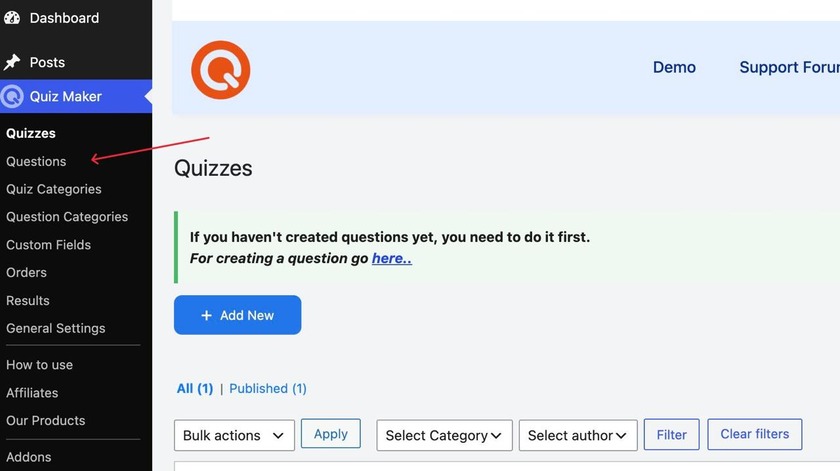
The same setup works for creating a new quiz.
Step 3: Add Your Quiz Title, Image, and Description If Needed
Before adding your questions, it’s important to adjust a few things first: the title, image, and description. These are the most important things because that’s what the quiz taker sees first.
So, since we’re creating a quiz for Coca-Cola, it’s important to keep everything consistent with the brand’s identity. Below, you can see my example.
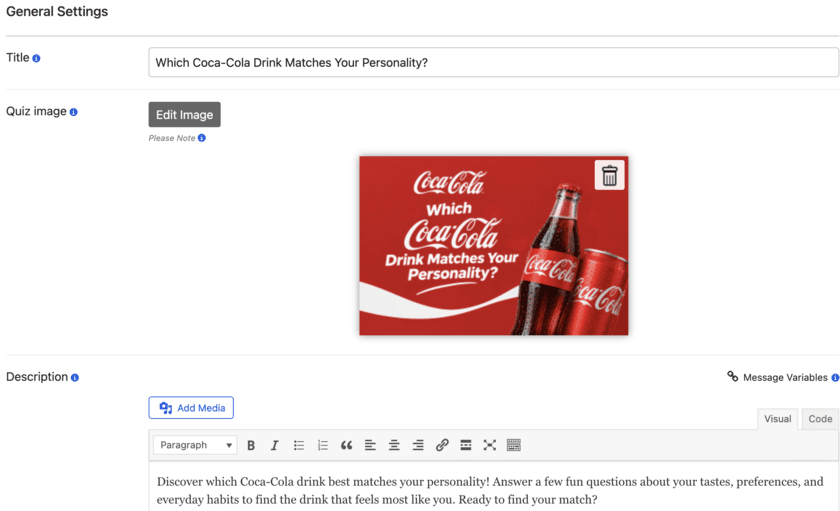
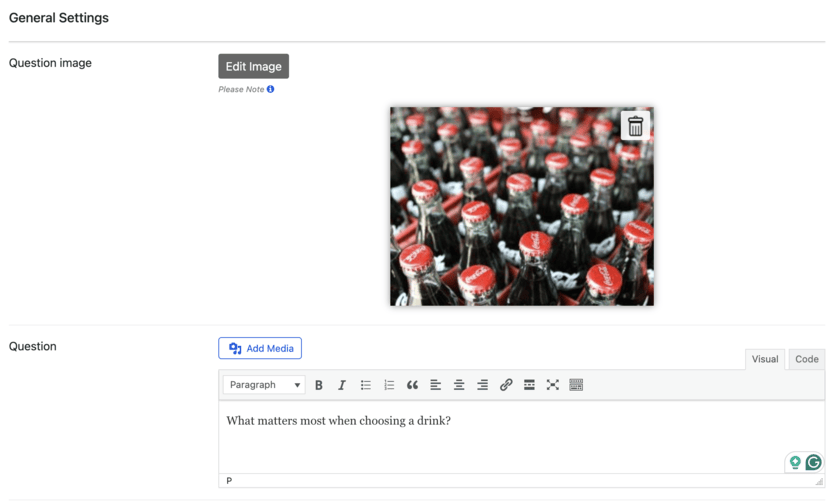
Below, you can find an example of a question I created for this quiz. In this part, you’re also free to choose your question type. The Quiz Maker plugin is great for this because it offers more than 10 question types. Get to know All the question types explained in our guide.
Step 4: Adjust the Styling Settings
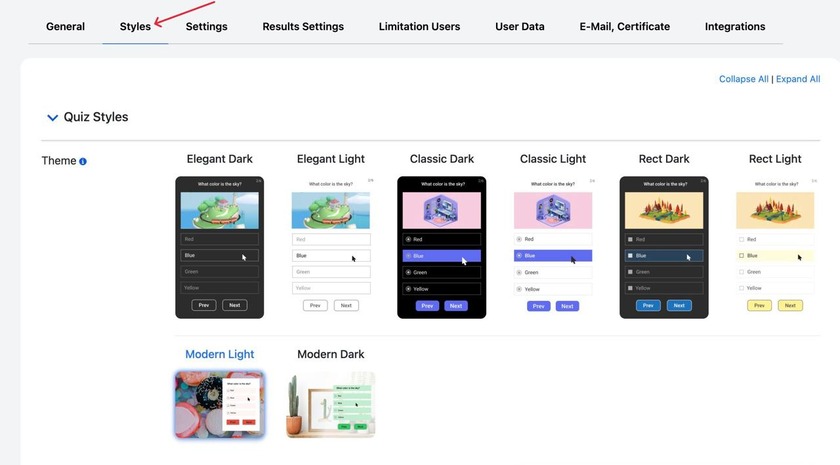
After we’re done creating our questions, it’s time to do the actual styling of the quiz. To do this, you will need to click on the Styles section, as shown below.
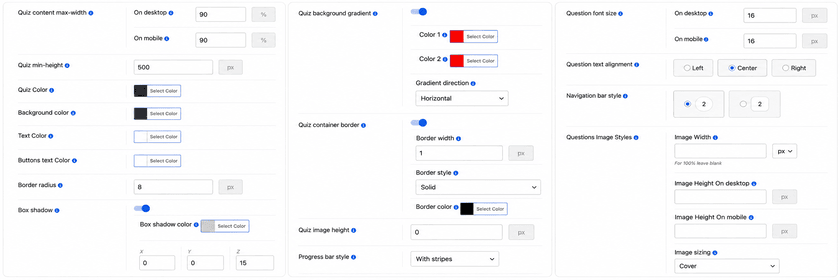
In this section, you will find a huge list of settings that allow you to customize basically anything. Below, you can see some of those settings, and there are many more.
Once you’re done with everything, you can save your quiz.
Here is what our final result will look like:
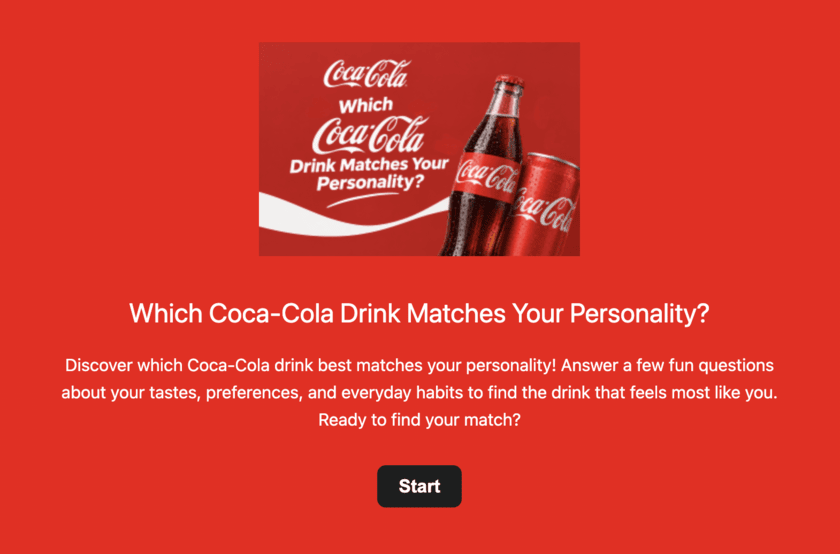
As you can see, everything fits together perfectly. The Coca-Cola product image, the title, and the description all match the brand’s identity. The familiar red-and-white colors make the page instantly recognizable to visitors. The clean layout makes the quiz easy to read and visually appealing. It feels like a part of the Coca-Cola brand experience!
Frequently Asked Questions
1) Do I need to know CSS to brand my quiz?
No. The Styles tab covers themes, colors, shapes, layouts, and buttons without requiring any code. That’s the great thing about this plugin: you don’t need any coding skills.
2) Can I use my own logo?
Yes. A simple way is to use it as the quiz image on the start screen. For other places, like certificates, check the design options in your version of the plugin.
3) Will my quiz match my WordPress theme automatically?
Not entirely. The quiz has its own style options, so set your colors and shapes in the Styles tab, and check the result next to your real pages.
4) Can I send people to my own pages after the quiz?
Yes. You can redirect people based on their result, so they land on a page that’s fully designed in your own site’s style.
5) Do I need the Pro version?
Many styling options are available to start with. Some features, like the Conditional Results add-on, certificates, and integrations, require the Pro version. Get to know the Quiz Maker plugin pricing to learn more.
Creating a branded quiz involves more than picking colors or adding a company logo. It requires ensuring that every part of the quiz feels tied to your brand, from the questions to the final results. When all elements cooperate, even a small interactive quiz can become an extension of your website and help create a more memorable experience for your visitors.