The User Dashboard Addon allows users to view and track their quiz activity directly from the frontend of your WordPress website. Instead of checking results manually from the WordPress dashboard, you can give users access to a dedicated page with useful information about their quiz performance.
Users can review their quiz results, compare scores, check their progress, and view activity statistics in one convenient place.
Why Use the User Dashboard Addon?
The User Dashboard Addon makes quiz results easier to access and understand by bringing important performance information to the frontend.
It is especially useful for:
- Online learning platforms
- Student assessment websites
- Employee training programs
- Practice and exam websites
- Membership websites
- Self-paced learning platforms
How to Use the User Dashboard Addon
Step 1: Install the Addon
Download and install the User Dashboard Addon on your WordPress website through the Plugins section:
Plugins → Add New → Upload Plugin
Activate the addon after installation.
Step 2: Find the Dashboard Shortcode
After activation, go to:
Quiz Maker → General Settings → Shortcodes
At the bottom of the Shortcodes tab, find the Advanced User Dashboard Settings section.
Step 3: Add the Shortcode
Copy the generated shortcode and paste it into any WordPress post or page where you want the user dashboard to appear.
Once the page is published, users will be able to access their quiz information from the frontend.
Step 4: View User Activity
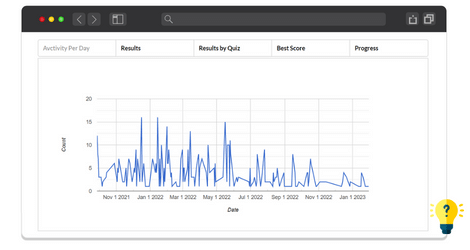
The Activity Per Day section displays users’ quiz activity in a chart, making it easy to see how frequently they participate in quizzes.
Step 5: Check Quiz Results
In the Results tab, users can view detailed information about their quiz attempts, including:
- User name
- Quiz name
- Start date
- End date
- Duration
- Score
- Status
You can also control how many results are displayed, with options ranging from 10 to 100 entries.
Step 6: View Results by Quiz
The Results by Quiz section allows users to select a specific quiz and review its detailed results, including the score, points, duration, certificate, and other available information.
Step 7: Check the Best Score
The Best Score tab highlights the highest result achieved for a selected quiz. Scores can be displayed either as a percentage or by points.
Step 8: Track Progress
The Progress tab provides a visual overview of quiz performance through charts. Progress can be measured using either scores or points, making it easier to monitor improvement over time.
* This addon works with the Free, Business or Developer versions of the Quiz Maker plugin.
