Grading quizzes by hand takes a lot of time, whether you’re a teacher with a class, a trainer assessing new hires, or a course creator with hundreds of learners. It’s slow work, and it’s easy to slip up when you’re checking answers one at a time.
So, auto-scored quiz does this grading for you, and at the end you save plenty of time. Students answer, the plugin calculates the score for you, and at the end, they see their results immediately after.
In this guide, we will show you how to build an auto-scored quiz in WordPress using the Quiz Maker plugin.
What Is an Auto-Scored Quiz?
An auto-scored quiz is a type of quiz that automatically calculates the score for you. While you build the quiz, you mark the correct answer for each question. After that, the plugin checks every response, adds up the points, and shows the final result, so there’s no grading for you to do.
Why Use Auto-Scoring?
- It saves a huge amount of time; there is nothing to mark, whether 5 people take your quiz or 500.
- It’s consistent. Every answer is checked by the same rule, so results are fair.
- Students get instant feedback. They see how they did right away, while the material is still fresh.
- It gives you useful data. You can see how participants performed overall, not just one score at a time.
How Scoring Works in Quiz Maker
Before we build anything, let’s understand the two ways the Quiz Maker plugin can calculate a score. If you’re a visual learner, feel free to check out our Creating a Scored Quiz in WordPress YouTube video to learn more details.
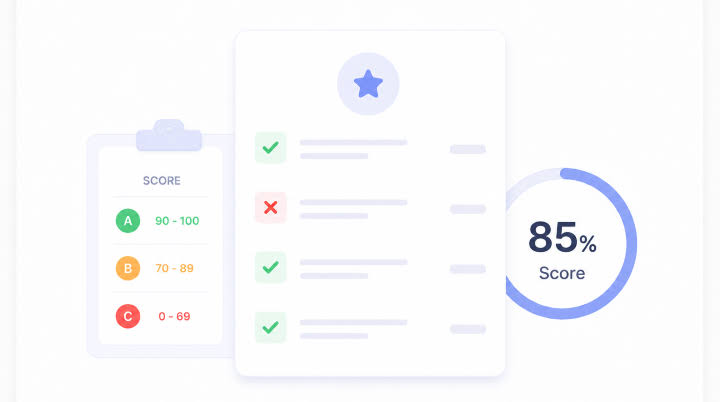
1. Scoring by correctness (percentage). The score is based on how many answers were right. If someone gets 8 out of 10 questions correct, their score is 80%. This is the simplest option and works well for most quizzes.
2. Scoring by weight (points). Each answer has points, and each question has a weight that multiplies them. For example, if an answer is worth 1 point and the question has a weight of 3, a correct answer adds 3 points. This lets you make harder or more important questions count for more.
Now, let’s make a quiz together step-by-step
Step 1. Install and activate the Quiz Maker Plugin
If you’re not familiar with the process, feel free to check out our Plugin Setup and Installation article and learn more about the setup process.
Step 2: Create Your Questions and Quiz First
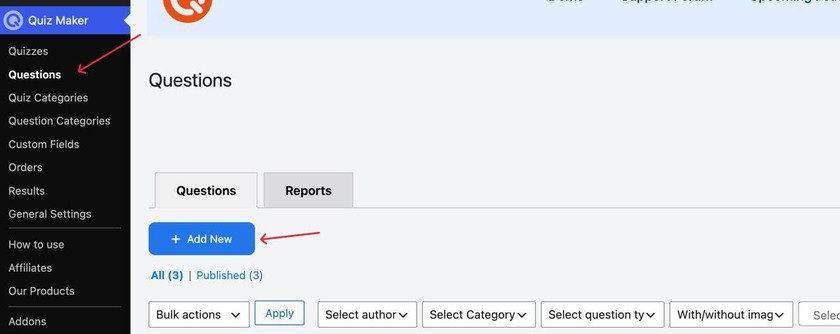
Build your questions and add them to your quiz as usual. To add new questions, you will have to follow these steps: click the Quiz Maker icon on your left sidebar, choose Questions, and click Add New as shown in the screenshot below.
Step 3. Set the Question Weight and Score Behavior
So, after writing down your question, choosing the question type and correct answer, its time to assert the question point and weight.
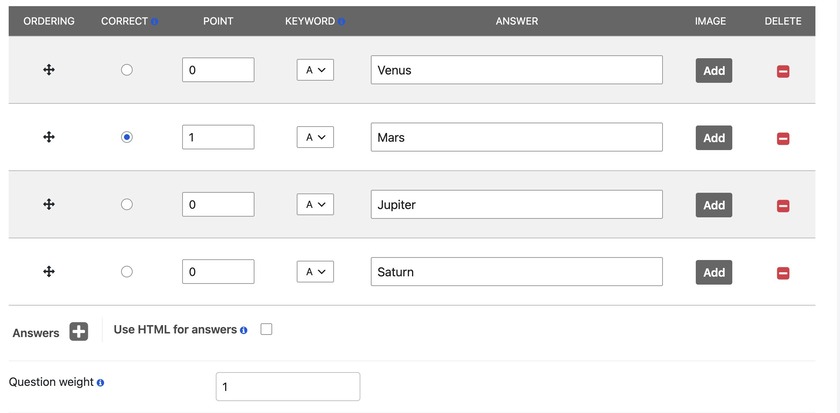
So, each question has a weight, which is by default 1, you can of course change it and adjust to yor quiz. If you raise it to a higher number, the question will count for me. So you can use this for harder or more important questions.
The weight works together with the points you give each answer, so a higher weight multiplies the points.
Step 4: Add Feedback Messages for Right and Wrong Answers
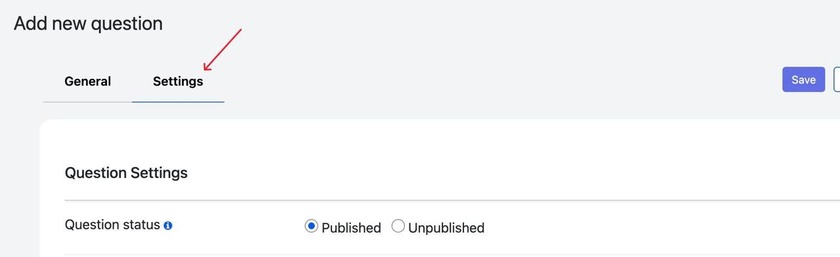
Auto-scoring is more helpful when students learn as they go. You can write a short message for correct answers (“Great job, keep going!”) and for incorrect ones (“Not quite, review this topic and try again”). To do this, you will have to go the Settings section of the quiz, as shown in the screenshot below.
After you scroll a bit, you will see the section for right/wrong messages
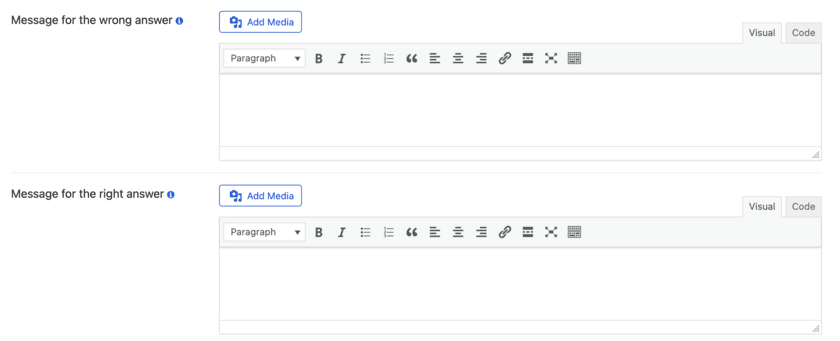
You can write things like , (“Great job, keep going!”) for correct answers, and for incorrect ones things like (“Not quite, review this topic and try again”).
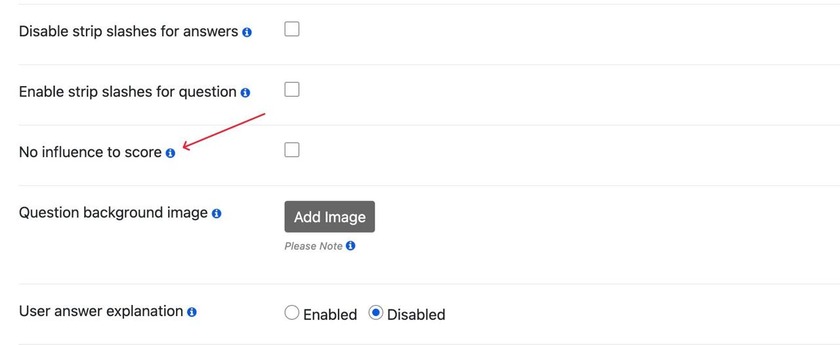
In this same settings section, you also can find the “No influence to score” setting ( shown below)
Step 5: Choose Your Scoring Method
Now, once we’re done with creating our questions and adjusting our settings, its time to choose the scoring method. For that, we will have to go to the quiz settings and find the Results Setting section.
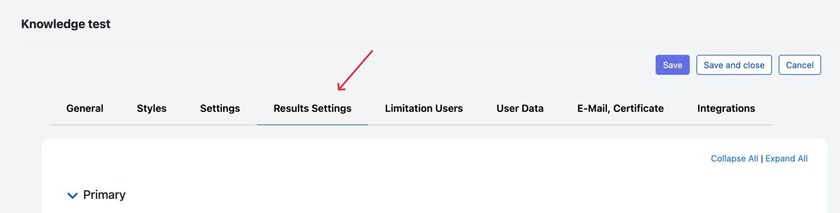
Here you’ll choose how the final score is calculated:
- By correctness, for a simple percentage of correct answers.
- By weight/points, to use answer points multiplied by question weights.

Step 6: Set Up Result Messages
The result page is where auto-scoring pays off. Instead of just a number, you can show a message that matches how the person did.
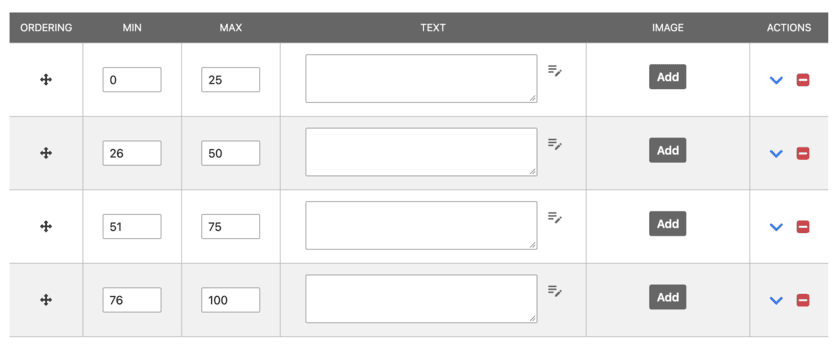
Here, you can create ranges, like 0–25%, 26–50%, 51–75%,and 76-100%, and write a different message for each one. For example, a low range might say “Keep practicing, here’s where to review,” while a high range might say “Excellent work!” You can add an image to each message if you like. This is a great way to make your quiz feel personalized and motivating.
Once you’re done with these steps, don’t forget to test the quiz you just created to avoid mistakes and some problems.
Tips for Better Auto-Scored Quizzes
- Use weights sparingly. Too many different weights can make the scoring hard to explain to learners.
- Write helpful feedback, not just “Wrong.” Point students to what to review.
- Make score ranges meaningful. Each message should tell people what to do next.
- Use categories for bigger quizzes, so you can spot weak areas.
- Keep information-only questions separate, by setting them not to affect the score.
- Test every score range before you publish.
Frequently Asked Questions
- Can I include questions that don’t affect the score?
Yes. Set the question so it has no influence on the score. It’s useful for feedback or information-gathering questions. - What’s the difference between scoring by correctness and by weight? Scoring by correctness is based on the number of correct answers, as a percentage. Scoring by weight multiplies the answer points by each question’s weight, so some questions count more.
- Can I limit who takes my quiz?
Yes. Use custom fields to restrict access to specific participants, such as your students. - Do I need the Pro version? Many of the advanced scoring and data options are available in Pro, so check your version of the plugin. Check our Quiz Maker pricing page to learn more.
Why Choose Quiz Maker plugin for WordPress quizzes
Quiz Maker plugin is a great choice for online quizzes, exams, trivias, and basically anything, because it includes everything a quiz need without requiring a different plugin
1) A fully customizable navigation bar, including placement, position, scroll behavior, and question marking, all adjustable from the same Settings tab
2) Manual grading for open-ended or long-answer questions that can’t be automatically scored
3) Certificates, sent automatically once an exam is completed, useful for anything that requires proof of completion or a passing grade.
4) Fully customizable design: you can change the overall theme, colors, fonts, add background images, and even background audio to make the experience even better.
5) No coding required. The plugin is super easy to use, as the interface is pretty easy to understand, and you can use it even if you don’t have any coding knowledge.
6) Adding media to the questions. The plugin lets you add images and even videos to your questions, so the takers can watch a short video, let’s say, and then answer the questions related to the video they just watched. You can learn how to make a video quiz by checking out our article on How to create a video quiz in WordPress.
An auto-scored quiz takes grading off your plate and gives learners their results sooner. To start, add your questions, mark the correct answers, and set a few score ranges with a message for each. When that works, you can add weights, categories, and participant details to see more of how your learners are doing.