While teaching online, you can build a good lesson, share it, and still see students stop partway through. The content isn’t always the reason. When a teacher is not in the room, studying on a screen can be easy to put off.
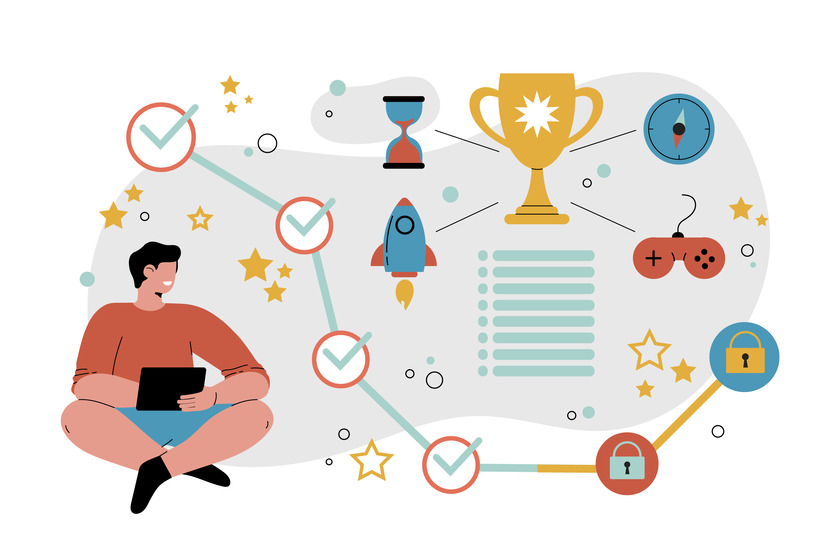
Gamification is a great way to fix this, because it takes elements from games, using points, levels, timers, and rewards to give learners a reason to keep going, and not stopping halfway through. In simpler words, it makes the whole experience way too fun and engaging. A quiz is a great way to start, since it already comes with questions, answers, and scores to build on.
Below you can find 7 ways to turn your plain quiz into one students actually want to finish and engage with, with setup steps for each in WordPress using Quiz Maker plugin.
What Is Gamification in Online Learning?
Gamification means using parts of games in something that isn’t a game. In online learning, that tends to show up as points, levels, a timer to race, a leaderboard to climb, or a certificate at the end.
You aren’t trying to entertain students. You’re giving them small reasons to keep going: a clear goal, quick feedback, and some sign they’re making progress. When those are present, students may stay with a course longer and come back more often. Honestly, for me, this is a great tool for teachers and instructors, or generally for anyone who gives lessons online, because it makes the whole learning process super fun and enjoyable.
A quiz already has most of this. Each question is a small challenge, each answer gives feedback, and the score shows how far someone has come.
1. Use Points and Weighted Scores
A score is the simplest game element. Questions don’t all have to count the same, so give the harder ones more points. A tough question worth extra gives students something to aim for besides “right or wrong,” and a correct answer on it feels like more of an achievement.
2. Add a Timer
Adding a timer to a quiz helps students stay focused. It pushes them to answer questions within a set time. This method works well for short review sessions. It also helps with practice sessions as well. Set the time generously, though. Students need long enough to read each question and think, and more so for harder questions or for anyone who isn’t a native speaker of the quiz’s language.
In Quiz Maker, you can set a timer for the whole quiz and choose how many seconds it runs. You can also write a message that appears before it starts, so students know what’s coming. Learn how to add a timer, by checking out our How to create Timer Per Question Quiz on WordPress YouTube video.
3. Give Instant Feedback and Hints
In a classroom, a teacher can say “Close, think about this part” the moment a student answers. Online, many students don’t find out how they did until the quiz is over. Instant feedback helps with this. When students can see right away whether their answers are correct and get a short explanation, they can remember the information better and avoid repeating the same mistakes later.
Hints are for students who are stuck: a nudge without the answer makes them less likely to quit. Another useful thing you can do is write short messages after each result, like ‘Great job, keep going!’ if students answer correctly or ‘You’re almost there’ if they give the wrong answer. This is something to keep in mind to motivate your students.
The Quiz Maker plugin lets you attach a hint to any question and show an explanation while the quiz is still in progress. This is especially great for difficult questions because you can give your quiz takers a chance and make the questions a bit easier for them.
4. Show Progress With a Progress Bar
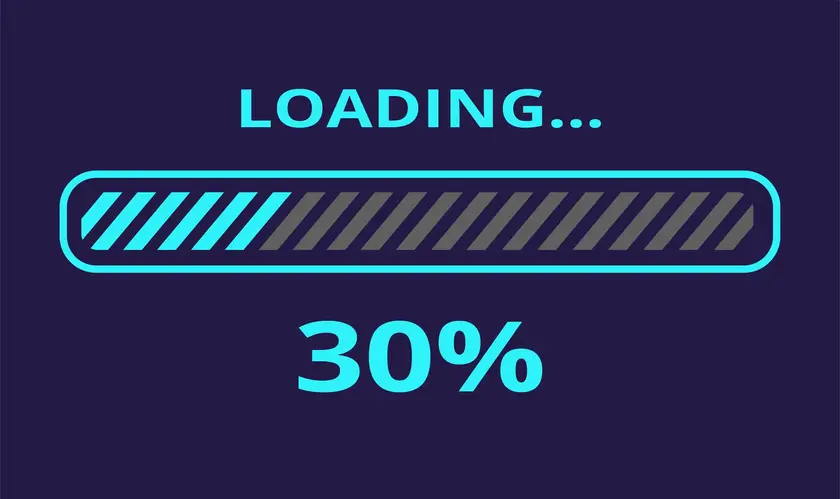
Most games show your progress, and many online courses don’t. A progress bar answers “how much is left?”, which can make a long quiz feel easier to finish. Seeing the progress bar climb from 20% to 50% to 80% feels like a reward on its own, and it may help people avoid giving up halfway.
In Quiz Maker, you can adjust the quiz settings to show a progress bar and a percentage view. You can also enable a question counter that tells students how many questions they have answered and how many are still left.
5. Create Levels With Score Ranges
Games often sort players into levels, such as Beginner, Intermediate, Advanced, and Expert. A quiz can do the same with score ranges. Instead of showing just a number, let students know what level they have achieved and what that means. A student at the Beginner level gets a next step. A student at a higher level gets some recognition. You can also ask students to take the quiz and try to reach a higher level.
In Quiz Maker, you can set up score ranges in the results settings. For instance, you can use 0 to 25 percent, 26 to 50 percent, 51 to 75 percent, and 76 to 100 percent. Each of these ranges can have a message. Also, if you want, you can add an image for each range. Additionally, you can direct students to a recommended lesson depending on their results.
6. Add a Leaderboard
Some students like comparing their results with other people’s, and a leaderboard gives them someone to chase. It shows who scored highest. It doesn’t suit every group, though.Public ranking can discourage students who are already struggling, so think about who’s taking the quiz. I think leaderboards fit challenges, team activities and groups where friendly competition is welcome. Making ranking optional or showing only the top scores softens the downside.
Quiz Maker has a leaderboard that lets you display quiz scores on your site. Review the plugin’s documentation to see the setup options and decide whether Quiz Maker works well for your learners before enabling the leaderboard. If you want to learn more about leaderboards, feel free to check out our How to add Quiz Leaderboard in WordPress YouTube video.
7. Reward Completion With Certificates
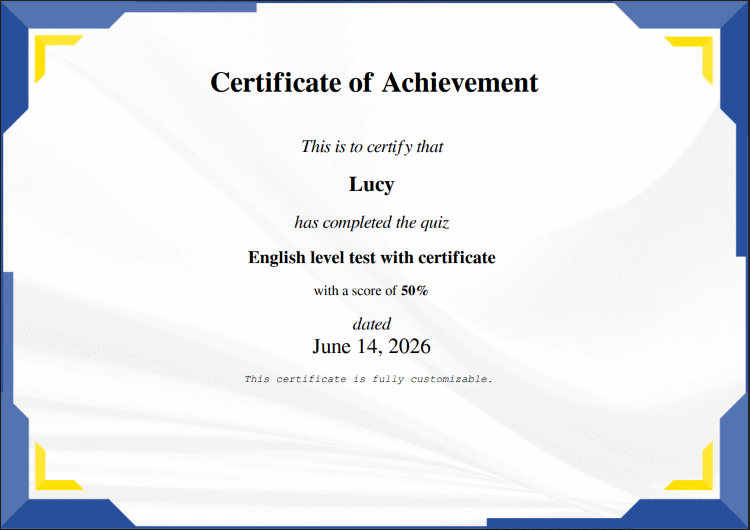
A certificate gives students something concrete to take away from a course. It counts most in longer courses and graded assessments, but it can also make a tough quiz seem worth finishing when there’s no formal training behind it.
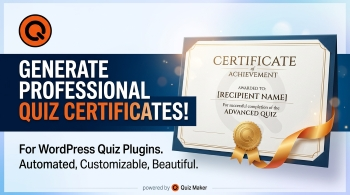
Quiz Maker can create a certificate with your own message and email it automatically to students who pass or complete the quiz. Certificates are part of the Pro version. Check out our Best WordPress Quiz Plugin with Certificate article to learn more.
Keep Students Practicing
Gamification works best when students can try again. A few small touches help with that:
- Allow retakes, so a bad result isn’t the end and students can try to beat their score.
- Use question banks and randomization, so a second attempt doesn’t feel like a repeat of the first.
- Include different kinds of questions, like multiple-choice, true-or-false, and fill-in-the-blank questions, so the quiz stays interesting. Our guide to all question types covers them.
- Add images, video, or audio to make questions more engaging. Our video quiz guide shows how.
Quick Summary: Game Elements and What They Do
| Game element | What it does for learners |
| Points and weighted scores | Makes harder questions feel worth more |
| Timer | Adds excitement and urgency |
| Instant feedback and hints | Helps students learn in the moment |
| Progress bar | Shows how close they are to finishing |
| Levels (score ranges) | Gives results meaning and a next goal |
| Leaderboard | Adds friendly competition |
| Certificates | Rewards effort and completion |
Mistakes to Avoid
- Adding every game feature at once. A timer, a leaderboard, badges, and pop-ups together can overwhelm students. Start with one or two.
- Setting the timer too tight. Students who are rushed learn less, so give them enough time to read and think.
- Losing sight of what students should learn. A game feature is worth having only if it helps with that.
- Making competition mandatory. Rankings put some students off, so let them opt out where you can.
- Skipping a check on a phone. A lot of learners take quizzes on their phones, so open yours on a small screen before you share it.
Frequently Asked Questions
- Does gamification actually help students learn?
It can help students stay motivated and keep practicing, which supports learning. But it works best when the game elements connect to your learning goals, instead of being added just for fun. - Do I need the Pro version of Quiz Maker for these features? Many of these features, such as scoring, hints, and score ranges, are part of the core plugin. Certificates are included in the Pro version, and you can see what’s included in each version on the plugin’s pricing page.
- What’s the easiest gamification feature to start with? Instant feedback and score ranges are a good starting point, since they make a quiz feel more interactive without much setup.
- Can I use these ideas for adults and professional training? Yes. Timers, levels, and certificates work well in workplace training, and many adult learners like seeing clear progress and recognition.
Gamification doesn’t need to turn a course into a video game. Students need a goal, some feedback, and a sign they’re getting somewhere, and a quiz can provide all three. Quiz Maker lets you build one in WordPress without writing code. Choose one or two of the ideas above for your next quiz, then look at how many students finish it and compare that with your last one.
Gamification doesn’t have to make the course into a video game. Students need a goal, some feedback and a sign they are making progress, and in this case, a quiz can offer all of these.