Manual grading
Take full control of quiz evaluation with manual grading feature. It will help you to review answers that require human evaluation and assign points.
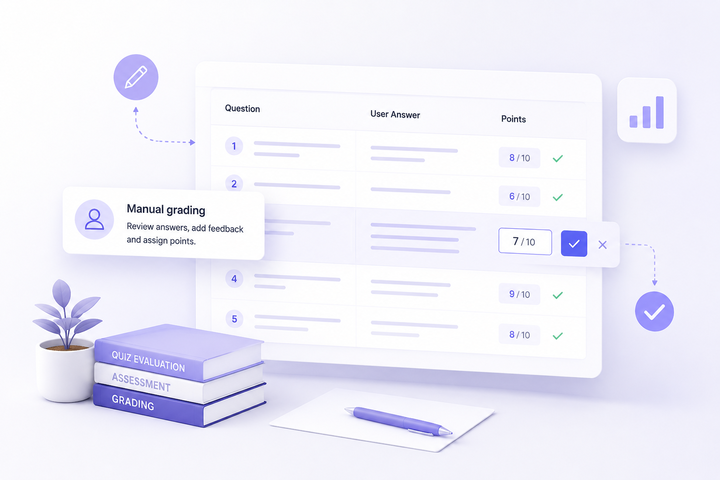
Grade Open-Ended Answers
Review essay questions, long text responses and other open-ended submissions that require human evaluation for accurate grading.
Assign Scores Manually
Assign points depending on the quality of answers, so that all the answers should be assessed using your own criteria.
Leave Personalized Feedback
Write individualized comments and suggestions for each entry to assist participants to understand their performance and improve.
Publish Results After Review
Keep the quiz results, the grades, and pass-fail results hidden until the grading process is over and you have completed your submission.
The Benefits of Manual Grading
Manual Grading gives instructors complete control over the evaluation process by allowing them to carefully review open-ended responses, assign accurate scores, adjust grades when needed, and provide personalized feedback for each submission. It ensures that answers requiring human judgment are evaluated fairly and consistently, while giving instructors the flexibility to review every detail before publishing final results. With Manual Grading, results are released only after each submission has been thoroughly reviewed and finalized, ensuring a more accurate and reliable assessment experience.
Review & Grade Answers
Check out all the quiz submissions from one dashboard and assess each answer separately. Give manual points to each question and change the score at any time before finalizing the outcome.


Leave Personalized Feedback
Make admin notes in each response that you review. This will help you keep track of your comments, grade, or reminder notes and send them to the participants.
Track Grading Progress
Easily monitor the grading status of all submissions in one view. Easily distinguish between reviewed and pending submissions, and then sort them according to their status for a better grading process.


Publish Results When Ready
Check all answers carefully before releasing the final result. After completing the marking process, finalize the submission and release the results along with the scores and pass or fail information.
Use Cases
See how you can use the manual grading feature.
Online Exams & Assessments
Assess open-ended responses, essays, and complicated questions that need human review.
Employee Training Assessment
Review any training assessment where the participant needs to exhibit understanding or explain certain concepts.
Academic Courses
Instructors and teachers can manually grade the work done by students, give feedback, and offer tailored guidance.
Surveys & Research Responses
Analyze qualitative responses from surveys and questionnaires by manually reviewing answers.
Skills Tests & Evaluations
Assign grades to assignments, written responses, or practical exercises in which assessment requires expertise.
How It Works
Create a Quiz
Build your quiz with open-ended questions.
Enable Manual Grading
Turn on the Manual Grading option to review answers.
Publish the Quiz
Publish your quiz and share it with your audience.
Grade Manually
Review each submission, assign points and send the results.
Frequently Asked Questions
What is Manual Grading?
With Manual Grading, instructors, teachers, and quiz administrators are allowed to look at the answers submitted by students, award points manually, and assess those answers which cannot be assessed automatically, such as essays and subjective answers.
When should I use Manual Grading?
Manual Grading is useful when your quiz includes questions that require human evaluation, detailed feedback, or expert judgment, such as exams, assignments, training assessments, and skills evaluations.
Which question types can be manually graded?
Manual Grading can be used for questions where answers require review by an administrator or instructor, including open-ended questions, written responses, and other question types where automatic scoring may not provide accurate results.
What happens after enabling Manual Grading?
When Manual Grading is enabled, submitted quiz results will remain pending until a reviewer evaluates the answers, assigns scores, and finalizes the result. Users will receive their final results only after the grading process is completed.
Can I leave feedback for each student during manual grading?
Yes. Admins can add personalized feedback and private notes for each submission to provide guidance, explain grading decisions, or keep track of important evaluation details.
Can I edit the score after manually grading an answer?
Yes. Reviewers can adjust assigned points and update scores during the grading process to ensure the final result accurately reflects the submitted answers.
Are quiz results available immediately when Manual Grading is enabled?
No. Since answers require manual review, scores, pass/fail status, certificates, result emails, integrations, leaderboards, and statistics will remain unavailable until the reviewer finalizes the grading process.
Need More Details?
Explore the Quiz Maker documentation for detailed options, settings, and best practices.
