If you’re an international business owner, a product/service provider, or basically just someone who has a WordPress site that gets visitors from all over the world, then you’ve probably had this problem at least once: everything on the page is in the user’s language except the actual quiz. You might translate the quiz, but, for example, the “submit” button, the “ try again” message, the progress bar, and these kinds of text pieces are still in English. This can seem like a small detail, but it kind of interrupts the experience. At least for me, it’s always more professional and better to have the full experience in a language that is more comfortable for me.
If you’re using Quiz Maker by AYS for building your quiz, then you’re already in a good place, as this plugin can easily let you translate anything you want. The plugin’s interface is not hard-coded, meaning it’s translatable, so you can adapt the buttons, messages, and system notifications to match the language your audience actually reads in.
In this article we will explain what “translating Quiz Maker” really means. We will look at the tools you can use for it and walk through the process step, by step.
Is the Quiz Maker Plugin Translatable?
Yes. Quiz Maker is fully translatable. It has already been translated into other languages by the WordPress community. Currently the plugins page on WordPress.org lists 19 translated locales. That is a sign that Quiz Maker follows WordPresss standard translation practices and that is what makes Quiz Maker compatible, with the usual WordPress translation tools.
But let’s understand together what “translatable” means here. What we mean by this is the interface, meaning the texts Quiz Maker generates itself, and not the content you type into your quizzes.
More specifically, we mean things like:
- Frontend quiz messages (e.g., “Please answer this question before continuing”)
- Buttons (“Start Quiz,” “Next,” “Submit,” “Retake Quiz”)
- Notifications and validation messages
- Default result texts and score labels
- Other plugin-generated strings in the admin and frontend
This is a different task from translating the actual questions and answers you write inside a specific quiz. That distinction matters, because a lot of confusion around “multilingual quizzes” comes from mixing these two things up. Translating the plugin makes the interface speak your visitor’s language. Translating the quiz content is a separate, quiz-by-quiz job. If you’re interested in creating multilanguage quizzes, feel free to check our article on How to create a multilanguage quiz in WordPress.
It is important to know that this setup is not the same, as translating the questions and answers you type inside a quiz. The difference is important because a lot of people mix up quizzes with this setup. If you want to find out how to make quizzes in different languages you can visit this link and get more information.
What setup do you need to Translate Quiz Maker?
Before going into the steps, let’s see what options we have for this kind of translation. There are three tools commonly used to translate WordPress plugins like Quiz Maker, and each fits a slightly different situation:
Option 1: Loco Translate
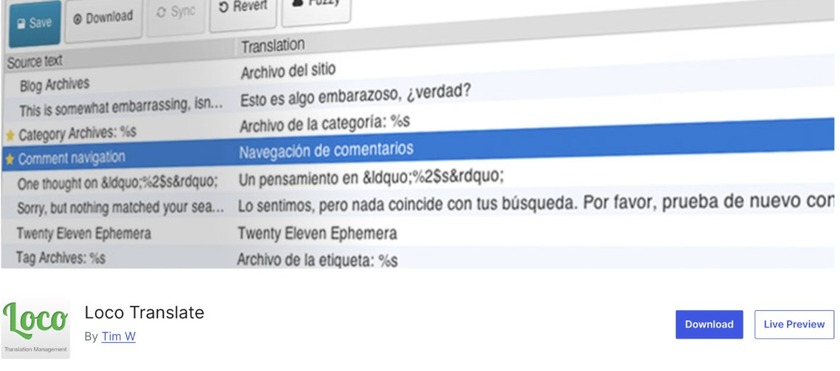
Loco Translate is the most direct way if all you want to do is translate Quiz Maker’s own interface strings. It works inside your WordPress dashboard and lets you edit translation files without touching code. If your main goal is simply “make the quiz buttons and messages appear in my language,” this is actually the easiest one you can use.
Option 2: WPML plugin
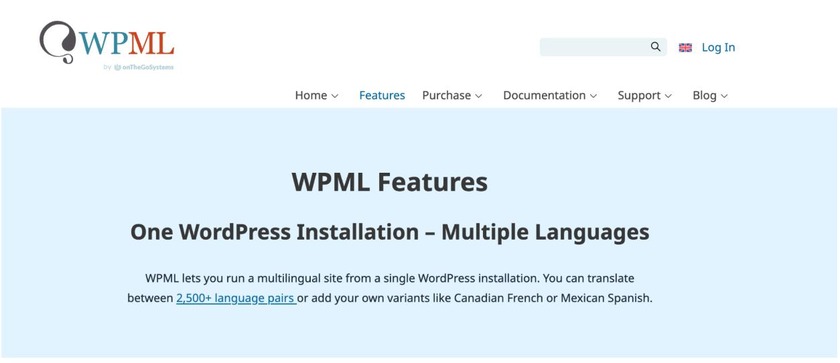
If your site already runs on WPML to manage content you do not need a separate tool just for Quiz Maker. WPML can handle the plugins interface translations too. This is the option if you are not just translating a plugin interface but building out a genuinely multilingual site. With WPML you can create language versions of pages, posts and quizzes all managed from the same place.
We have also published a specific guide on translating Quiz Maker with WPML; you can check it out here.
Option 3: Polylang
Polylang is another plugin that supports languages and works with Quiz Maker. It is listed by AYS Pro along, with WPML and Loco Translate as part of the supported ways to handle languages.
It is an option if you are already using Polylang to manage languages on other parts of your website and you want your quizzes to use the same setup. This is especially helpful if you need language versions of a quiz instead of just a translated appearance.
All of the above-mentioned tools can easily help you to translate the quiz maker smoothly.
How to Translate Quiz Maker
Now, here is a step-by-step guide on how to translate your quiz using Loco Translate
Step 1: Install and activate Loco Translate from WordPress’s plugins menu
From your WordPress dashboard, go to Plugins, click Add New, search for “Loco Translate,” install and activate it.
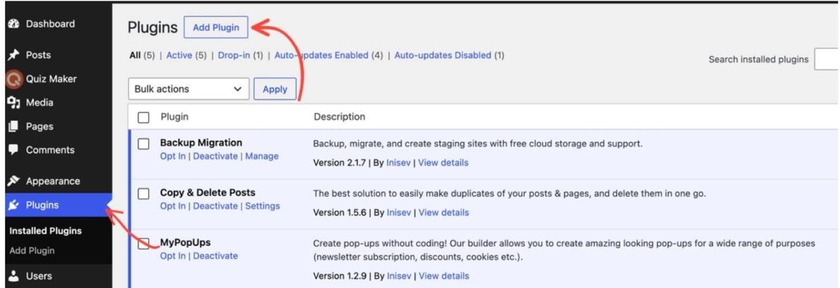
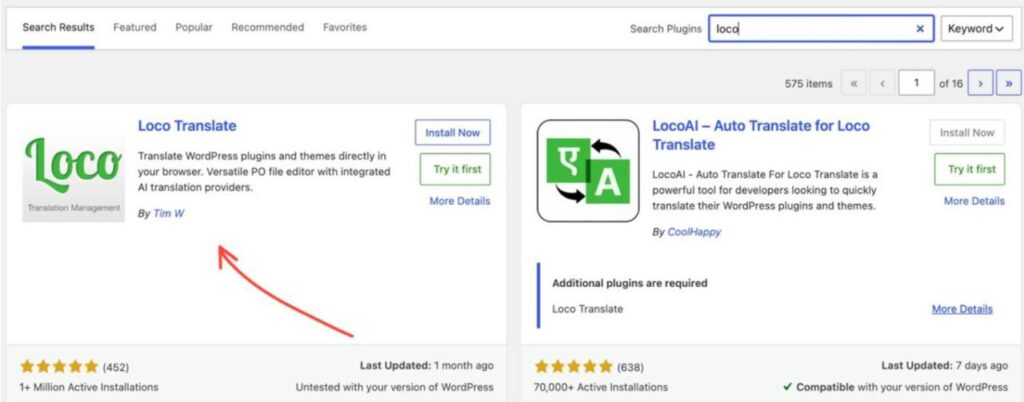
This is basically it; you already have your Loco Translate installed and activated.
Step 2: Find Quiz Maker in Loco Translate’s plugin list
Once you have downloaded and activated the translation, you will see the Loco translate with its icon appearing on the left sidebar of your dashboard. Now you will have to click on the Loco Translate, then go to Plugins.
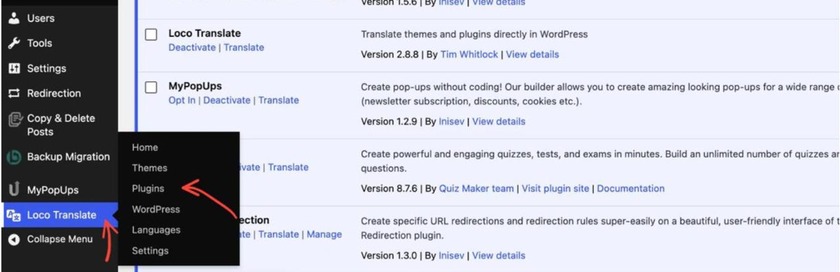
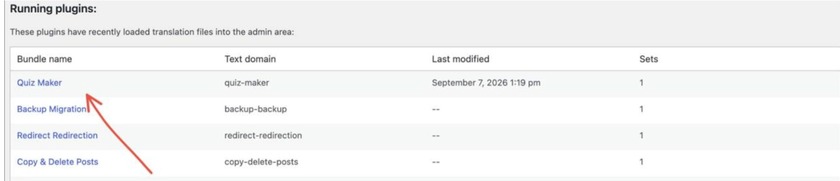
Then, you’ll see a list of all installed plugins that have translatable strings. Click on Quiz Maker to open the actual translation dashboard.
Step 3: Create a new language file (or edit an existing one)
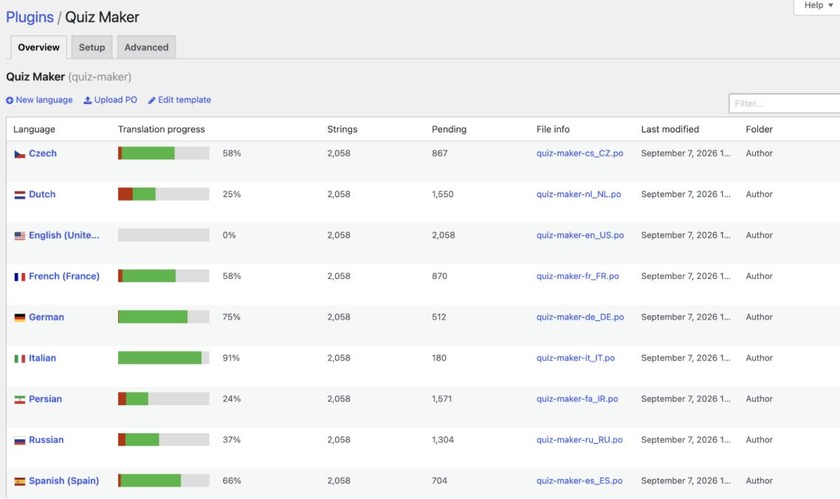
Now a page like this will open up on your dashboard and you will see some existing languages you can edit them or create a new one if your desired language is not, on the list.
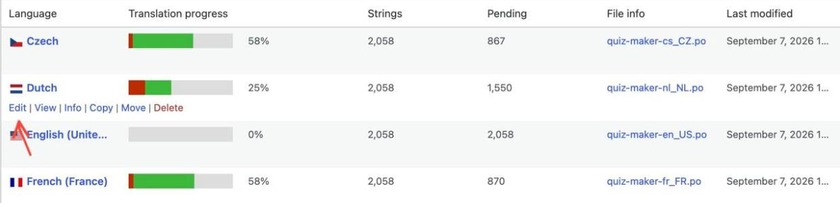
After finding the language we want, we just click Edit as it shows on the screenshot below.
Step 4: Translate the strings
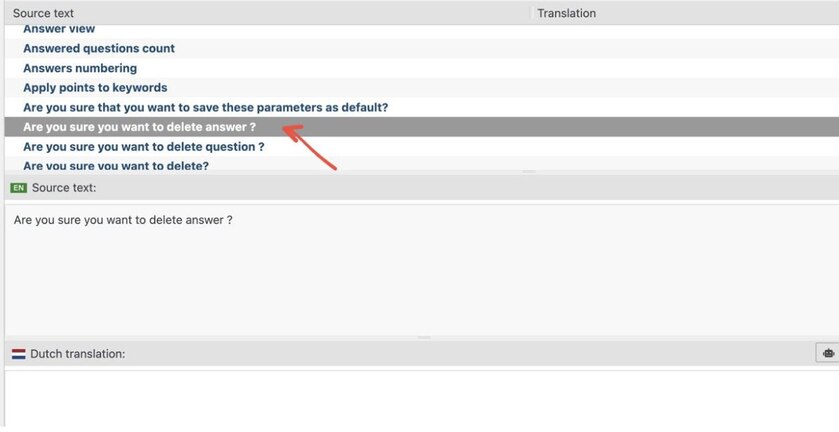
Once you click Edit, a page like this will show up. It might seem difficult or confusing at first, but I promise once you get the basic settings, it will automatically become easier.
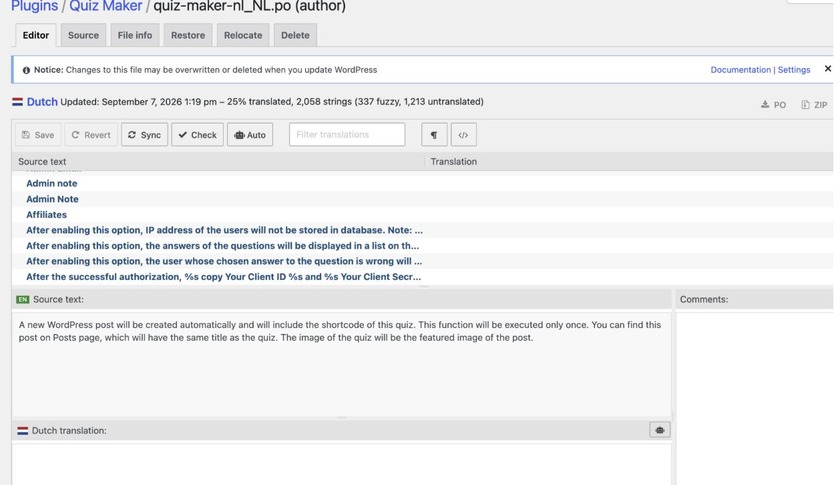
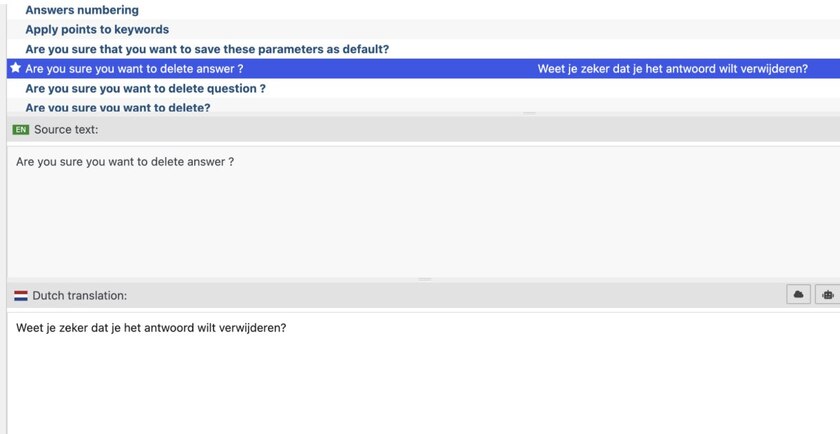
Under this “Source text” section, you will see a many text pieces that the quiz contains. You will have to choose each of them separately, and under the Dutch translation section, actually type your translation in the chosen language ( in my case it’s Dutch)
Once you type your translation in the selected language, you will see the translated phrase highlighted like this.
Step 5: Save and sync
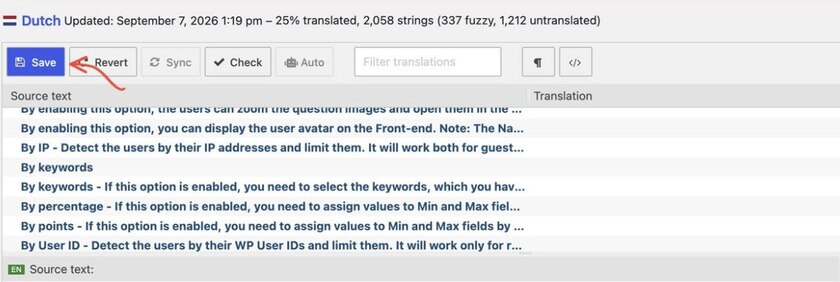
Once you’ve translated the strings you need, click Save
Step 6: Check the frontend to confirm it’s actually working.
Once you’ve translated some strings and hit Save in Loco, you can go and view the quiz on your live site with the site language set to Dutch.
To be very honest, when I was doing this for the first time, it felt very confusing and technical, kind of, but then in like 10 minutes I figured it out. The difficult and unexpected part was the number of strings Quiz Maker has- a lot, actually a lot. I also didn’t know I could filter and even search for keywords to make my job easier; this filter box actually saved me a lot of time. I just typed “submit” or “button,” and the word would show up. Overall, this was a smoother experience than I expected.
Plugin Translation vs. Quiz Translation
As we mentioned before, these two tasks get confused so often; here’s a side-by-side comparison:
| Plugin Translation | Quiz Translation |
| Translates Quiz Maker interface text | Translates your quiz content |
| Buttons and default messages | Questions and answers |
| System-generated text | Results and descriptions |
| Plugin settings-related strings | Language-specific quiz versions |
| Usually handled with translation tools (Loco Translate, WPML, Polylang) | Can be handled through multilingual quiz workflows |
Best Practices for Translating Quiz Maker
Here are a few tricks and tips that will help you to save time while translating
1) Scan for strings after every plugin update. New Quiz Maker versions can introduce new interface text. If you don’t re-scan after updating, new strings will just fall back to English.
2) Keep a consistent tone across languages.
This might sound like a basic point but keep your voice the same in every translation. Decide if you prefer your quiz voice to be formal or casual and keep that voice consistent all the way.
3) Test on the frontend not just the translation table. Some strings might look okay in a list. Don’t fit well in context. They could be too long, for a button. Cause awkward line breaks. Always preview it before saving.
4) Don’t forget the little details. It’s also important to pay attention to things like punctuation, capitalization, and even the length of the sentence, as they can be different from one language to another. For example the word button might be great in English, but me very short in Chinese, so it’s very important to be flexible while working with phrases.
Common Translation Problems in Quiz Maker
- Missing strings after an update. As I mentioned above, this is almost always solved by re-scanning the plugin for new or changed strings.
- Confusing plugin translation with quiz translation. If someone on your team translates the questions inside a quiz and expects the buttons to change too (or vice versa), you might need to recheck the distinction covered earlier in this guide.
- Untranslated strings still showing in English. This usually means the string wasn’t picked up in the original scan, or the translation was saved but not published/applied for that language.
Why Use Quiz Maker by AYS for Multilingual Quizzes?
Translation support isn’t some random feature you can add for no reason. It’s a useful tool for site owners who have people visiting their site from different areas of the world. When your audience speaks languages, having translation support helps everyone understand what you’re saying, this makes your content accessible to more people.
Besides the multilingual quiz support, Quiz Maker by AYS also offers some great features like:
- Multiple question types ( true/false, open text, multiple choice, etc.), learn more about each question type by clicking this link.
- Your quiz takers can have personalized results, based on how they answer a question ( great for exams and product recommendation quizzes)
- Certificates for completed quizzes. Specially great if you want to create exams using the plugin, if you want to learn more about exams in WordPress, check this article out.
- Lead generation tools built into the quiz flow
- Integrations with other tools and services ( Google Sheets, Slack, Mailchimp, etc.)
- Customizable design to match your site’s branding ( you can change the theme, the colors, fonts, and basically anything)
- An easy quiz-creation process that requires 0 coding skills.
You can get to know to the rest of the features by clicking this link.
Translating Quiz Maker’s interface and translating the content of an individual quiz are two different jobs, and keeping that distinction clear is the key to a smooth multilingual setup. The plugin’s own text — buttons, messages, notifications, can be translated once using Loco Translate, WPML, or Polylang, depending on the multilingual setup your site already has. Your quiz content, on the other hand, needs to be translated (or rebuilt) separately for each language you support.