I’m pretty sure this is going to sound very familiar to most of you – you’re in the middle of completing an important test, even an exam, or a training assessment, and suddenly, your phone rings, or you lose the internet, or many other scenarios like this. What usually happens in those cases? You go back to continue your test, and it turns out you have to start all over again. In these cases, I usually leave the page and don’t finish the thing, as who wants to start and fill out the same quiz all over again? No one does. If you’re a WordPress site owner who has quizzes on your site, one of the most important things you can do is let users save their progress, so they can continue it later.
I think this is actually an easy thing you can do: let your visitors pause the quiz at any point, save the quiz progress, and let the quiz continue later right at the same place the quiz stopped.
In this article, we will show you how to save your quiz progress in WordPress and let users continue it later. We will go through why this feature matters, which types of quizzes benefit most from this, how to set it up step by step using the Save and Resume Addon for Quiz Maker by AYS, and how it stacks up against quizzes that don’t offer this option. If you’re not fully familiar with the plugin, you can check out this Youtube video to learn more, or click this link and get to know to the features the plugin offers.
Why Should You Let Users Save Quiz Progress?
I noticed that when the quiz is long and takes more than a few minutes, many people may not finish it in one sitting. Some people want to pause the quiz, think, or switch tabs to look something up. Giving them the option to save their quiz progress in WordPress and come back later solves problems.
Better user experience – Spending more than 10 uninterrupted minutes on a quiz can be hard, especially for people who are working. When users can pause and come back later, it shows they are respected. It shows you know their time is limited. This builds trust in your quiz or in your platform.
Higher completion rates – This is one of the most important ones. If I had to start the same quiz all over again and reread/reanswer the same things, I would probably just not complete it, as I would get frustrated. With this setting enabled, the completion rates will rise, because people simply would not give up on the quiz.
Best Use Cases for the Save and Resume Quiz Feature
The longer the quiz, the more valuable this feature becomes. It’s especially useful for:
Online Exams. They don’t have to rush because they aren’t worried about losing their work if something happens. Students can take their time. Feel more relaxed while answering questions. This helps them focus better and do their best.
Employee Training. Employees can pause a training assessment when, for example, an urgent task comes up, then just continue it whenever they can, without reading the same sections over and over again.
Certification Tests. Long, multi-part certification tests become much less frustrating when test-takers know they can break the test into sessions instead of doing everything at once.
Personality Quizzes. Even lighter, more casual quizzes benefit — users can step away mid-quiz and return whenever they feel like finishing, rather than losing interest and never coming back.
How to Enable Save and Resume in WordPress Quiz Maker
Here’s exactly what you need to do. You can also read this article and watch the video by clicking this link.
1) Get Quiz Maker Pro installed and activated on your WordPress dashboard. The Save and Resume Addon works with the Business, Developer versions of the plugin.
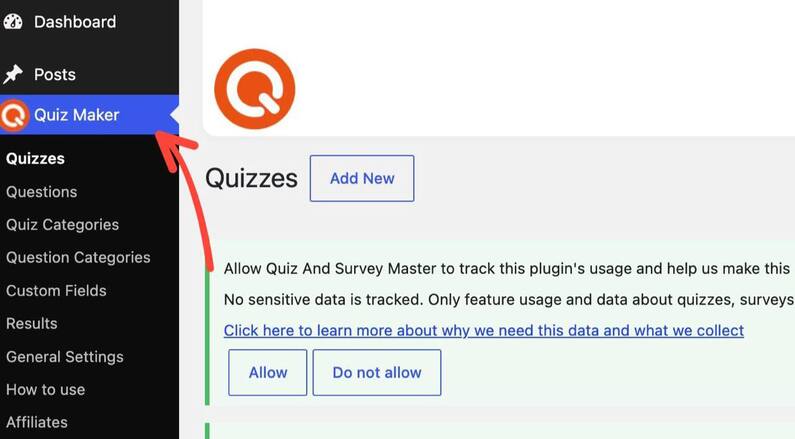
2) Install the Save and Resume Addon separately
By clicking this link, you’ll see the Save and Resume Addon, and you can easily purchase and download it.
3) Activate it
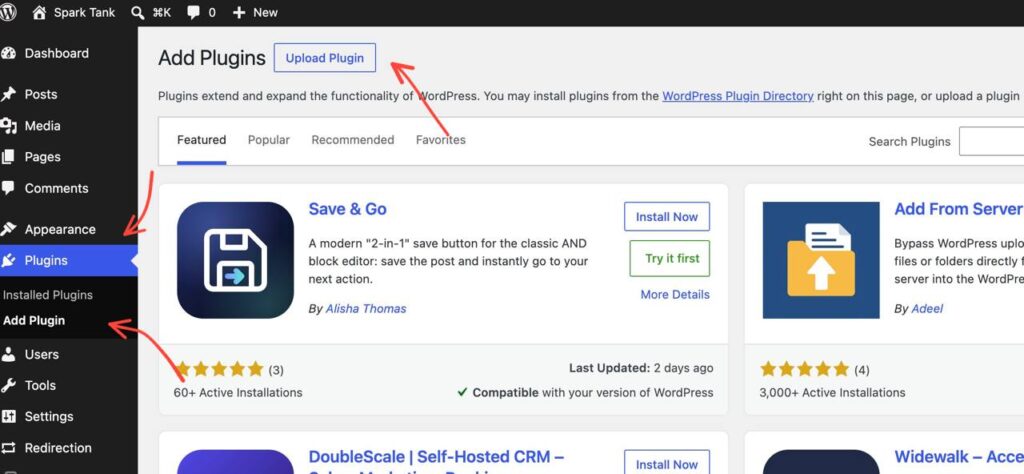
Then, you’ll have to click Plugins on the left side of the dashboard, then Add Plugin, and upload the file that you just purchased
4) Enable it in your quiz settings
After you’re done installing and activating the plugin, it’s time to actually apply that on your quiz
What you’ll do is you would go to your quiz’s settings, scroll down all the way along, and you will see the Enable save and resume setting.
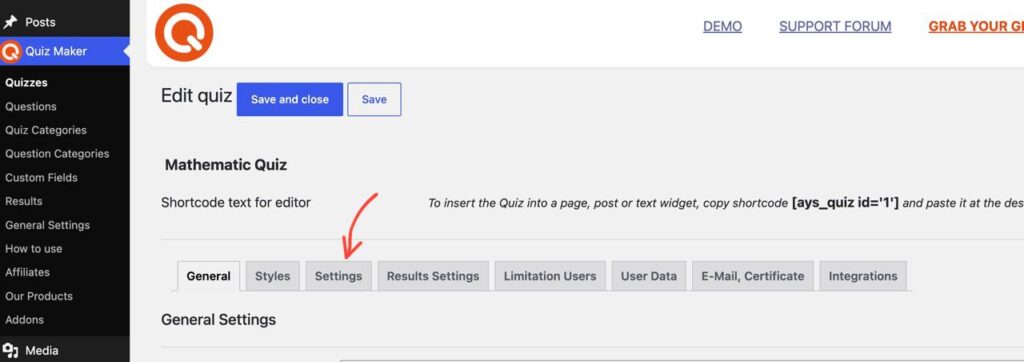
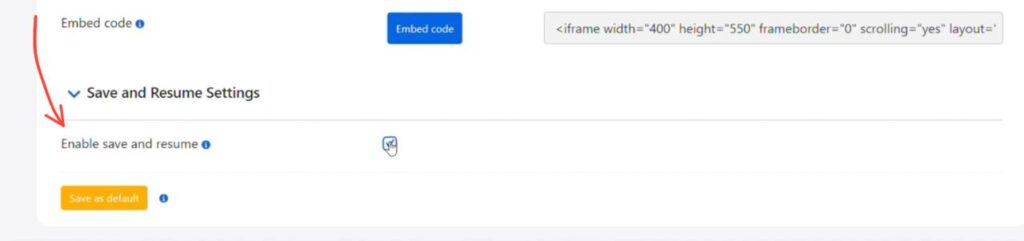
Enable the setting, and then click Save.
After enabling this setting, on your actual quiz, you’ll see something like this
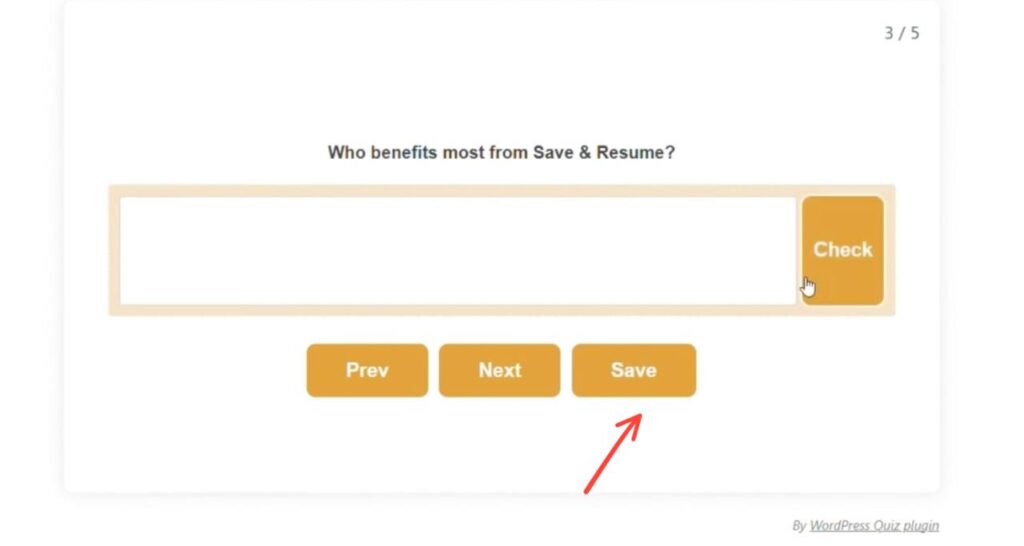
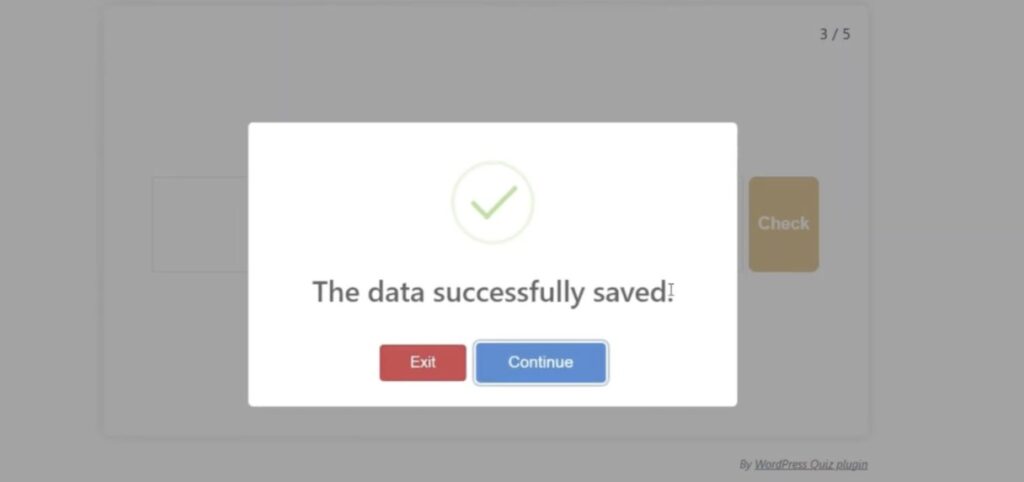
The Save button, that will help users save their progress. After clicking Save, users will see this window, where they can choose between exiting the quiz or continuing where they left off.
Starting a Quiz Again vs. Save and Resume
| Without Save & Resume | With Save & Resume |
| Progress is lost | Answers are saved |
| Users restart quizzes | Users continue where they stopped |
| Higher abandonment | Better completion experience |
| Difficult for long exams | Perfect for detailed assessments |
When progress can be lost at any moment, users approach your quiz with hesitation — they rush, they worry about interruptions, and many simply don’t bother starting a long one at all. Once you add the ability to save and resume, that pressure disappears. The ability to save and resume removes that pressure. People then engage fully, take their time, and are more likely to complete the test fully.
Tips for Getting the Most Out of Save and Resume
Once you have this feature on, there are a few things that you can remember so the quiz’s flow is better
1) Let people know the option exists. I’ve noticed that a lot of users don’t even look for a save button unless they know it’s there. I mean, sure, users see the save button under the question, but a short line in your quiz instructions, maybe something like “ you can save your progress and come back later”, will be a useful thing to have.
2) Keep session length in mind. Even with save and resume enabled, quizzes that are extremely long can still feel like a chore. You can try to create a multi-page quiz, divide your quiz into small sections, and have maybe 5-6 questions on each page. You can learn how to do this by accessing this article.
3) Test it yourself before publishing. Not only with this setting, but in general, in every quiz, it’s so much better to test it before publishing; this will take a few minutes, but will save you from finding out about issues that the quiz might have.
Frequently Asked Questions
- Can I let users save quiz progress in WordPress without coding?
Yes. With the Save and Resume Addon for Quiz Maker, there’s no coding involved. You just install the add-on and turn on the setting in your quiz. It’s ready to use.
- Do users need an account to save and resume a quiz?
Not necessarily. Logged-in users can resume their quiz from any device. Guests can also. Resume, but only in the same browser they used to save their progress.
- Does saving progress happen automatically?
No, saving is manual. Users click the Save button while taking the quiz. Then the Exit button when they want to pause and leave. This gives them control over when their progress is stored.
- What happens if a user closes the browser without clicking Save?
Their progress won’t be stored. That’s why it’s worth reminding quiz-takers either in the quiz instructions or through an on-page note to click Save before stepping away.
- Which types of quizzes benefit the most from a save and resume feature?
Anything longer than a few minutes benefits, but it makes the difference for online exams, employee training assessments, certification tests, and multi-question lead generation quizzes.
- Do I need the Pro version of Quiz Maker to use this feature?
Yes. The Save and Resume Addon works with the Business and Developer versions of Quiz Maker Pro. You ca get to know the pricing by visiting this link.
Letting visitors save their quiz progress and come back later isn’t a small perk for something like a quick poll. It’s almost necessary. It makes the experience better for users. It cuts down on people quitting. It turns long exams, training tests, and certification quizzes from something stressful into something actually doable.
If you haven’t set this up yet, now’s a good time to try Quiz Maker and create your first timed online exam. If you don’t know how, check our guide of how to create a free online exam with a timer in WordPress. Ready to use? Try Quiz Maker today and create your first timed online exam in just a few minutes.