After creating your quiz with Quiz Maker by AYS, the next step is publishing it on your website so visitors can access and complete it.
The plugin provides multiple ways to display quizzes depending on the editor or page builder you use. You can publish quizzes using:
- Using the Classic Editor with a shortcode
- Using the WordPress Block Editor (Gutenberg)
- Using Elementor page builder
In this guide, we’ll walk you through each method step by step so you can easily add quizzes to any page or post on your WordPress website.
How to Create a Quiz #
Of course, before publishing the quiz, you must first of all learn how to create a quiz.
- Create your questions in the Question tab in the Quiz Maker by AYS plugin.
- Then, go to the Quizzes tab, click on the Add New button and insert your questions.
- Configure the needed settings.
- Click on the Save button.
Once your quiz is ready, you can move on to publish it.
Option 1: Publish quizzes via Classic Editor #
The Classic Editor allows you to display quizzes by inserting a shortcode into any page or post.
Step 1: Copy the Quiz Shortcode #
From your WordPress dashboard, go to: Quiz Maker > Quizzes
Find the quiz you want to publish and copy its shortcode.
Step 2: Create or Edit a Post/Page #
Go to Posts/Pages > Add New
Or you can also edit an existing page where you want the quiz to appear.
Step 3: Paste the Shortcode and Publish #
Inside the Classic Editor content area, paste the shortcode where you want the quiz to be displayed.
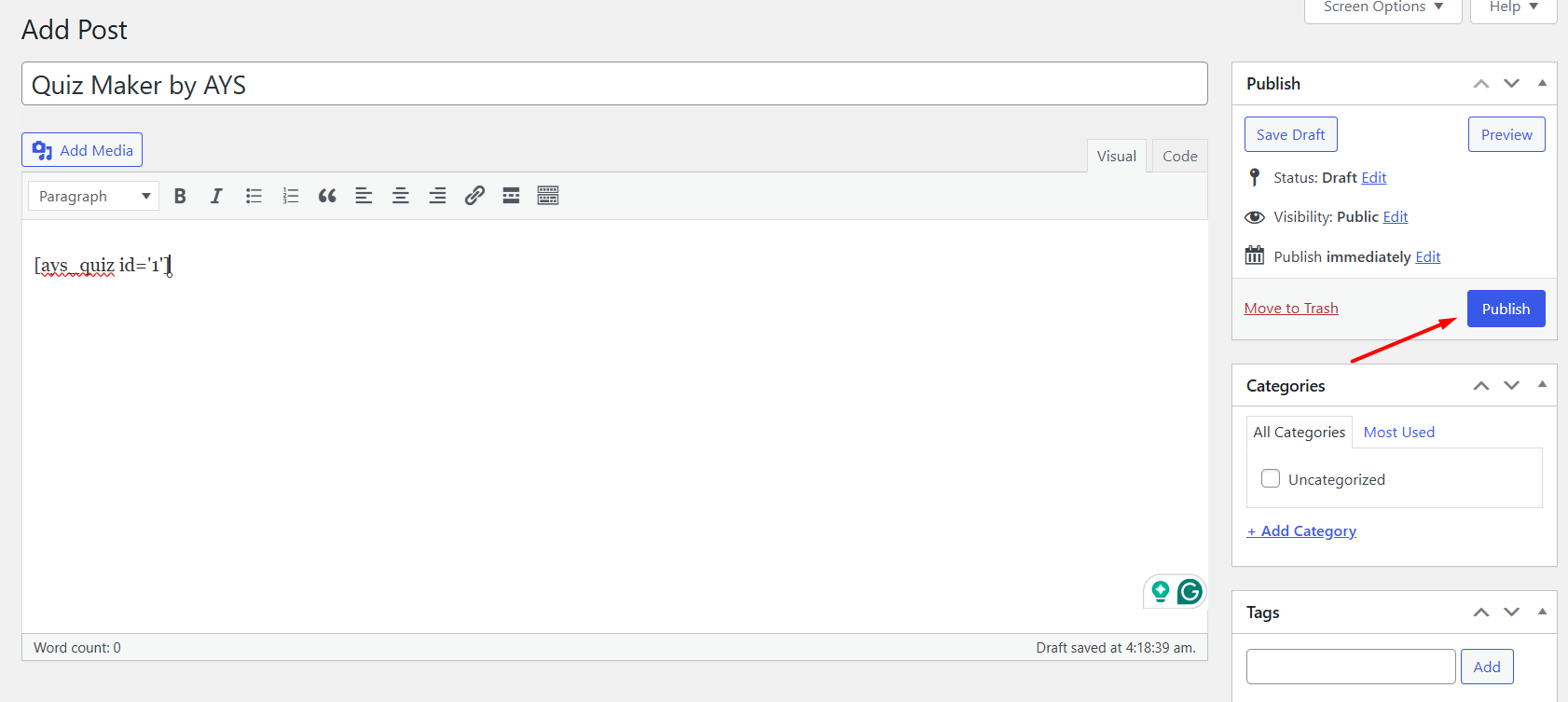
Option 2: Publish a Quiz Using Gutenberg #
Quiz Maker by AYS fully supports the WordPress Block Editor (Gutenberg), making it easy to insert quizzes without manually using shortcodes.
Step 1: Open the Block Editor #
Again, you will need to go to Pages/Posts > Add New or edit an existing page/post.
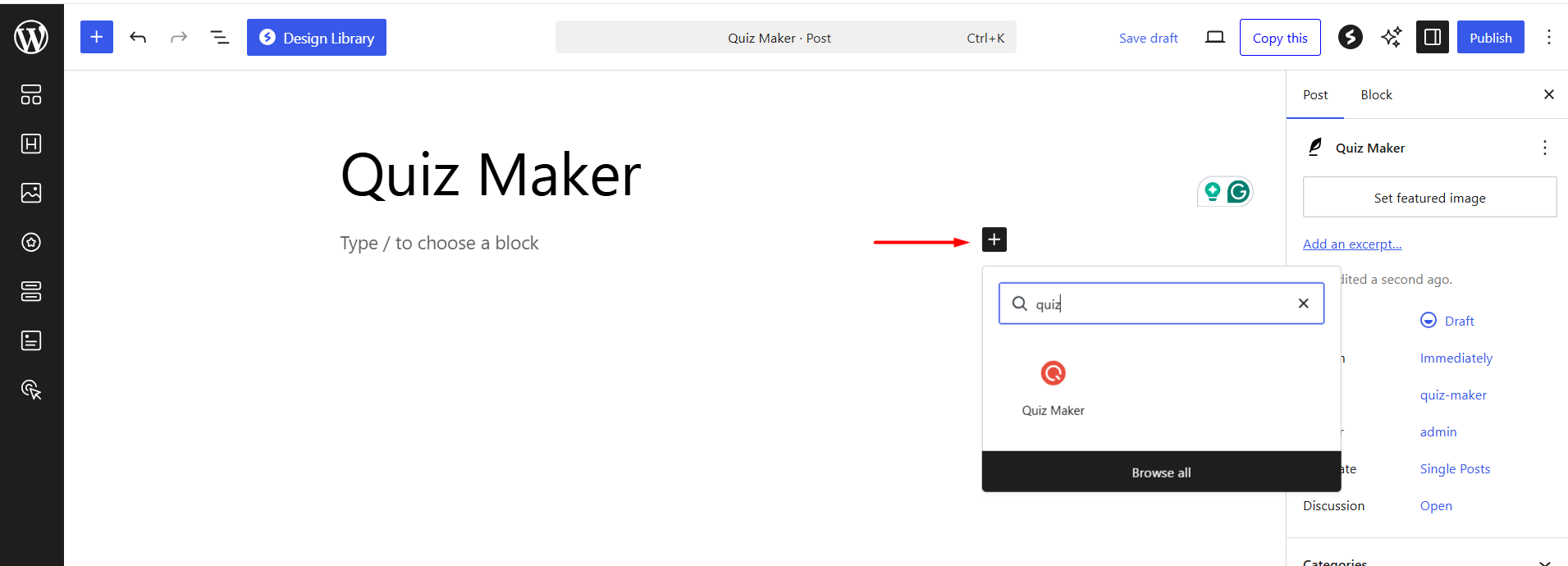
Step 2: Add the Quiz Maker Block #
- Click the plus (+) icon to add a block
- Search for Quiz Maker
- Select the Quiz Maker block
Step 3: Choose Your Quiz #
After inserting the block, select the quiz you want to display from the dropdown
Now, you can click on the Publish button, and your quiz will be visible on your website.
Option 3: Publish a Quiz Using Elementor #
If you use Elementor for page building, you can easily display quizzes using the shortcode widget.
Step 1: Create a New Page with Elementor #
- Create a new page or edit an existing one
- Click Edit with Elementor

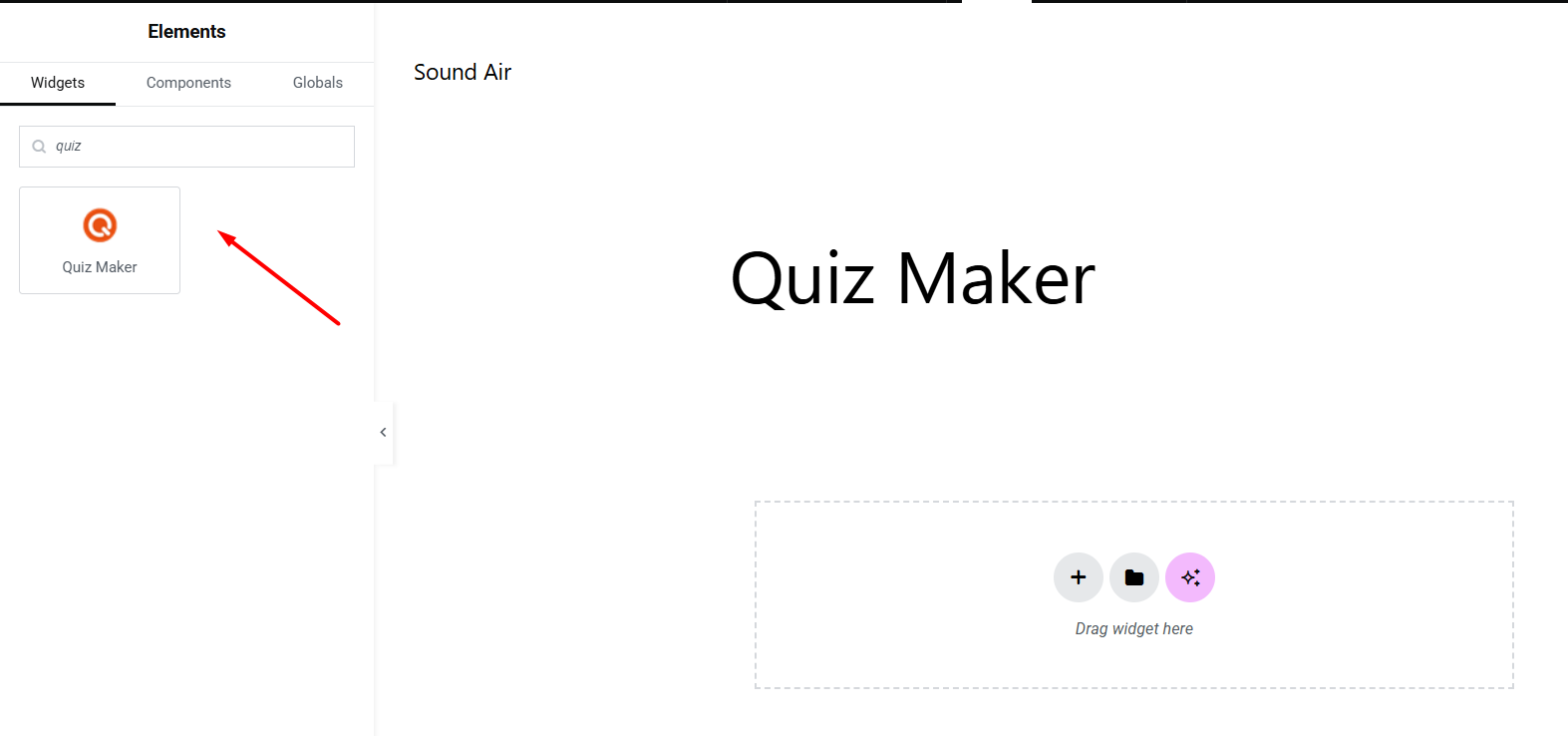
Step 3: Insert the Quiz Maker block #
Inside the Elementor editor:
- Use the left sidebar search box and type Quiz Maker.
- Drag the widget into your page.
For the final step, do not forget to publish the post/page.
Wrapping Up #
Publishing quizzes with Quiz Maker by AYS is quick and beginner-friendly, whether you use the Classic Editor, Gutenberg, or Elementor.
- Use the Classic Editor for simple shortcode-based publishing
- Use Gutenberg for a native WordPress editing experience
- Use Elementor for drag-and-drop page customization
With these methods, you can easily display quizzes anywhere on your WordPress website and create a more interactive experience for your visitors.


